

Updated on February 8, 2026
🔴 Addon Discontinued: Cristal Azul Is Not Working in 2026
The Cristal Azul addon was permanently shut down in September 2024 and is no longer supported. If you still have it installed, you should uninstall it to prevent errors. This guide has been completely rewritten to give you the best Cristal Azul alternatives for Kodi in 2026, fully tested and working on the latest versions like Kodi 21 Omega and the new Kodi 22 Piers.
The Definitive Ranking: Top 3 Alternatives to Cristal Azul in 2026
With Cristal Azul gone, the Kodi community has moved on to bigger and better things. After extensive testing, I’ve found three addons that don’t just fill the void—they blow it out of the water with superior performance, content libraries, and stability. These are the best Kodi addons in 2026 to use as a direct replacement.
1. Seren: The undisputed King of Premium Streaming
Seren is hands-down the most powerful and reliable addon for high-quality movies and TV shows. Its strength lies in its tight integration with premium services like Real-Debrid and Premiumize. This means no more hunting for broken links—just lightning-fast, buffer-free streams, often in full 4K HDR.
Key features of Seren:
- Blazing-fast scraping for high-quality sources.
- Smart play features like ‘Up Next’ for seamless binge-watching.
- Advanced integration with services like Real-Debrid is required, but it delivers a flawless premium experience.
- Constantly updated by its dedicated developer.
For a complete walkthrough, you can check out our full guide on how to install Seren on Kodi. Here’s the quick version:
- Go to Kodi Settings (gear icon) > File Manager > Add source.
- For the path, enter the repository URL:
https://nixgates.github.io/packages - Name it “Nixgates” and click OK.
- Go back to the main menu, select Add-ons, and click the open box icon (Add-on browser).
- Choose “Install from zip file” > Nixgates > and select nixgates.repository.zip.
- Once installed, select “Install from repository” > Nixgates Repository > Video add-ons > Seren > Install.
2. Fen: Lightweight Speed and Power
If you need speed and efficiency, Fen is your go-to. This addon is incredibly fast and lightweight, making it the perfect choice for lower-powered devices like the Amazon Fire TV Stick. It specializes in on-demand content and, like Seren, requires a debrid service to unlock its true potential, delivering top-tier links almost instantly.
Key features of Fen:
- Minimalist and near-instantaneous user interface.
- Specializes in high-speed, high-quality debrid links.
- Low system resource usage, perfect for any streaming device.
- A fantastic choice for users who value speed above all else.
Here’s the summarized installation process:
- Open Kodi and navigate to Settings > File Manager > Add source.
- Enter the URL for the Fen repository:
https://tikipeter.github.io/ - Name it “Tikipeter” and confirm.
- Return to the Add-ons menu > Add-on browser (box icon).
- Select “Install from zip file” > Tikipeter > and click repository.tikipeter-x.x.x.zip.
- Finally, go to “Install from repository” > Tikipeter’s Repository > Video add-ons > Fen > Install.
3. The Crew: The All-in-One Entertainment Hub
The Crew is a legendary all-in-one addon that remains a top contender in 2026. While many addons specialize, The Crew offers a massive, well-organized library of movies and TV shows, plus sections for IPTV, Sports, and more. It’s a fantastic, versatile option that provides a bit of everything.
Key features of The Crew:
- Huge, well-categorized library for movies and TV shows.
- Includes extra sections for Live TV (IPTV) and Sports replays.
- Works well with and without a debrid service, offering flexibility.
- A reliable workhorse for all types of content.
For a detailed walkthrough, view our complete guide to installing The Crew on Kodi. Here are the basic steps:
- As before, go to Settings > File Manager > Add source.
- Enter the repository URL:
https://team-crew.github.io/ - Name it “TheCrew” and click OK.
- From the Add-ons menu, go to the Add-on browser > “Install from zip file”.
- Choose TheCrew and click on repository.thecrew-x.x.x.zip.
- To finish, go to “Install from repository” > The Crew Repo > Video add-ons > The Crew > Install.
Note: While single-source repositories are best for stability, some users prefer addon installers like the now-defunct Luar. For more info on modern installers, see our guide on the best Luar alternatives that simplify installing the entire ecosystem of Kodi 22 Piers addons.
First-Time Setup: Enabling Unknown Sources
Before you can install any of these third-party addons, you have to tell Kodi it’s okay. By default, Kodi blocks installations from outside its official repository for security. This is a mandatory first step for any power user.
I’ve put together an updated guide that shows you exactly how to enable Unknown Sources on Kodi 21 and 22. Follow those steps, then come back here to continue.
Why a VPN is Non-Negotiable for Kodi in 2026
In today’s digital landscape, using Kodi for streaming without a VPN is a serious risk. Internet Service Providers (ISPs) in the US actively monitor user traffic. They can block access to content sources, throttle your connection speed, or even send you copyright infringement notices based on your activity.
A quality VPN like ExpressVPN encrypts your entire internet connection, making your activity invisible to your ISP. It also lets you bypass geo-restrictions to access content from other countries. To learn more about protecting your privacy, check out our guide on the best VPN for Kodi.
The 5 Best Streaming Devices for Kodi in 2026
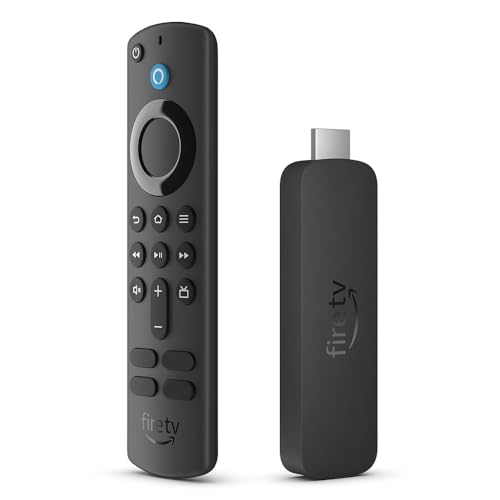
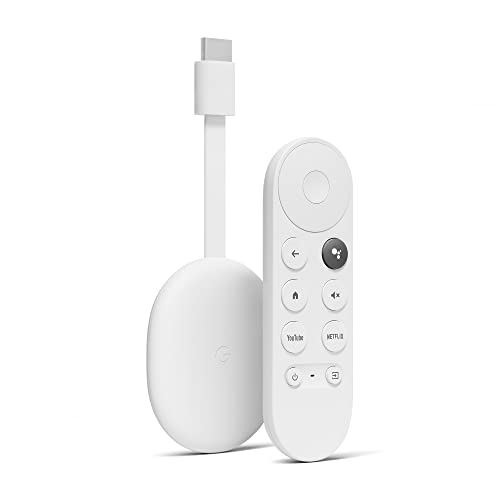
To get the best performance out of these Cristal Azul alternatives, you need solid hardware. These are the devices that I’ve found offer the best Kodi experience right now:




Frequently Asked Questions (FAQ)
Why do I get a “Cristal Azul check the log” error?
The “check the log for more information” error appears because the addon and its repository no longer exist. Kodi is trying to connect to a server that has been shut down. The only solution is to completely uninstall the addon and its associated repository, then install one of the working alternatives mentioned in this guide, like Seren or Fen.
Are these Kodi addons legal?
The Kodi software itself is 100% legal. Third-party addons, however, operate in a legal gray area. While the addons themselves are just lines of code, they can be used to access copyrighted content. It is the end user’s responsibility to comply with all applicable laws in their country. This website does not condone or promote copyright infringement.
Kodi is legal, open-source software developed by the XBMC Foundation. tecnoyfoto.com is not affiliated with Kodi or the developers of any addons, repositories, or scripts mentioned. We do not host, develop, or distribute any copyrighted content. The user is solely responsible for the media they access and for ensuring their activities are legal in their region.