

Last updated: January 25, 2026
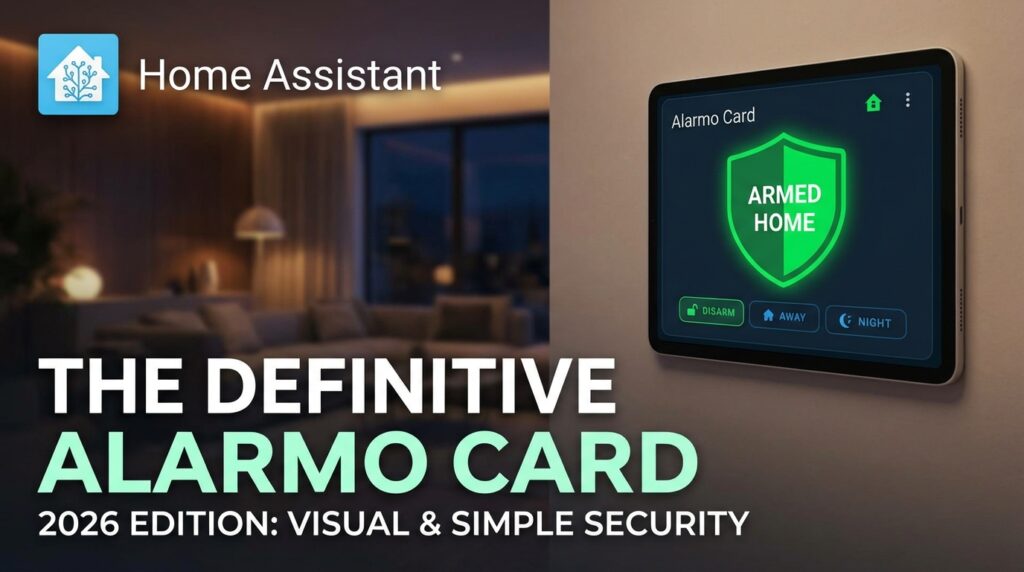
Managing your home security system shouldn’t be a headache. If you’re a Home Assistant user, you already know the power of the Alarmo integration for building a custom alarm. But how do you interact with it quickly and intuitively? In 2026, the definitive answer is still the Alarmo Card—the dashboard card that transforms your security control into a visual, simple, and fully customizable experience.
Forget digging through menus. With this Lovelace card, you get a dedicated Home Assistant alarm control panel right on your main dashboard. It lets you see countdown timers, get clear diagnostic messages (like an incorrect code or a sensor blocking the arming process), and, of course, arm and disarm your system with a single tap or a keypad.
Why the Alarmo Card is a Game-Changer in 2026
Even as Home Assistant has evolved, the need for a clean, functional interface for critical tasks like security remains paramount. The Alarmo Card stands out for several key reasons:
- Intuitive Visual Control: Clearly displays the alarm’s status (armed, disarmed, countdowns) with recognizable icons.
- Integrated Diagnostics: If a door sensor is open and preventing you from arming, the card tells you instantly. No more guesswork.
- Flexible Arming Options: Allows you to bypass delays for instant arming or skip problematic sensors directly from the UI.
- Deep Customization: From button sizes to keypad visibility, you can tailor the card to your exact needs.
- Seamless Integration: As the official companion to the Alarmo integration, it automatically detects your arming modes (home, away, night), delays, and whether a code is required.
Installing the Alarmo Card via HACS
First things first: you absolutely must have the main Alarmo integration and the Home Assistant Community Store (HACS) installed. If you’ve got those prerequisites covered, installing the card is a two-minute job.
- Open HACS: From your Home Assistant side menu, navigate to HACS.
- Go to the Frontend Section: Inside HACS, click on the “Frontend” tab.
[Screenshot: HACS interface showing the Frontend tab] - Search for the Card: Click the blue “Explore & Download Repositories” button and search for “Alarmo Card”.
- Download the Repository: Click on “Alarmo Card” in the search results, then hit the “Download” button in the bottom-right corner. Confirm the download in the next dialog.
- Reload Your Resources: Home Assistant will prompt you to reload your frontend resources. Click accept, and you’re done! The card is now available to use on your dashboards.
Configuring the Alarmo Card on Your Dashboard
Once installed, adding the control panel to your UI is a breeze.
Method 1: Using the UI (Recommended)
- Navigate to the dashboard where you want to add the card and click the three-dot menu in the top-right corner, then select “Edit Dashboard“.
- Click the “+ Add Card” button.
- Scroll through the list and find the “Custom: Alarmo Card” and select it.
- In the “Entity” field, choose your alarm entity, which will typically be something like
alarm_control_panel.alarmo. - The card will generate a live preview automatically. You can tweak other visual options from here.
- Click “Save“.
[Image Gallery: Alarmo Card in disarmed, armed, countdown, and open sensor error states]
Method 2: Using YAML Code
If you prefer to configure your dashboards manually, you can add the card with a simple snippet of YAML. This is the minimum code required:
type: custom:alarmo-card
entity: alarm_control_panel.alarmo
Deep Dive: Alarmo Card Customization Options
This is where the Alarmo Card truly shines. Here’s a breakdown of the most important configuration options to help you set up your Alarmo Card perfectly.
General Options
These options apply to the card as a whole.
| Name | Type | Requirement | Description | Default |
|---|---|---|---|---|
type | string | Required | Must be custom:alarmo-card. | |
entity | string | Required | Your alarm control panel entity (e.g., alarm_control_panel.alarmo). | |
name | string | Optional | Overrides the name displayed in the card header. | (From entity) |
keep_keypad_visible | boolean | Optional | Keeps the keypad always visible, even if the state doesn’t require a code. Great for dedicated tablet panels. | false |
button_scale_actions | number | Optional | Adjusts the size of the action buttons (arm/disarm). A value of 1.5 makes them 50% larger. Range: 1.0 to 2.5. | 1.0 |
button_scale_keypad | number | Optional | Adjusts the size of the keypad buttons. Ideal for improving accessibility. Range: 1.0 to 2.5. | 1.0 |
use_clear_icon | boolean | Optional | Shows a “backspace” icon instead of text on the keypad. | false |
show_messages | boolean | Optional | Displays diagnostic messages (e.g., “Front Door sensor is open”). It’s highly recommended to leave this as true. | true |
states | object | Optional | Allows you to customize the appearance of buttons and text for each alarm state. See the next table. |
State-Specific Configuration
With the states option, you can hide arming modes you don’t use or change the labels to be clearer for your family.
| Name | Type | Applicable States | Description | Default |
|---|---|---|---|---|
hide | boolean | armed_awayarmed_homearmed_nightarmed_vacationarmed_custom_bypass | Hides the arming button corresponding to that state. | false |
button_label | string | disarmedarmed_awayarmed_homearmed_nightarmed_vacationarmed_custom_bypass | Overrides the button text. For example, change “Arm Away” to “Arm Max”. | (HA translation) |
state_label | string | disarmedtriggeredarmingpendingarmed_awayarmed_homearmed_nightarmed_vacationarmed_custom_bypass | Overrides the main text displayed when the alarm is in that state. | (HA translation) |
Advanced Example with Card-Mod
For total visual control, you can leverage the popular Card-Mod integration. It lets you change colors, add animations, and much more. Here’s a practical example to color the icon and name based on the alarm’s state.
type: custom:alarmo-card
entity: alarm_control_panel.alarmo
card_mod:
  style: |
    ha-card .header .name {
      {% if is_state('alarm_control_panel.alarmo', 'disarmed') %}
        color: green;
      {% elif is_state('alarm_control_panel.alarmo', 'armed_away') or is_state('alarm_control_panel.alarmo', 'armed_home') %}
        color: red;
      {% else %}
        color: orange;
      {% endif %}
    }
    ha-card .header ha-icon {
      {% if is_state('alarm_control_panel.alarmo', 'disarmed') %}
        color: green;
      {% elif is_state('alarm_control_panel.alarmo', 'armed_away') or is_state('alarm_control_panel.alarmo', 'armed_home') %}
        color: red;
      {% else %}
        color: orange;
      {% endif %}
    }
Common Troubleshooting & FAQ
- The card shows “Entity not available” or is blank.
- This almost always points to an issue with the main Alarmo integration, not the card. Make sure the Alarmo integration is correctly installed, configured, and not showing any errors in your Home Assistant logs. Also, double-check that the entity ID you entered in the card’s configuration is correct.
- The keypad for the PIN code doesn’t appear.
- The card is smart: it only shows the keypad if you’ve configured a PIN code in the Alarmo integration’s settings. If you haven’t set up a code, the arm/disarm buttons will work instantly on press.
- I made changes to the card’s YAML, but I don’t see them.
- This is a classic Home Assistant caching issue. First, check your YAML for any indentation errors. Second, save the configuration and force a hard refresh in your browser (Ctrl + F5 on Windows or Cmd + Shift + R on Mac). If that doesn’t work, try clearing your browser’s cache completely.
- The alarm won’t arm and the card shows an error message.
- That’s a good thing! It means the
show_messagesoption is working as intended. The card is displaying the diagnostic feedback from the Alarmo integration. It will typically tell you which sensor is preventing the system from arming (e.g., “Back Door Open”). Close the door or use the “Bypass Sensors” option if you have it enabled.
The Bottom Line
In 2026, the combination of the Alarmo integration and the Alarmo Card remains the most robust and user-friendly solution for Home Assistant security. It strikes the perfect balance between day-to-day simplicity and deep customization for power users. If you want total control over your alarm system without sacrificing aesthetics or functionality, installing this card is the logical next step in your smart home’s evolution.