
As an Amazon Associate, I earn from qualifying purchases. En calidad de Afiliado de Amazon, obtengo ingresos por las compras adscritas que cumplen los requisitos aplicables. If you buy through these links, the price is the same for you and Amazon pays me a small commission that helps keep Tecnoyfoto running.

Updated August 26, 2026. This revision was checked against Amazon’s current support documentation and separates actual failures from normal device states and Alexa+ interface changes.
What to know before troubleshooting
- Without internet, questions, streaming music, skills, and most routines stop working.
- A previously paired Echo can act as a Bluetooth speaker for phone audio, although initial setup generally requires prior configuration.
- A mobile hotspot restores connectivity but uses cellular data and does not fix an account or service configuration problem.
Start with the least destructive check. Restarting is safe; a factory reset erases settings and should be the final step.
See the official support documentationAffiliate link as well. Menu labels can differ between original Alexa, Alexa+, and screen-based Echo devices.
For the cloud architecture behind this limitation, read why Alexa stays connected.
Complete guide and step-by-step fixes
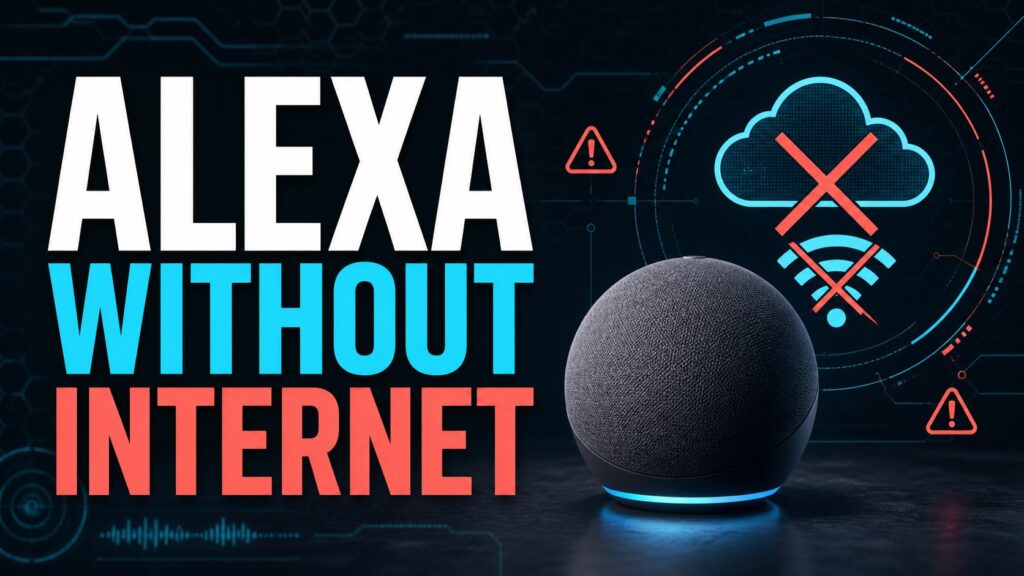
Last updated on January 26, 2026Ever wondered if Alexa needs WiFi to work? It’s one of the most common questions I get, and as an IoT Engineer, I can tell you the answer is nuanced. While Alexa’s true power is unleashed with an internet connection, there are several clever ways to use it without a traditional WiFi network. In this definitive 2026 guide, I’ll break down everything you can do with Alexa without WiFi, how to use it with your phone’s data, and what local control features you have at your disposal.
Understanding Alexa’s “Brain”: Why It’s Cloud-Reliant
To understand the limitations of Alexa without internet, you first need to know how it operates. Your Echo devices (Dot, Show, Pop, etc.) have very limited onboard processing and storage. Think of them as terminals: highly advanced microphones and speakers connected to the massive Amazon Web Services (AWS) cloud.
When you give a command, your voice is recorded, compressed, and sent to Amazon’sAffiliate link servers. There, powerful AI algorithms process the audio, understand your request, and send the response or action back to your device—all in milliseconds. Without an internet connection, this entire cycle breaks, and the device becomes, for the most part, inoperable.
Alexa Features With vs. Without Internet: 2026 Comparison Chart
To make it crystal clear, I’ve put together a table that summarizes what you can and can’t do when your Echo goes offline.
| Features WITH Internet (Online) | Features WITHOUT Internet (Offline) |
|---|---|
| Answering questions (weather, news, general knowledge). | Function as a Bluetooth speaker. |
| Streaming music, podcasts, and radio (Spotify, Amazon Music, etc.). | Previously set alarms and timers will still go off. |
| Controlling most smart home devices (lights, plugs, thermostats). | Local control of compatible Zigbee devices (if the Echo has a built-in hub). |
| Making calls and sending messages (Drop In). | Display the time (on models with a clock/screen). |
| Using third-party Skills. | – |
| Managing shopping lists and reminders. | – |
Option 1: Use Alexa with Mobile Data via a Hotspot
The most versatile solution is to use Alexa with your mobile data. Your Echo device doesn’t care where the internet comes from, as long as it’s delivered via a WiFi network. Therefore, you can use your smartphone as a personal hotspot to get it online.
How to Connect Alexa to a Hotspot: Step-by-Step
The process to connect Alexa to a hotspot is nearly identical to setting it up on a new WiFi network. Just remember, this will use data from your mobile plan.
- Activate the Hotspot on Your Phone: Go to your phone’s settings (Android or iOS) and enable the “Personal Hotspot” or “Tethering” option. Make sure you have the network name and password handy.
- Put Your Echo in Setup Mode: Plug in the device. Press and hold the action button for a few seconds until the light ring turns orange. Alexa will announce that it’s in setup mode.
- Open the Alexa App: On your phone, open the Alexa app and navigate to
Devices > Echo & Alexa. - Select Your Device: Tap on the Echo you want to connect.
- Change the WiFi Network: Under the connection status, tap “Change” next to “Wi-Fi Network”.
- Connect to the Hotspot: The app will scan for available networks. Select your phone’s hotspot network (the one you enabled in step 1), enter the password, and tap “Connect”.
That’s it! Your Echo is now connected to the internet through your phone and will function completely normally.
How Much Mobile Data Does Alexa Use? (2026 Estimates)
Data consumption varies wildly depending on your usage:
- Simple Voice Commands: Asking for the time, weather, or controlling a light uses very little data—just a few kilobytes (KB) per command.
- Music Streaming: This is the biggest data hog. An hour of standard-quality music can consume between 40MB and 80MB. If you’re using high-definition services, that figure can easily double or triple.
- Podcasts and Radio: Similar to standard-quality music, expect around 50MB per hour.
Option 2: Alexa as a Bluetooth Speaker, the 100% Offline Function
The most useful and straightforward function for Alexa without internet is using it as a powerful Bluetooth speaker. In this mode, the Echo device requires no connection at all; it simply receives and plays audio sent from your phone, tablet, or computer.
Steps to Pair Your Echo as a Bluetooth Speaker
- Enable Bluetooth on your phone or the device you’ll be streaming from.
- Say to your Echo: “Alexa, pair Bluetooth.” The device will enter discovery mode.
- On your phone, scan for new Bluetooth devices. Your Echo should appear (e.g., “Echo Dot-XYZ”).
- Select it to complete the pairing. Alexa will confirm the connection with a sound.
Once paired, all audio from your phone (Spotify music, YouTube videos, etc.) will play through your Echo’s speaker, providing much better sound quality than your phone’s built-in speakers.
The Pro Secret: Local Control for Your Smart Home Without Internet
For a few years now, more advanced Echo models (like the Echo 4th Gen, Echo Studio, or some Echo Show devices) have included a built-in smart home hub. This enables them to use local control.
What does that mean? If you have smart home devices that use the Zigbee protocol (like many Philips Hue bulbs or Aqara plugs), you can connect them directly to your Echo’s hub. Thanks to this, even if your home internet goes down, you can still control those devices with basic voice commands like, “Alexa, turn on the living room light.” The command is processed locally on the Echo itself, without needing to reach the cloud.
This is a key feature for keeping essential lights and plugs operational during a network outage. If you’re serious about building a resilient smart home, I recommend reading our ultimate guide to Matter, the standard that’s unifying smart homes in 2026.
Practical Use Cases for Alexa without WiFi
Alexa in the Car
You can use an Echo Dot or an Echo Auto in your car by connecting it to your phone’s hotspot. This gives you hands-free access to music, podcasts, news, and voice control while driving—a much safer and more integrated experience than fumbling with your phone.
Alexa at a Vacation Home or Cabin
If you’re heading to a rental cabin or vacation spot without WiFi, bringing an Echo and connecting it to your phone’s hotspot is a perfect solution for having music and your personal assistant on hand.
Common 2026 Connection Problems & Solutions
- Alexa can’t find my phone’s hotspot: Make sure the hotspot is enabled and set to “discoverable” in your phone’s settings. Sometimes, restarting both the Echo and your phone can fix the issue.
- The connection is unstable and music cuts out: Your mobile signal strength is crucial here. If you only have one or two bars of service, the connection will be weak. Try moving your phone to a location with better reception, like near a window.
- Local control isn’t working: Verify that your Zigbee devices are paired directly with the Echo’s hub and not with another bridge (like the Philips Hue bridge). Local control only works for basic on/off and dimming commands.
- Alexa shows a red ring: This indicates a connection problem. If you’re using a hotspot, check that you haven’t run out of data or lost cell service.
Frequently Asked Questions (FAQ)
Why does Alexa need my WiFi password during setup?
The Alexa app acts as a temporary bridge during the initial setup to securely pass your network credentials (the network name and password) to your Echo device. Without this information, the Echo wouldn’t be able to connect to the internet on its own.
What internet speed does Alexa need?
Amazon recommends a minimum connection speed of 0.5 Mbps (512 Kbps). However, for a smooth experience, especially if you plan to stream music, I personally recommend having at least a stable 2-3 Mbps.
Continue reading
Next related guide · 7 min read
Alexa Won’t Connect to Wi-Fi: Troubleshooting Guide
Updated August 26, 2026. This revision was checked against Amazon’s current support documentation and separates actual failures from normal device states and Alexa+ interface…
Continue with this article