

Last updated on January 31, 2026
Integrating your Verisure (or Securitas Direct) alarm system into Home Assistant unlocks a world of next-level smart home automations. We’re moving way beyond simply arming and disarming from an app; we’re talking about making your house react intelligently based on your alarm’s status. In this definitive 2026 guide, I’ll walk you through the entire process, step-by-step, and show you how to get the most out of this powerful connection.
Before we dive in, let’s clear up the branding confusion: Verisure and Securitas Direct are essentially the same company in many parts of the world. Even if your system is branded as one or the other, the integration we’re about to install works for both, as they share the same backend API infrastructure.
Why Bother? The Real Power of a Connected Alarm
So, you might be asking, “Is this even worth the hassle?” The short answer: absolutely. The magic is in true smart home automation. Once connected, your alarm stops being an isolated gadget and becomes the central security brain for your entire home. You’ll be able to:
- Automated Arming/Disarming: Set up your alarm to arm itself automatically when the last person leaves the house and disarm when the first person arrives, all based on your family’s phone locations.
- Presence Simulation: If the alarm is triggered while you’re away, Home Assistant can instantly turn on every light in the house, open the blinds, and blast music from your smart speakers to deter intruders.
- Rich Notifications: Get a notification on your phone with a snapshot from your security cameras the exact moment someone disarms the alarm.
- Deep Device Integration: Automatically turn off all lights, TVs, and lower the thermostat when you arm the alarm in “Away” mode, or just shut down the downstairs lights when you arm it in “Night” mode.
What You’ll Need Before You Start
Before we get our hands dirty, make sure you have the following ready to go:
- A working and accessible instance of Home Assistant.
- HACS (Home Assistant Community Store) installed. Most custom integrations, including this one, are managed through HACS.
- Your Verisure / Securitas Direct login credentials (username and password).
- Your alarm’s PIN code. For security, I strongly recommend storing this in your
secrets.yamlfile. If you’re not sure how, check out this complete guide to the secrets.yaml file.
Step-by-Step Installation and Configuration Guide (2026)
Unlike older guides that had you messing around with YAML files, the process in 2026 is streamlined and handled entirely through the Home Assistant user interface.
Step 1: Install the Integration from HACS
First things first, we need to add the custom repository to Home Assistant. Here’s how:
- Navigate to HACS in your Home Assistant sidebar.
- Click on Integrations.
- Press the blue “Explore & Download Repositories” button.
- In the search bar, type “Verisure“. The official community integration is typically named “Verisure Alarm”.
- Select it and click “Download”. Follow the on-screen prompts to complete the download.
Step 2: Restart Home Assistant
Once HACS has finished downloading, a restart is crucial for Home Assistant to load the new files. Go to Settings > System and click the “Restart” button in the top-right corner.
Step 3: Add and Configure the Verisure Integration
With Home Assistant back online, it’s time to add the integration:
- Go to Settings > Devices & Services.
- Click the “+ Add Integration” button in the bottom-right corner.
- Search for “Verisure” and select it.
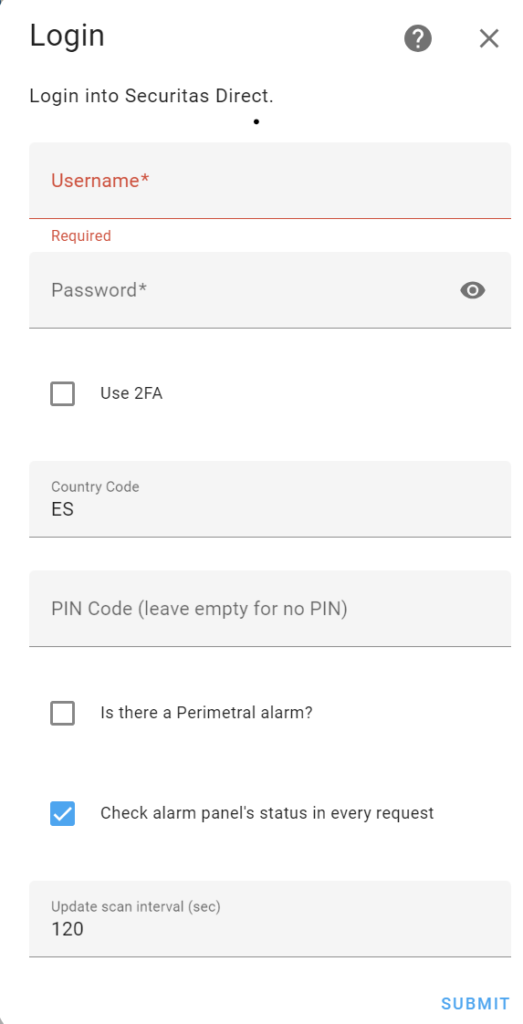
- A configuration dialog box will pop up, asking for your details:
- Username: Your Verisure login email.
- Password: Your password.
- Code: Your 4 to 6-digit PIN to arm/disarm.
- Country: Your country’s two-letter code (e.g., GB for Great Britain, ES for Spain, etc.).
- Installation ID (Optional): In most cases, you can leave this blank. If you have multiple properties, you’d specify which one to control here.
- Click “Submit”. If your credentials are correct, Home Assistant will connect to Verisure’s servers and add your alarm as a new device.
[Screenshot of the Verisure integration configuration dialog in Home Assistant]
And that’s it! You should now have an alarm_control_panel entity in Home Assistant representing your Verisure system.
Unleashing Automations and Voice Control
Now the real fun begins. You can use the alarm’s state as a trigger or condition in your automations and create scripts for easy control—even with your voice.
Scripts for Easy Arming and Disarming
To make voice control with Google Assistant or Alexa a breeze, I recommend creating a couple of simple scripts. Head over to Settings > Automations & Scenes > Scripts and create the following:
Script to Arm Alarm (Night Mode):
alias: Arm Alarm Night
sequence:
  - service: alarm_control_panel.alarm_arm_night
    target:
      entity_id: alarm_control_panel.your_alarm_entity
    data:
      code: !secret verisure_pin_code
mode: single
icon: mdi:shield-moon
Script to Disarm Alarm:
alias: Disarm Alarm
sequence:
  - service: alarm_control_panel.alarm_disarm
    target:
      entity_id: alarm_control_panel.your_alarm_entity
    data:
      code: !secret verisure_pin_code
mode: single
icon: mdi:shield-off
Quick Tip: Replace alarm_control_panel.your_alarm_entity with the actual entity ID for your alarm. Make sure you’ve stored your PIN in secrets.yaml like this: verisure_pin_code: '1234'.
Once these scripts are created, expose them to your voice assistant. Now you can just say, “Hey Google, run Arm Alarm Night,” to secure your home before you go to sleep.
Common Troubleshooting Tips
- Authentication Error: Double- and triple-check that your username, password, and country code are correct. Verisure sometimes updates its API, which can temporarily break the integration. Check the integration’s GitHub repository to see if other users are reporting similar issues.
- Integration not showing up after restart: Try a hard refresh of your browser (Ctrl+F5 or Cmd+Shift+R) to clear the cache. Sometimes the Home Assistant UI gets stuck on the old version.
- Entities Unavailable: This could be a temporary communication issue with Verisure’s servers. Give it a few minutes, and then check the Home Assistant logs (Settings > System > Logs) for any specific error messages from the integration.
With this guide, you have everything you need to bring your Verisure or Securitas Direct security system into the core of your smart home, taking your automations to a whole new level.