

Last updated on March 13, 2026
A slow, unreliable Wi-Fi network is one of modern life’s biggest headaches. If your Google Wifi or Nest Wifi system is causing more frustration than convenience—with constant drops, snail-like speeds, or bizarre errors—a full factory reset might be the ‘nuclear option’ you need. As a tech blogger who’s wrangled countless IoT devices, I’ve seen this drastic step resurrect a network that seemed beyond hope.
But a word of caution: a factory reset isn’t like restarting your laptop. It completely wipes all your settings, forcing you to start from scratch. In this definitive 2026 guide, I’ll walk you through everything you need to know: when it’s truly necessary, how to prep so you don’t lose critical info, and of course, the detailed instructions on how to factory reset Google Wifi, both from the app and using the physical button.
When Should You *Actually* Factory Reset Your Google Wifi?
Not every connection issue calls for such an extreme measure. Before you go all-in on a factory reset, see if your situation falls into one of these categories:
- Persistent Connection Problems: You’ve tried rebooting, checked all the cables, and even called your ISP, but the micro-drops and sluggish performance won’t quit. A reset can purge any corrupt software or configuration glitches causing the issue.
- You’re Selling or Giving Away the Device: This is a must-do for your privacy. A factory reset erases your network name, passwords, connected devices, and any data tied to your Google account.
- Major Network or ISP Overhaul: If you’re making a fundamental change to your home network, like switching to a new fiber provider or putting your ISP’s gateway in bridge mode, starting your Google Wifi from a clean slate ensures a conflict-free setup.
- Critical Configuration Errors: Sometimes, a messed-up advanced setting (like IP reservations or port forwarding) can destabilize the whole network. If you can’t figure out how to undo it, a reset is the fastest way back to a working state.
Pre-Flight Checklist: What to Do Before You Hit the Button
A few minutes of prep now will save you hours of headaches later. Before you start the process, make sure you have this information ready:
- Network Name (SSID) and Password: Jot down your current Wi-Fi name and password. You can reuse them to have your devices reconnect automatically, or choose new ones for a security boost.
- Custom Configurations: Do you have port forwarding rules for a gaming console or a NAS? Any static IP reservations for specific devices? Using a custom DNS server? Take screenshots or write down all of these advanced settings.
- Give the Household a Heads-Up: This process will take the entire house offline for at least 15-30 minutes (including reconfiguration). Let everyone know to avoid the inevitable panic!
Method 1: How to Factory Reset Google Wifi from the Google Home App (Recommended)
This is the easiest and safest method, as it guides you through the process. As long as you can access the app and your main point (the router) is online, I strongly recommend using this option to factory reset Google Wifi.
- Open the Google Home app on your smartphone or tablet.
- On the main screen, tap on the “Wifi” button.
- Tap the settings gear icon in the top-right corner.
- Now, tap on “Factory reset network.” The app will show you a list of all the Wifi points that will be reset.
- [IMAGEN: Captura de pantalla de la app Google Home mostrando la opción “Restablecer la configuración de fábrica de la red”.]
- Confirm the action. The app will warn you that all settings will be erased. Tap to proceed.
- The process will begin. The lights on your Google Wifi devices will pulse and restart. This can take several minutes. Do not unplug them during this time.
- Once finished, the Wifi points will show a slow-pulsing blue light, indicating they are ready for setup again.
Method 2: Using the Physical Factory Reset Button (The Fail-Safe)
This is your plan B. Use it if you can’t access the app, you’ve forgotten your Google account password, or a device is completely unresponsive. The process varies slightly between the original Google Wifi (the cylindrical “puck”) and the newer Nest Wifi (router and points).
For the Original Google Wifi Puck & Nest Wifi Router
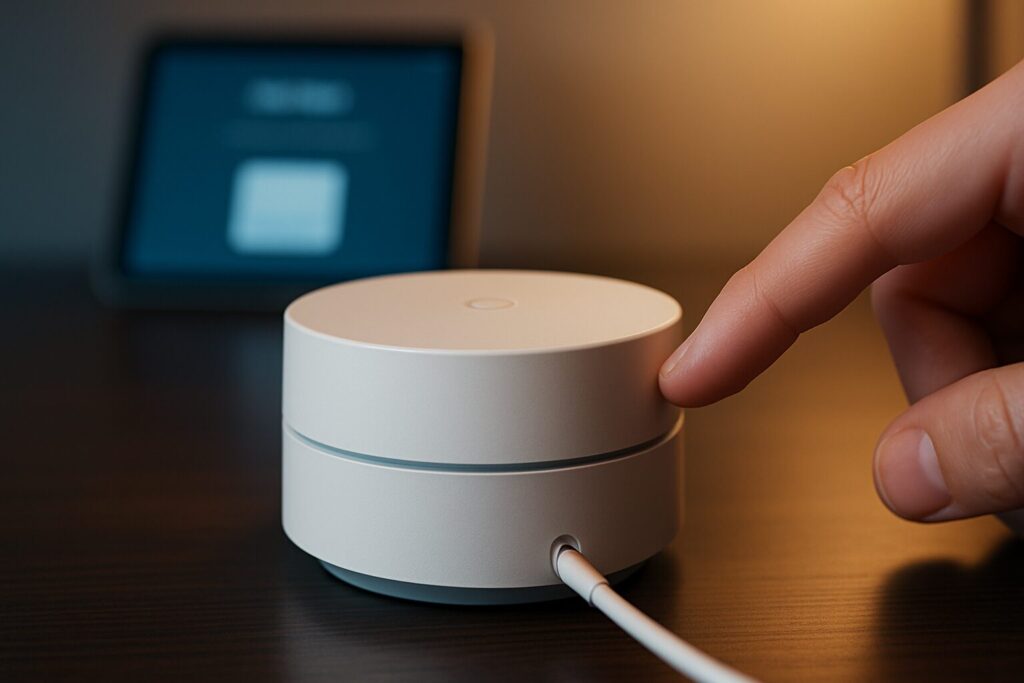
- With the device plugged in, locate the factory reset button. On the original Google Wifi, it’s a small, indented button on the base with an icon of a circle and an arrow. On the Nest Wifi Router, it’s also on the base.
- [IMAGEN: Fotografía detallada de la base de un Google Wifi y un Nest Wifi Router, señalando la ubicación del botón de reseteo físico.]
- Press and hold the button. The device’s light will turn solid yellow. Keep holding.
- After about 10 seconds, the light will start flashing yellow. You can now release the button.
- The device will begin the reset process, which can take up to 10 minutes. Do not unplug it.
- When the light pulses blue, the reset is complete, and it’s ready for initial setup.
For Nest Wifi Points
The Nest Wifi Points (the smaller ones with the built-in speaker) don’t have a visible button. The mechanism is cleverly hidden in plain sight.
- Make sure the Wifi point is plugged in.
- Turn off the microphone using the physical switch on the back. The device’s lights will turn orange.
- Press and hold the center of the top of the device (right where the lights are).
- After 5 seconds, your device will play a voice prompt, warning you that you’re about to reset it. Keep pressing.
- After about 10 seconds, you’ll hear a confirmation chime, and the device will begin resetting. You can release it now.
- Just like the other models, wait for the light to pulse blue to know the process is complete.
Common Reset Problems & How to Fix Them
Sometimes things don’t go according to plan. If you hit a snag during the reset, this table can help you troubleshoot connection issues.
| Problem | Likely Cause | Solution |
|---|---|---|
| The device doesn’t respond when I hold the physical button. | The device isn’t getting power, or the button isn’t being pressed correctly. | Check that the power cord is securely plugged into both the device and the wall outlet. Make sure you’re holding the button down firmly and continuously for at least 15 seconds. |
| The light doesn’t change color or pulse as described. | Could be a temporary glitch or a firmware issue. | Unplug the device from power, wait 60 seconds, and plug it back in. Try the reset process again from the beginning. |
| After the reset, I can’t find the device in the Google Home app to set it up. | Your phone’s Bluetooth is off, or there’s interference. | Make sure Bluetooth is enabled on your phone. Force-quit and reopen the Google Home app, and stand close to the device (within a few feet) for the initial setup. |
You Did It! What’s Next?
Congratulations! Your network is now a blank slate, ready for you to build it back up. The next step is to set up your Google Wifi again, just like it was brand new.
- Follow the App’s Setup Wizard: Open the Google Home app and follow the prompts to set up a new Wifi network. It will ask you to scan a QR code on the bottom of the device and guide you through choosing a network name (SSID) and password. Check out our complete initial setup guide if you need more details.
- Reconnect Your Devices: You’ll need to reconnect everything to the new network: phones, laptops, TVs, smart speakers, etc. Pro Tip: If you used the same SSID and password as before, most of your devices should reconnect automatically.
- Restore Your Advanced Settings: Use the notes and screenshots you took earlier to re-apply any port forwarding rules, IP reservations, or custom DNS settings.
- Optimize Your Network (Optional): Now that you have a fresh start, it’s the perfect time to make improvements. Consider creating a guest network for visitors or isolating insecure IoT devices on their own network for enhanced security.
Frequently Asked Questions (FAQ)
Here are the answers to the most common questions that come up during this process.
Does a factory reset delete everything?
You bet. A factory reset wipes the slate clean. It erases the network name, password, whitelisted devices, guest network settings, DNS configurations, and any other customizations you’ve made. It will be exactly as it was when you first took it out of the box.
How long does the entire process take?
The reset itself takes about 5 to 10 minutes per device. However, you need to factor in the time to reconfigure the network from scratch and reconnect all your gadgets. All in all, set aside 30 to 45 minutes to do it without rushing.
Is the reset process the same for Google Wifi and Nest Wifi?
The method using the Google Home app is identical for both. The physical button method varies slightly, as detailed above, especially for the Nest Wifi Points, which use a touch-sensitive area instead of a physical button.
Will a factory reset improve my internet speed?
It might, but it’s not a magic bullet. If your slowdown was caused by a bad configuration, a software conflict, or corrupt firmware, a reset can absolutely fix it and restore your optimal speed. However, it will not increase the speed you’re paying for from your Internet Service Provider.
Do I need to be connected to my Wi-Fi network to reset it from the app?
Your phone needs an internet connection (cellular data works fine), but it doesn’t strictly need to be connected to the Wi-Fi network you’re about to reset, as long as your Google account in the app is the one that manages that network.