

Last updated on April 22, 2026
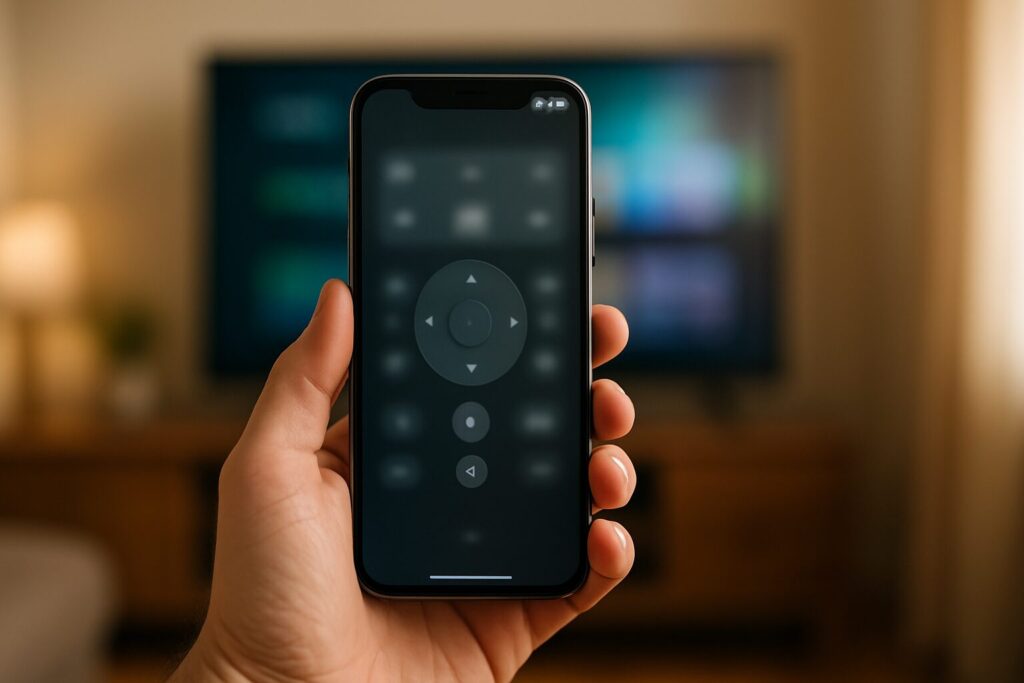
Let’s face it: you’ve either lost your TV remote in the couch cushions or you’re just sick of pecking out passwords one letter at a time with a D-pad. In 2026, using your phone to control your Android TV isn’t just a gimmick—it’s the most practical and efficient way to navigate your smart TV. Your smartphone is the perfect companion for managing any device running Android TV or the newer Google TV. In this definitive guide, I’ll walk you through the best tools and show you exactly how to set them up, step-by-step.
The Official Gold Standard: The Google TV App
For years, the Play Store was a wild west of third-party remote apps. But since Google consolidated its ecosystem, the Google TV app (available for both Android and iOS) has become the undisputed champion. It’s the most reliable and feature-rich solution out there. This app isn’t just a virtual remote; it’s a full-blown content hub that lets you manage your watchlist and browse across all your streaming services.
Based on my hands-on testing, the remote features built into the Google TV Android TV remote app are the most stable and comprehensive on the market:
- Intuitive Touchpad Navigation: Just swipe your finger across your phone’s screen to glide through the TV interface. It’s a much smoother experience than mashing the arrow keys on a physical remote.
- Full Keyboard Access: This is the killer feature. Typing in Wi-Fi passwords, searching on YouTube, or logging into your Netflix account is lightning-fast with your phone’s keyboard. No more on-screen letter-hunting.
- Voice Search on Tap: Access Google Assistant directly through your phone’s microphone. Search for movies, open apps, or ask about the weather with total accuracy.
- Essential Hard Buttons: The app includes virtual buttons for Home, Back, and volume control, perfectly mirroring the core functions of a physical remote.
Step-by-Step Guide: How to Pair Your Phone with Your Android TV
Setting up your Android TV remote on your phone is a painless process that takes less than two minutes. Here are the exact steps to sync your devices using the official Google TV app.
- Install the Google TV App: Download it from the Play Store (for Android) or the App Store (for iPhone).
- Connect to the Same Wi-Fi Network: This is the most critical step. Make sure both your TV and your smartphone are connected to the same home Wi-Fi network. If you’re running into connection issues, it might be worth checking if you need to properly segment your home network to prevent conflicts.
- Open the App and Select Your TV: Launch the app and tap the “Remote” icon (usually in the bottom-right corner). The app will automatically scan your network for compatible devices. Tap your Android TV or Google TV from the list.
- Enter the Pairing Code: A 6-digit code will appear on your TV screen. Type this code into the app on your phone to complete the pairing process. That’s it! You’re ready to go.
2026 App Showdown: The Best Android TV Remote App Options
While the Google TV app is my top recommendation, a few third-party alternatives still exist. Here’s a comparison table to help you decide which is the best fit for your setup.
| App | Key Features | Pros | Cons |
|---|---|---|---|
| Google TV (Official) | Voice, Keyboard, Touchpad, Volume, Home/Back, Deep Google ecosystem integration. | Ad-free, maximum compatibility, rock-solid stability, quick access from Android’s quick settings panel. | Bundled with content discovery features that not everyone will use. |
| Third-Party Apps (e.g., CetusPlay, UniMote) | Basic remote functions, sometimes with extras like screen capture or app launching. | May offer a niche feature not found in the official app. | Often riddled with ads, stability can be questionable, and compatibility isn’t guaranteed across all TV models. |
| Manufacturer Apps (e.g., Sony, TCL) | Remote control and sometimes exclusive hardware-specific features for that brand. | Flawless integration with TVs from that specific manufacturer. | They aren’t universal; they only work with their own devices. |
Phone vs. Physical Remote: The Ultimate Showdown
Using your smartphone as a remote has massive advantages, but the classic plastic clicker still has its place. Here’s my personal breakdown:
Why Your Phone is Better
- The Keyboard: This is the undisputed champion. It makes any task involving text input infinitely easier.
- It’s Always With You: You’re far less likely to lose your phone than the TV remote, which seems to have a magical ability to vanish.
- Superior Voice Search: Your phone’s high-quality microphone makes Google Assistant commands far more accurate.
- No More Batteries: You’ll never have to frantically search for AAAs during a movie marathon again.
Where the Physical Remote Still Wins
- Battery Drain: Constant use of the remote app, with the screen on and Wi-Fi active, will chip away at your phone’s battery.
- The Unlock Hurdle: You have to unlock your phone and open the app (or a shortcut) for every action, which is slower than just pressing a physical button.
- No Tactile Feedback: Physical buttons offer a tactile response that lets you control the TV without looking down, something that’s impossible with a flat touchscreen.
Android TV Remote Not Connecting? Here’s the Fix
Can’t get your phone and TV to pair? These are the most common Android TV connection problems and their straightforward solutions.
- Problem: Your TV isn’t showing up in the app.
- Solution 1: Double-check that both devices are on the exact same Wi-Fi network. This solves the issue 90% of the time.
- Solution 2: Reboot your TV and your Wi-Fi router. A simple power cycle often resolves network discovery glitches.
- Solution 3: Dig into your TV’s network settings and ensure that “Remote Mode” or “IP Control” is enabled (the name and location of this setting vary by brand).
- Problem: The pairing code doesn’t work or won’t appear.
- Solution 1: Cancel the process on your phone and try again to generate a new code.
- Solution 2: Go into your phone’s app settings and clear the cache for the Google TV app.
- Problem: The connection keeps dropping.
- Solution 1: This could be a symptom of a weak Wi-Fi signal near your TV. Consider moving your router closer or investing in a mesh network system to improve coverage.
- Solution 2: Temporarily disable any VPN or custom DNS on your phone to rule them out as the cause. If you’re using a DNS to get around ISP blocks, check out this guide on DNS and VPNs.
- Problem: Voice commands aren’t working.
- Solution: Go into your phone’s settings and make sure you’ve granted microphone permissions to the Google TV app.
If all else fails, the nuclear option is to factory reset your TV, but this should always be your last resort.
Compatibility Check: Which Devices Will This Work With?
The beauty of Google’s ecosystem is its broad compatibility. The Google TV app works with virtually any device running the Android TV OS or its successor, Google TV. This covers a massive range of products released over the last several years:
- Smart TVs: Almost every major brand, including Sony, Philips, TCL, Hisense, and some Xiaomi models, uses Android TV/Google TV.
- Streaming Players: Devices like the Chromecast with Google TV (all 4K and HD versions) and the Xiaomi Mi TV Stick are fully compatible.
- Set-Top Boxes: Media powerhouses like the NVIDIA Shield TV, which many consider the best streaming box on the market, are also perfectly controllable with the app.
A Quick Word on Security and Privacy
When you use Google’s official app, your data is handled according to Google’s privacy policy. The communication between your phone and TV is encrypted over your local network, ensuring a secure connection.
However, if you decide to venture into third-party apps, my expert advice is to be cautious. Before installing anything, always check the “Data safety” section on its Google Play Store page. See what data the app collects, if it shares that data, and why. As a rule of thumb, a simple remote control app should not need access to your contacts or location to function properly.
Continue reading
Next related guide · 6 min read
Lost Your Fire Stick Remote? The 2026 Fire TV App Is Your Ultimate Fix
Updated on May 10, 2026 Lost your Fire TV remote *again*? Did the batteries die right before the season finale? Or are you just…
Continue with this article