

Last updated on April 18, 2026
To truly level up your smart home automation, you need to go beyond simple on/off commands. How many times has the garage door opened this month? How many hours has the pool pump been running? Is it time to clean the robot vacuum’s filter after 50 cycles? To answer these questions and build genuinely intelligent automations, you need a fundamental tool: a Home Assistant counter.
This article, fully updated for 2026, is the definitive guide to creating both event counters and usage timers. We’ll explore the most efficient and current methods, from the dead-simple UI-based Helpers to the powerful history_stats integration.
Why You Need a Home Assistant Counter in 2026
Data is the backbone of a proactive smart home. A counter or timer doesn’t just inform you; it empowers you to act. Here are some practical use cases I’ve implemented in my own home:
- Predictive Maintenance: Get a notification to change the furnace filter after 500 hours of use.
- Cost Management: Track how many hours your A/C or heating is on per day to optimize your energy bill.
- Security & Monitoring: Count how many times the backyard motion sensor trips during the night to spot unusual activity.
- Appliance Efficiency: Know when your washing machine has completed 100 cycles, so you can run a cleaning tablet through it.
- Resource Management: Measure the total runtime of your sprinkler system to fine-tune water consumption.
Method 1: The Easy Way with Helpers
For most simple counting scenarios (i.e., incrementing a number when something happens), the most modern and recommended way in 2026 is to use Home Assistant’s “Helpers.” These are entities you can create and manage directly from the user interface, without touching a single line of YAML.
The Counter helper is perfect for this. Here’s how to create one:
- Navigate to Settings > Devices & Services.
- Select the Helpers tab and click Create Helper.
- Choose Counter from the list.
- Give it a name (e.g., “Washing Machine Cycles”), an icon, and define an initial value and step size (usually 1).
Once created, you’ll have a new entity, like counter.washing_machine_cycles. Now, you can use it in your automations. For instance, to increment the counter every time the washer finishes its cycle (assuming you have a power-monitoring smart plug):
alias: Increment Washing Machine Cycle Counter
trigger:
  - platform: numeric_state
    entity_id: sensor.washing_machine_smart_plug_power
    below: 5
    for:
      minutes: 2
condition:
  - condition: numeric_state
    entity_id: sensor.washing_machine_smart_plug_power
    above: 1000
action:
  - service: counter.increment
    target:
      entity_id: counter.washing_machine_cycles
mode: single
Method 2: Historical Analysis with a `history_stats` Counter
If your goal isn’t just to count events as they happen, but to analyze a sensor’s history to know how many times it was in a specific state or for how long over a defined period (today, this week, this month), the `history_stats` integration is still the most powerful tool for the job. This is one of the core Home Assistant integrations that you configure via YAML.
Setting Up `history_stats` in YAML
To use this integration, you’ll need to edit your configuration files. I personally recommend having a dedicated file for sensors, like sensors.yaml, and including it in your configuration.yaml like this:
sensor: !include sensors.yamlIf you don’t, you can just add the code directly in configuration.yaml under the sensor: key.
Example 1: Event Counter (`type: count`)
Let’s count how many times the master bathroom light has turned on today, this week, and in the last 30 days. We’ll assume the entity is light.master_bathroom_light, controlled by a Zigbee switch.
# Counters for the master bathroom light
- platform: history_stats
  name: "Master Bathroom Light On (Today)"
  entity_id: light.master_bathroom_light
  state: 'on'
  type: count
  start: '{{ now().replace(hour=0, minute=0, second=0) }}'
  end: '{{ now() }}'

- platform: history_stats
  name: "Master Bathroom Light On (This Week)"
  entity_id: light.master_bathroom_light
  state: 'on'
  type: count
  start: '{{ as_timestamp(now().replace(hour=0, minute=0, second=0)) - now().weekday() * 86400 }}'
  end: '{{ now() }}'

- platform: history_stats
  name: "Master Bathroom Light On (30 Days)"
  entity_id: light.master_bathroom_light
  state: 'on'
  type: count
  end: '{{ now() }}'
  duration:
    days: 30
Example 2: Usage Timer (`type: time`)
Now, let’s measure how many hours a dehumidifier has been running. The entity is switch.living_room_dehumidifier, and we want to track its daily, yesterday, and weekly runtime.
# Timers for the Living Room Dehumidifier
- platform: history_stats
  name: "Dehumidifier Runtime (Today)"
  entity_id: switch.living_room_dehumidifier
  state: 'on'
  type: time
  start: '{{ now().replace(hour=0, minute=0, second=0) }}'
  end: '{{ now() }}'

- platform: history_stats
  name: "Dehumidifier Runtime (Yesterday)"
  entity_id: switch.living_room_dehumidifier
  state: 'on'
  type: time
  end: '{{ now().replace(hour=0, minute=0, second=0) }}'
  duration:
    hours: 24

- platform: history_stats
  name: "Dehumidifier Runtime (This Week)"
  entity_id: switch.living_room_dehumidifier
  state: 'on'
  type: time
  start: '{{ as_timestamp(now().replace(hour=0, minute=0, second=0)) - now().weekday() * 86400 }}'
  end: '{{ now() }}'
After saving your changes, don’t forget to go to Settings > System and click Restart Home Assistant for the new entities to appear.
Visualizing Data on Your Dashboard
Once you’ve created your new smart sensors, you’ll want to see them on your dashboard. The simplest way is to use an Entities Card on your Home Assistant Dashboard.
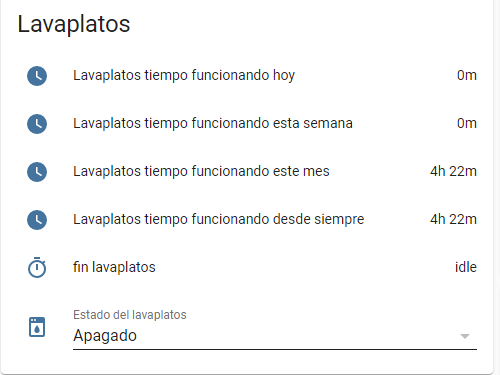
For more advanced visualizations, I recommend exploring the History Graph card to see how values change over time, or even installing custom cards from HACS like the ApexCharts-card to create stunning bar charts and trend graphs.
Building Automations Based on Your Home Assistant Counter
This is where the real magic happens. You can use the state of these counters as triggers or conditions in your automations. For example, here’s a notification to remind you to clean the robot vacuum’s brushes every 25 uses:
alias: Robot Vacuum Maintenance Reminder
trigger:
  - platform: state
    entity_id: counter.robot_cleaning_cycles
    to: '25'
condition: []
action:
  - service: notify.mobile_app_my_phone
    data:
      title: "Robot Vacuum Maintenance"
      message: "The vacuum has completed 25 cycles. Time to clean the brushes!"
  - service: counter.reset
    target:
      entity_id: counter.robot_cleaning_cycles
mode: single
Optimization & Troubleshooting
A common issue with history_stats is that sensors show no data or incorrect values. This is almost always because the information isn’t in the Home Assistant database. The history_stats integration can only analyze data that has been saved.
To fix this, make sure your recorder integration is configured to save the history of the entities you want to monitor for a long enough period (e.g., at least 31 days if you’re using monthly counters).
Conclusion: Which Method Should You Choose?
The Home Assistant configuration process has evolved to offer multiple solutions. Here’s a quick cheat sheet to help you decide which method to use for your Home Assistant counter:
| Use Case | Recommended Method |
|---|---|
| Incrementally counting simple events (e.g., door opens). | Counter Helper (via UI) |
| Measuring total ON time or number of activations over specific periods (day, week, month). | history_stats Integration (via YAML) |
| Highly complex counting logic with variable conditions or interaction with external systems. | Node-RED (via Add-on Store) |
Mastering these tools will open up a new world of possibilities for your home automation, allowing you to move from a reactive system to one that’s truly intelligent and proactive.