
As an Amazon Associate, I earn from qualifying purchases. En calidad de Afiliado de Amazon, obtengo ingresos por las compras adscritas que cumplen los requisitos aplicables. If you buy through these links, the price is the same for you and Amazon pays me a small commission that helps keep Tecnoyfoto running.

Updated on January 21, 2026
Here in 2026, the best Google Home compatible cameras have evolved into the visual command center of our connected homes. It’s no longer just about checking in while you’re away; these devices are now a cornerstone of the entire smart home ecosystem. Thanks to deep integration with Google Assistant, we can now ask our Nest Hub in the kitchen to pull up a live feed of the baby’s room, check who’s at the front door right on our TV, or create powerful routines that turn on the porch lights when motion is detected. With on-device AI, stunning 4K resolution, and the smart home standard Matter finally hitting its stride, making the right choice is more crucial than ever.
In this definitive guide, I’ve personally tested and reviewed the top Google Home security cameras of 2026 to help you pick the perfect model for your specific needs and budget—from discrete indoor cams with motion tracking to rugged, solar-powered outdoor sentinels.
Top Google Home Compatible Cameras in 2026: At a Glance
| Model | Resolution | AI Detection | Matter Support | Storage | Best For |
|---|---|---|---|---|---|
| eufy Security 2KAffiliate link | 2K | Person, Pet (On-Device) | No (Via Bridge) | Local (SD), Cloud | Subscription-free indoor privacy |
| TP-Link Tapo C210 | 3MP (Above 1080p) | Basic Motion | No | Local (SD), Cloud | Budget-friendly 360° surveillance |
| Arlo Pro 3 | 2K with HDR | Person, Vehicle, Package (Sub required) | Yes (Via SmartHub) | Cloud, Local (USB on Hub) | Wire-free outdoor security (battery) |
| TP-Link Tapo C310 | 3MP | Motion, Line-Crossing | No | Local (SD), Cloud, RTSP | Wired outdoor use, versatile connectivity |
| ieGeek Solar Powered Cam | 2K | Person Detection (PIR) | No | Local (SD), Cloud | Set-and-forget solar outdoor cam |
Buyer’s Guide: Key Factors for 2026
Picking a camera isn’t just about the price tag anymore. In 2026, these are the features that separate a smart investment from a future headache:
- Resolution (2K vs. 4K): Let’s be clear: 1080p Full HD is the absolute baseline today. My recommendation is to always shoot for 2K (1440p) or higher. The difference in clarity is night and day, letting you digitally zoom in to identify faces or license plates. 4K is your go-to for covering large areas like backyards or driveways.
- Artificial Intelligence (AI) and Detection: Basic cameras only detect motion, which means you’ll get annoying false alarms from shadows or swaying trees. Advanced models use AI to differentiate between people, vehicles, packages, and pets. Look for cameras with “on-device” AI, which processes video locally for faster, more private alerts.
- Storage (Local vs. Cloud):
- Local (microSD Card): This is a one-time purchase with no monthly fees. It’s the best option for privacy. The only downside? If a thief steals the camera, they take your footage with it.
- Cloud: Requires a monthly or annual subscription. Your video clips are safely stored off-site, even if the camera is damaged or stolen. Cloud plans often unlock extra perks like pre-roll recording or custom activity zones.
- RTSP/ONVIF: For the power users out there, protocols like RTSP let you connect your camera to a local Network Video Recorder (NVR) or NAS, giving you total control over your recordings.
- Matter Compatibility: While still gaining ground, Matter is the future-proof standard for smart homes. A Matter-compatible camera ensures a dead-simple setup process and seamless interoperability with your Google Home ecosystem and devices from other brands.
- Power Source (Battery vs. Wired): Battery-powered cams offer incredible installation flexibility but need periodic recharging (or a solar panel). Wired cameras provide constant power and often enable 24/7 continuous video recording (CVR), a feature most battery cams lack to conserve power.
The Best Indoor Cameras for Google Assistant
eufy Security 2K: Privacy and Clarity, No Fees Required
Eufy has built its brand on one key principle: privacy. This camera processes AI detections directly on the device, meaning footage of your kids or pets doesn’t get sent to the cloud unless you explicitly choose to. Its 2K resolution delivers a super sharp picture, and the two-way audio is loud and clear.

- Pros:
- Excellent 2K image quality.
- On-device AI for enhanced privacy.
- No mandatory subscription fees.
- Local storage via microSD card.
- Cons:
- It’s a fixed-position model (no 360° movement).
- Google Home integration is limited to streaming video; advanced notifications are handled in the Eufy app.
TP-Link TAPO C210: 360° Coverage on a Budget
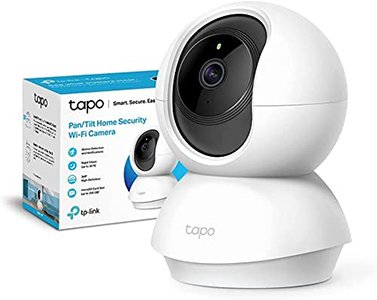
If you need to cover an entire room with a single camera, a Pan & Tilt model like the TAPO C210Affiliate link is a fantastic choice. You can control the lens directly from the app to eliminate blind spots. Its 3MP resolution provides a nice clarity bump over standard 1080p, and the night vision is surprisingly solid for its price point.
- Pros:
- Complete room coverage with 360° pan and tilt.
- Extremely competitive price.
- Good image quality and night vision.
- Privacy mode physically hides the lens.
- Cons:
- Motion detection is basic (doesn’t differentiate people from other movements).
- More advanced features are locked behind a Tapo Care subscription.
The Best Outdoor Google Home Compatible Camera
TP-Link TAPO C310: Rugged and Connected for the Outdoors
The TAPO C310 is my top recommendation for anyone needing a robust and reliable outdoor Google Home compatible camera. Its IP66 weather-resistance rating means it can handle rain and dust without skipping a beat. One of its standout features is connectivity: you can use Wi-Fi or plug it in directly with an Ethernet cableAffiliate link for a rock-solid, failsafe connection. It also supports the RTSP protocol for integration into more complex NVR systems.

- Pros:
- Wi-Fi or Ethernet connection for maximum stability.
- Crisp 3MP image quality.
- Built-in siren and spotlight deterrents.
- RTSP support for recording to a NAS.
- Cons:
- Requires a nearby power outlet.
- Advanced AI detection is a paid feature.
The Best Wire-Free (Battery-Powered) Cameras
Arlo Pro 3: Premium Quality, No Strings Attached
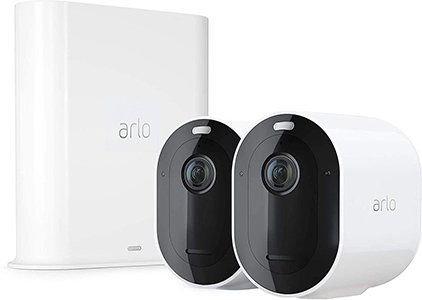
Arlo is synonymous with high-quality, battery-powered cameras. The Pro 3 delivers a stunning 2K video feed with HDR, which dramatically improves image clarity in high-contrast lighting (like sunny spots and deep shadows). Its 160-degree field of view is one of the widest on the market. It also packs a motion-activated spotlight, providing color night vision and acting as a powerful deterrent.
- Pros:
- 100% wire-free installation.
- Exceptional 2K video quality with HDR.
- Integrated spotlight and siren.
- Robust ecosystem and compatibility (requires SmartHub).
- Cons:
- Higher price point than other options.
- Best AI features require a paid Arlo Secure subscription.
IeGeek Solar Powered Cam: Set-It-and-Forget-It Surveillance
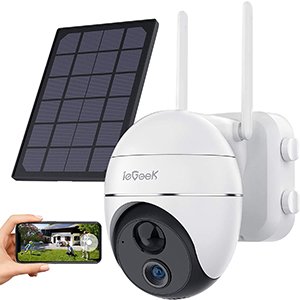
This is the ultimate solution for hard-to-reach places or for anyone who doesn’t want to deal with recharging batteries. The camera comes with a dedicated solar panel that, with just a few hours of sunlight per day, keeps the massive 15,000mAh battery topped off. It offers 355° of rotation and a 2K image quality that’s more than enough for outdoor monitoring.
- Pros:
- Virtually endless battery life thanks to the solar panel.
- 360° movement to cover large areas.
- Completely wireless installation (no power or network cables).
- Excellent feature-to-price ratio.
- Cons:
- Solar panel requires a location with direct sunlight.
- The app and AI features are more basic than premium brands.
How to Connect Your Camera to Google Home: Quick Guide
Integrating your new camera with the Google ecosystem is a straightforward process that takes less than five minutes. Here are the general steps to add a camera to Google Home:
- Initial Setup: First, install and set up your camera using the manufacturer’s official app (Eufy, Tapo, Arlo, etc.). Make sure the camera is on your Wi-Fi network and that you can see its live feed in their app.
- Open the Google Home App: On your smartphone, launch the Google Home app.
- Add a New Device: Tap the “Devices” tab, then hit the “+ Add” button.
- Select “Works with Google”: On the next screen, choose “Set up device” and then “Works with Google.” This is the section for compatible third-party services.
- Search for Your Camera’s Brand: Use the search icon to find the name of your camera’s manufacturer (e.g., “TP-Link Tapo”).
- Link Your Accounts: Select the service, and you’ll be prompted to sign in with the username and password you created in Step 1. This authorizes Google to control your camera.
- Assign to a Room: Once linked, Google Home will discover your camera. All that’s left is to assign it to a room (e.g., “Living Room,” “Front Porch”) so you can use voice commands like, “Hey Google, show me the living room.”
Frequently Asked Questions (FAQ)
- Can I view my camera feed on a Chromecast TV or a Google Nest Hub?
- Absolutely! That’s one of the biggest perks. Just say, “Hey Google, show [camera name] on [TV or screen name].” It’s the best way to use a camera compatible with a Google Nest Hub.
- Do I need to pay a monthly subscription to use these cameras?
- Not always. Models from Eufy or TP-Link work perfectly without fees by using a microSD card for storage. However, brands like Arlo and Google Nest tie many of their advanced AI and cloud storage features to subscription plans.
- Do these cameras record 24/7?
- It depends on the model and its power source. Wired cameras often offer a 24/7 continuous video recording (CVR) option. In contrast, battery-powered cameras typically only record when they detect an event in order to conserve energy.
- How secure is the connection for these cameras?
- Very. All reputable brands use encryption (like WPA2/WPA3) to protect the video stream. For an extra layer of security, I always recommend enabling two-factor authentication (2FA) on your manufacturer account.
Continue reading
Next related guide · 4 min read
Home Assistant Compatible Appliances: How to Choose Wisely
Buying an appliance today that doesn't have "WiFi" is almost impossible. However, most of these devices are technological islands: they have their own App,…
Continue with this article