

Last updated on January 25, 2026
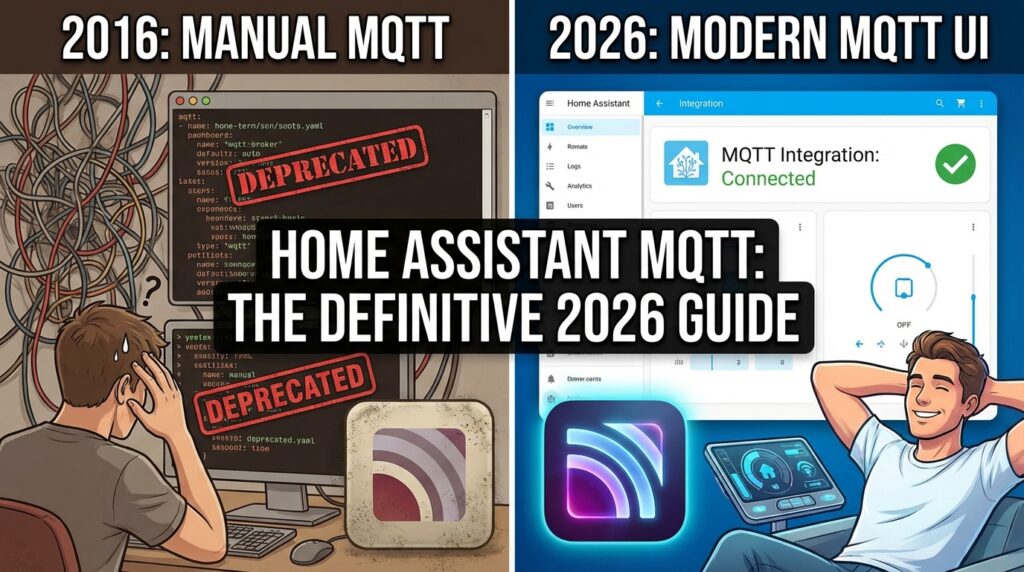
In 2026, MQTT is still the undisputed backbone for robust IoT communication in any serious smart home. But how you set it up in Home Assistant has changed—a lot. Gone are the days of manually tinkering with YAML files. Now, it’s all about a streamlined, intuitive UI-based process. This definitive guide will walk you through a modern, stable, and future-proof Home Assistant MQTT setup.
What is MQTT and Why Is It Crucial for Home Assistant?
Think of MQTT (Message Queuing Telemetry Transport) as an incredibly efficient central post office for your smart devices. Instead of every device talking directly to Home Assistant, they all send their messages (states, telemetry) to a central hub called an MQTT Broker. Home Assistant then subscribes to the ‘mailboxes’ it cares about and gets the info instantly. It’s a lightweight, fast, and reliable protocol, making it perfect for low-power devices like sensors or switches running on ESPHome.
Step 1: Install the Mosquitto Broker (The Right Way)
Forget about complicated Docker setups or running it on a separate machine. The easiest and most stable way to run a broker in 2026 is by using the official Home Assistant Add-on.
- Navigate to Settings > Add-ons > Add-on Store.
- Search for “Mosquitto broker” and click on it.
- Hit “Install” and wait for the process to finish.
- Once it’s installed, head over to the add-on’s “Configuration” tab. This is where you’ll create a secure user for Home Assistant and your devices to connect. In the
loginssection, add a new username and password. It should look like this:logins: - username: your_mqtt_user password: your_secure_password - Save the configuration.
- Go back to the “Info” tab and toggle on “Start on boot” and “Watchdog”. Finally, click “Start”.
And that’s it! You now have your own MQTT post office running directly inside Home Assistant.
Step 2: Set Up the Home Assistant MQTT Integration (via UI)
With the broker up and running, it’s time to tell Home Assistant how to connect to it.
- Go to Settings > Devices & Services.
- If Home Assistant hasn’t automatically discovered the new broker, click the “+ Add Integration” button.
- Search for “MQTT” and select it.
- Home Assistant will try to connect to the broker we just installed. It should detect the configuration automatically. If it prompts for credentials, enter the username and password you created in the previous step.
- On the next screen, make sure you check the box for “Enable device discovery”. This is CRUCIAL.
- Click “Submit,” and the Home Assistant MQTT integration is complete.
(A screenshot showing the MQTT integration card in the Home Assistant 2026 Devices & Services page would go here)
The Magic of MQTT Discovery: Zero-Effort Integration
The most important step we just took was enabling MQTT Discovery. This feature allows compatible devices to announce themselves to the broker, and Home Assistant will automatically add them with all their entities—no need to write a single line of YAML.
Frameworks like Tasmota and ESPHome use this method natively. You simply configure your device with your Home Assistant’s IP address and MQTT credentials, and it will magically appear in the Home Assistant UI.
Real-World Example with Tasmota: In your Tasmota device’s MQTT settings, you just need to fill in the Host (your Home Assistant’s IP), User, and Password. Once you save, Tasmota sends the necessary configuration messages, and Home Assistant creates a new device complete with all its sensors and switches.
Advanced Configuration with `configuration.yaml` (For Power Users)
While MQTT Discovery covers 95% of use cases, you might have a legacy device or a custom project that requires manual setup. For those edge cases, we can still fall back on the configuration.yaml file, but the syntax has evolved from what you’ll see in older tutorials.
All manual MQTT entity configurations now must be nested under the mqtt: domain. You no longer define the platform within each entity type (light, sensor, etc.).
Heads Up! This code is a consolidated example using the latest 2026 syntax. You must adapt the topics and payloads to match your own devices.
# configuration.yaml

mqtt:
  # The broker configuration NO LONGER goes here. It's managed via the UI.
  # --- MQTT LIGHTS ---
  light:
    - name: "Sofa Light"
      unique_id: "sofa_light_mqtt_01" # Adding a unique_id is best practice
      state_topic: "shellies/sofa/relay/0"
      command_topic: "shellies/sofa/relay/0/command"
      availability:
        - topic: "shellies/sofa/online"
          payload_available: "true"
          payload_not_available: "false"
      payload_on: "on"
      payload_off: "off"
      optimistic: false
      qos: 1
      retain: false

  # --- MQTT SENSORS ---
  sensor:
    # Washing machine power sensor (Tasmota device)
    - name: "Washing Machine Power"
      unique_id: "washing_machine_power_mqtt_01"
      state_topic: "tele/SonoffWashing_machine/SENSOR"
      value_template: "{{ value_json.ENERGY.Power }}"
      unit_of_measurement: "W"
      device_class: "power"
      state_class: "measurement"

    # CPU usage sensor from IOTLink
    - name: "Albert's PC - CPU Usage"
      unique_id: "alberts_pc_cpu_mqtt_01"
      state_topic: "iotlink/workgroup/albert2018/windows-monitor/stats/cpu/usage"
      unit_of_measurement: '%'
      icon: mdi:speedometer
      availability:
        - topic: "iotlink/workgroup/albert2018/lwt"
          payload_available: "ON"
          payload_not_available: "OFF"
      qos: 1

  # --- MQTT BINARY SENSORS ---
  binary_sensor:
    - name: "Albert's PC - Online"
      unique_id: "alberts_pc_online_mqtt_01"
      state_topic: "iotlink/workgroup/alberT2018/lwt"
      payload_on: "ON"
      payload_off: "OFF"
      device_class: "connectivity"
      qos: 1
Troubleshooting Common Issues
Even with the simplified setup, things can still go wrong. Here are the most common problems and their fixes:
- The integration won’t connect to the broker: Check the logs for the Mosquitto add-on (under Settings > Add-ons > Mosquitto broker > Log). The most common culprits are incorrect credentials (username/password) in either the add-on configuration or the integration setup.
- My devices aren’t showing up (with Discovery enabled):
- Double-check that the broker IP, port (usually 1883), username, and password are configured identically on your device (Tasmota, ESPHome) and in Home Assistant. A simple typo is the number one cause.
- Confirm that your device and Home Assistant are on the same network and that no firewalls are blocking communication. If you’re using complex VLANs, a network segmentation issue could be the problem.
- An entity isn’t updating or responding: This is when you break out a powerful tool like MQTT Explorer. Connect it to your broker (using your Home Assistant IP and MQTT credentials), and you can see every single message being published in real-time. This will instantly tell you if your device is sending data to the correct topic or if it’s receiving the commands Home Assistant is sending.
With this guide, you have everything you need to master your Home Assistant MQTT setup in 2026. The modern focus on UI configuration and auto-discovery has made this powerful protocol more accessible than ever, solidifying its place as the true backbone of any serious, scalable smart home.
Continue reading
Next related guide · 7 min read
Install Mosquitto Broker MQTT in Home Assistant (2026)
Installing Mosquitto Broker is what allows Home Assistant, Zigbee2MQTT, Tasmota, and many IoT devices to exchange MQTT messages. This guide shows you the recommended…
Continue with this article