
As an Amazon Associate, I earn from qualifying purchases. En calidad de Afiliado de Amazon, obtengo ingresos por las compras adscritas que cumplen los requisitos aplicables. If you buy through these links, the price is the same for you and Amazon pays me a small commission that helps keep Tecnoyfoto running.

Updated on January 30, 2026
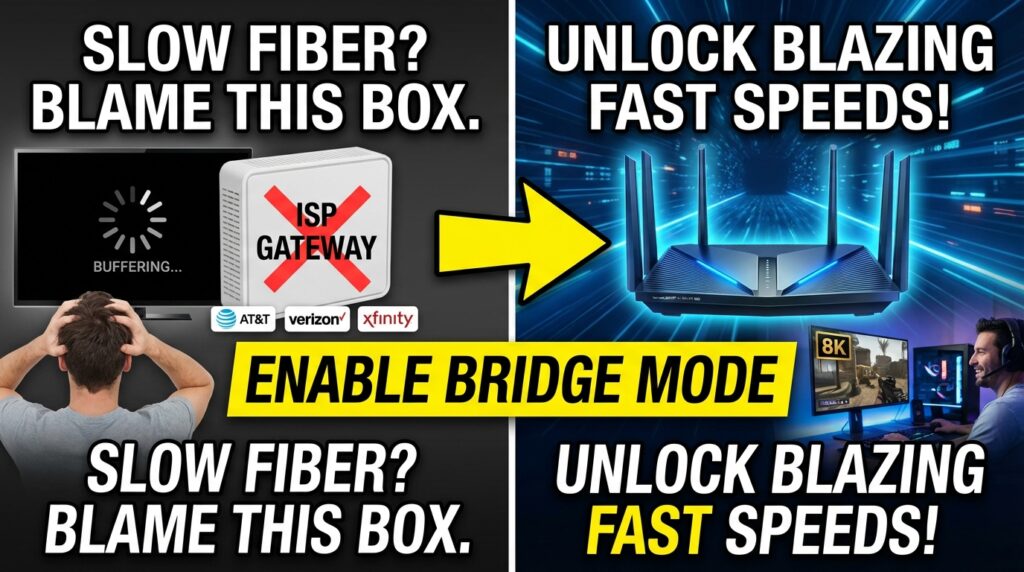
Is your blazing-fast fiber internet from AT&T, Verizon, or Xfinity not living up to its 2026 promises? Before you blame the connection, look at your ISP-provided gateway. After years in my home lab testing 8K streaming, low-latency gaming, and a network packed with IoT devices, I’ve reached a clear conclusion: enabling ISP Router Bridge Mode is the single most significant upgrade you can make. By turning your ISP’s all-in-one box into a simple modem, you hand over network control to a high-performance router of your choice. This obliterates bottlenecks, solves the dreaded Double NAT problem, and gives you granular control that stock hardware simply can’t offer.
In this definitive guide, I’ll show you not only how to put your ISP’s gateway into bridge mode but also the critical step most people miss: configuring VLANs to keep essential services like IPTV and VoIP phone lines alive. Get ready to unlock every megabit of your connection.
Why Bridge Mode is a Game-Changer in 2026
The gateway your Internet Service Provider (ISP) gives you is an “all-in-one” device designed for the average user. It integrates a modem (ONT for fiber), router, switch, and WiFi access point. For a power user, however, this convenience is a cage. ISP Router Bridge Mode disables the device’s routing functions (NAT, DHCP, Firewall, WiFi), letting it act solely as a media converter (e.g., fiber to Ethernet). The “brain” of your network becomes a dedicated router that you choose and control.
The Real-World Benefits of Using Bridge Mode
- Eliminate Double NAT: The infamous Double NAT issue happens when both your ISP gateway and your personal router are performing Network Address Translation. This wreaks havoc on online gaming (Strict NAT), P2P services, accessing home servers (NAS, Plex), and certain streaming apps. Bridge mode fixes this permanently.
- Superior WiFi Performance: High-end third-party routers in 2026 feature WiFi 6E and WiFi 7, offering more channels, less interference, and vastly superior speeds compared to ISP hardware, especially in homes crowded with connected devices.
- Pro-Level Security: You gain access to advanced firewalls, intrusion prevention systems (IPS/IDS), full VPN support (client and server), and options to segment your home network. This is crucial for isolating and protecting vulnerable IoT devices from potential threats.
- Total Control and Customization: From advanced QoS to prioritize gaming or streaming traffic, to more robust parental controls, custom DNS servers for enhanced privacy and speed, and dedicated guest networks. You’re in command.
Gateway Mode vs. Bridge Mode: A Head-to-Head Comparison
| Feature | Standard ISP Gateway Mode | Bridge Mode + Your Own Router |
|---|---|---|
| Network Management | Limited by ISP firmware | Complete and advanced (QoS, VLANs, Firewall) |
| WiFi Performance | Decent, but limited to older standards (WiFi 5/6) | Excellent, with access to WiFi 6E/7 and high-performance Mesh systems |
| NAT Issues | High risk of Double NAT if you add another router | Clean, single NAT. Perfect for gaming and servers. |
| Security | Basic, controlled by the ISP | Advanced, with customizable firewalls, IPS/IDS, and VPN support |
| Ease of Use | Plug-and-play simple | Requires some initial technical setup |
| ISP Services | IPTV & VoIP work by default | May require VLAN configuration to maintain IPTV & VoIP |
Step-by-Step Guide: How to Enable Bridge Mode on Your ISP Gateway
Before you start, check with your ISP if you need special credentials to connect. Fiber and DSL providers (like AT&T or CenturyLink) often require PPPoE credentials (a username and password). Cable providers (like Xfinity or Spectrum) typically use DHCP, which is automatic. Have this info ready for your new router.
Step 1: Access Your ISP Gateway’s Admin Panel
- Connect your computer directly to the ISP gateway using an Ethernet cableAffiliate link.
- Open a web browser and navigate to the gateway address, usually
http://192.168.1.1orhttp://192.168.0.1. - The login password is typically on a sticker on the device itself.
Step 2: Find and Enable Bridge Mode (or IP Passthrough)
This is where things differ by ISP and model, but the goal is the same. You’re looking for a setting that disables the gateway’s routing functions.
- Once logged in, look for an Advanced Configuration, WAN Setup, or Firewall menu.
- Search for an option named “Bridge Mode”, “Bridging”, or “Modem Only”.
- For some ISPs like AT&T, this feature is called “IP Passthrough”. You’ll need to select your personal router’s MAC address from a list to designate it as the device that receives the public IP address.
- For other devices, you may need to find and disable a setting called “Residential Gateway Function” or similar.
- When you enable this mode, the gateway will warn you that its WiFi and routing features will be turned off. This is exactly what you want.
- Accept and save the changes. The device will restart.
The Pro Move: Configuring VLANs for Fiber TV and Phone Service
This is the step that 90% of guides gloss over and where most people get stuck. If you have a fiber ISP that bundles TV (IPTV) and phone (VoIP) service, simply enabling bridge mode will likely break them. To keep them working, your personal router MUST support VLAN tagging (IEEE 802.1Q) on its WAN port.
Many fiber ISPs use different VLANs (Virtual LANs) to segregate their services. For example, AT&T U-verse uses specific VLAN IDs for internet and TV. You’ll need to replicate this setup on your own router.
To find the correct settings for your provider, search online for phrases like “AT&T Fiber VLAN settings” or “CenturyLink bridge mode VLAN ID”. The best information is often found in tech communities like Reddit (e.g., r/ATT, r/verizon), DSLReports, or your ISP’s official support forums.
The configuration is usually done in your router’s “Internet”, “WAN”, or “IPTV” settings page. You’ll need to enable the VLAN/IPTV option and input the specific VLAN IDs and priorities you found for each service (Internet, TV, VoIP).
Final Physical Connection
- Connect an Ethernet cableAffiliate link from a LAN port on your ISP gateway (now in bridge mode) to the WAN (or Internet) port of your new personal router.
- Connect all your devices—computers, consoles, smart TVs—to the LAN ports of your new router or its powerful new WiFi network.
- Connect your IPTV set-top box to a LAN port on your new router.
- If you still use a landline, the telephone cable typically must remain connected to the “Phone” or “Tel” port on the original ISP gateway, as it often still handles the VoIP service directly.
Recommended Router Features for 2026
To take full advantage of bridge mode and your high-speed internet, look for a router with these features:
- Full 802.1Q VLAN Support: Absolutely non-negotiable for many fiber users. Confirm the model supports VLAN tagging on the WAN port.
- Multi-Gigabit Ports (2.5GbE or higher): With symmetric gigabit-plus fiber plans now common, a 2.5GbE WAN port is essential to avoid bottlenecking your connection.
- WiFi 6E or WiFi 7: For a future-proof wireless network, get access to the clean, congestion-free 6 GHz band.
- Powerful CPU and Ample RAM: Crucial for handling dozens of devices, VPN traffic, and security features without a performance hit.
- Robust Firmware: Brands like ASUS (Asuswrt), TP-Link (Omada), and Ubiquiti (UniFi), or open-source options like OpenWrt/DD-WRT, provide the flexibility you need.
Frequently Asked Questions (FAQ) – 2026
- Does enabling bridge mode void my warranty or ISP support?
- It doesn’t void the hardware warranty, but ISP tech support will be limited. They will only verify that a signal is reaching their gateway. They will not help you configure your personal router.
- I have no internet after setting everything up. What’s wrong?
- Triple-check three things: 1) Did you enter the correct PPPoE credentials (if required) into your new router? 2) Are the VLAN tags for your internet service configured correctly? 3) Is the Ethernet cableAffiliate link running from the ISP gateway’s LAN port to your new router’s WAN port?
- My IPTV service is pixelated or keeps cutting out.
- This is often a problem with your VLAN 2 settings or a feature called “IGMP Snooping” on your new router. Ensure this option is enabled, as it’s critical for properly managing the multicast traffic used by IPTV.
- Can I undo this and go back to normal?
- Yes. The easiest way is to perform a factory reset on your ISP’s gateway. This will erase the bridge mode configuration and restore its default all-in-one functionality.
Conclusion: Unleash Your Internet’s True Potential
Enabling ISP Router Bridge Mode is more than just a technical tweak; it’s a declaration of independence for your home network. My professional and personal experience confirms that the massive gains in stability, speed, and security are well worth the initial setup effort. The difference in performance when you’re 8K streaming, online gaming, and have 30+ IoT devices all humming along is night and day.
If you’re ready to ditch the limitations of stock ISP hardware and build a robust, future-ready network, this guide is your roadmap. Have you made the jump to bridge mode? Share your experience, your router model, or any questions in the comments below. Let’s build the ultimate knowledge base together!
Continue reading

Next related guide · 11 min read
How to Replace Your ISP’s Fiber Gateway (ONT) in 2026: A Pro’s Guide to XGS-PON
Last Updated: May 10, 2026 If you're ready to bypass your ISP's fiber gateway and unleash the full potential of your fiber optic connection,…
Continue with this article