
As an Amazon Associate, I earn from qualifying purchases. En calidad de Afiliado de Amazon, obtengo ingresos por las compras adscritas que cumplen los requisitos aplicables. If you buy through these links, the price is the same for you and Amazon pays me a small commission that helps keep Tecnoyfoto running.

Updated on February 19, 2026
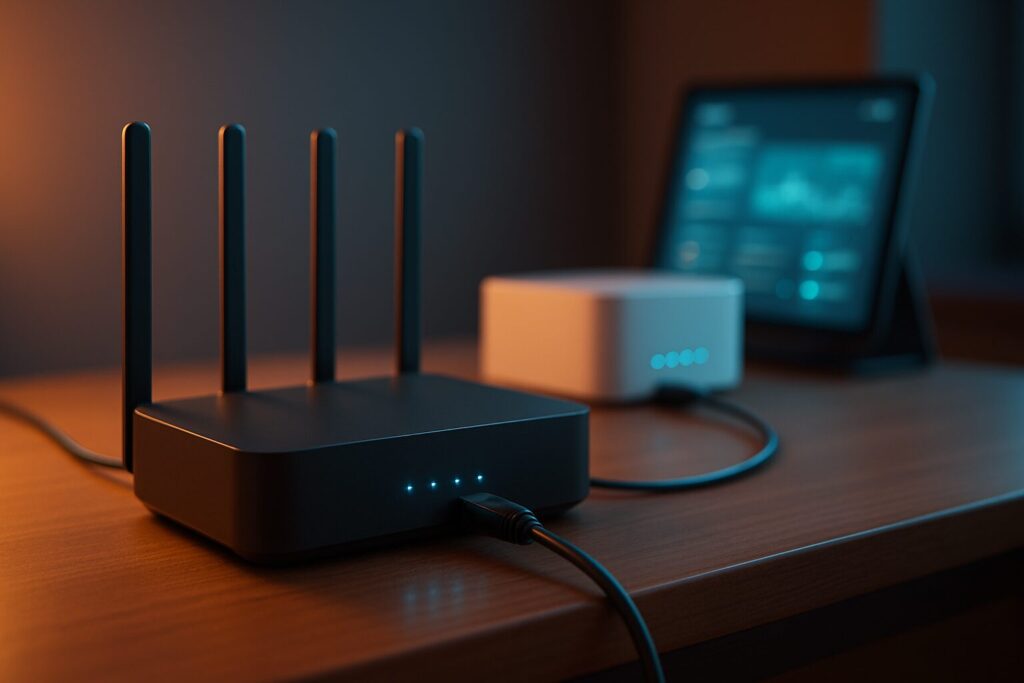
Here in 2026, knowing how to connect two routers on one home network has gone from a niche tech-enthusiast trick to a must-have solution for the modern smart home. That free box your ISP gave you is buckling under the pressure of countless smart home gadgets, 8K streaming, work-from-home video calls, and low-latency gaming. While these modem/router combos have improved, they just can’t keep up with the demands of a power user or a digitally dense household.
Why Bother Connecting a Second Router in 2026?
Before we dive into the setup, it’s critical to understand the “why.” The most common reasons for adding a second router to your home network are:
- Eliminate Wi-Fi Dead Zones: This is the number one reason. If you have a large house, multiple floors, or concrete walls, a single router often isn’t enough to provide a stable, fast signal everywhere.
- Boost Performance and Add Features: High-end third-party routers boast more powerful processors, more RAM, and cutting-edge tech like Wi-Fi 7, advanced QoS to prioritize traffic (a game-changer for gaming or streaming), and superior management of dozens of connected devices.
- Enhance Security: It allows you to segment your home network. You can create an isolated network for vulnerable IoT devices, another for guests, and keep your primary network secure for your computers and personal devices.
- Gain Full Control: Using your own router unlocks advanced settings that ISPs typically lock down, such as setting up a VPN server, changing DNS settings at the router level, or implementing much more granular parental controls.
The Three Ways to Connect Two Routers: Which Method Is Right for You?
There’s no single “right” way to connect two routers. The best method depends entirely on your goal. Here are the three main configurations, ranked from most recommended to most specialized.
1. Bridge Mode: The Ultimate Upgrade
Ideal for: Completely replacing your ISP router’s lackluster routing functions with your own powerful, feature-rich router.
How it works: Putting your ISP’s gateway into Bridge Mode effectively turns it into a simple modem. Its only job is to pass the internet connection to your new router. All network management (Wi-Fi, DHCP, firewall) is handled by your high-performance router. This is the cleanest setup and my top recommendation to avoid headaches like Double NAT.
2. LAN-to-WAN (Cascading): Creating a Sub-Network
Ideal for: Isolating a part of your network for security reasons or creating a separate lab environment for testing.
How it works: You connect a LAN port from the primary router to the WAN/Internet port of the secondary router. This creates a brand new, independent network “behind” the main one. The second router manages its own range of IP addresses. This is the setup that can lead to Double NAT if not handled carefully.
3. Access Point (AP) Mode (LAN-to-LAN): The Best Way to Extend Wi-Fi Coverage
Ideal for: Reusing an old or spare router to extend Wi-Fi coverage to another part of your house, all while keeping a single, seamless network.
How it works: You disable the “router” functions (specifically, the DHCP server) on the second device and connect a LAN port from the primary router to a LAN port on the secondary one. The second router now acts as a simple switch and Wi-Fi access point, extending your existing network.
Step-by-Step Guide: Configuring Your Dual-Router Network
Below, I’ll walk you through the steps for each method. The concepts are universal, no matter which ISP you have (Comcast, Verizon, AT&T, etc.).
Setting Up Bridge Mode (Recommended)
Putting your ISP-provided gateway into Bridge Mode is the most technical process, but it delivers the best results. It involves logging into your ISP gateway’s admin panel to turn off its routing features, letting your superior new router take full control. Since the process varies slightly by ISP and model, I’ve created a comprehensive guide that explains the concept and helps you find the right steps for your specific device.
➡️ Full Guide: Your ISP’s Gateway Sucks. Here’s How to Fix It with Bridge Mode.
Setting Up a Cascaded Router with DMZ (For Power Users)
This LAN-to-WAN method, while functional, can create Double NAT. It’s only recommended if you absolutely need a completely isolated sub-network. The goal is to forward all internet traffic from the primary router to the secondary router’s IP address, letting the second (and more powerful) router handle all security and port forwarding.
- Log into your ISP router: Open a web browser and navigate to its gateway address (usually
192.168.1.1or192.168.0.1). You can find this on a sticker on the router itself. - Back up the configuration: Before you change anything, look for a “Backup” or “Save Configuration” option in the admin settings. Save the file somewhere safe. If something goes wrong, you can easily restore it.
- Disable the primary router’s Wi-Fi: To prevent signal interference and confusion, turn off the wireless radios on your ISP’s router. Your new router will be the only one broadcasting Wi-Fi. If you must keep it on, give it a completely different name (SSID) and password.
- Connect and configure the secondary router: Plug an Ethernet cableAffiliate link from a LAN port on the ISP router into the WAN/Internet port on your new router. Set up its Wi-Fi network. For a smooth transition, you can use the same network name (SSID) and password as your old network; your devices will reconnect automatically.
- Find the new router’s IP and MAC address: Once connected, your primary router will assign an IP address to your new one. You can use a tool like Advanced IP Scanner, Angry IP Scanner (a great free, cross-platform alternative), or simply look at the “Connected Devices” list in the primary router’s admin panel to find the IP and MAC address of your new router.
- Set a Static IP (DHCP Reservation): In the primary router’s settings, find the LAN or DHCP options. Look for “DHCP Reservation” or “Static IP.” Assign a permanent IP address to the secondary router using its MAC address. This ensures its IP never changes. For example, assign it
192.168.1.2. - Configure the DMZ: Find the “DMZ” (Demilitarized Zone) setting in your primary router’s firewall or advanced settings. Enable it and enter the static IP you just assigned to your secondary router (e.g.,
192.168.1.2). Save your changes.
ATTENTION! The DMZ exposes one device on your network completely to the internet by forwarding all ports to it. ONLY do this when pointing the DMZ to another router that has its own robust firewall. Never point the DMZ at a computer or other end device, as it would be a massive security risk.
Setting Up an Access Point (To Extend Wi-Fi)
This is the simplest and most effective way to reuse an old router to kill Wi-Fi dead zones.
- Access the secondary router: Connect a computer directly to the secondary router with an Ethernet cableAffiliate link (do not connect it to the main router yet) and log into its admin panel.
- Assign a static LAN IP: Change its LAN IP address to one that is in the same subnet as your primary router, but outside the DHCP range. If your main router is
192.168.1.1, a safe bet for the secondary router would be192.168.1.254. Write this IP down—you’ll need it to manage the device later. - Disable the DHCP server: This is the most critical step. Find the DHCP settings on the secondary router and turn them OFF. There should only be one DHCP server on a single network (your primary router) to avoid an IP address conflict.
- Configure the Wi-Fi: Set the network name (SSID) and password. You can use the exact same credentials as your main router to allow for smoother roaming, or you can give it a different name (e.g., “WiFi_Upstairs”) to manually choose which one to connect to.
- Connect the routers (LAN-to-LAN): Use an Ethernet cableAffiliate link to connect a LAN port on your primary router to a LAN port on your secondary router. Do NOT use the WAN/Internet port on the second router for this setup!
That’s it! Your second router is now a simple Access Point, extending both your wired and wireless network.
The Modern 2026 Alternative: Wi-Fi Mesh Systems
If your main goal is simply to extend Wi-Fi coverage, you should seriously consider a modern Wi-Fi Mesh system. These systems consist of a main router and several satellite “nodes” that work together to create a single, intelligent Wi-Fi network that covers your entire home. The handoff between nodes is completely seamless as you move around.
For a deeper dive into the differences, check out our guide on Wi-Fi Extenders vs. Mesh Networks. Here’s a quick comparison of some of the most popular mesh systems in 2026.
| Model | Wi-Fi Standard | Key Features | Price Range (2-Pack) |
|---|---|---|---|
| Amazon eero Max 7 | Wi-Fi 7 | Tri-band, 10 GbE ports, Matter support, built-in Zigbee hub. | $1,000 – $1,200 |
| TP-Link Deco BE95 | Wi-Fi 7 | Quad-band, dedicated 6 GHz backhaul, 10 GbE ports, AI-driven network optimization. | $1,100 – $1,300 |
| Google Nest Wifi Pro 2 | Wi-Fi 7 | Optimized for Google ecosystem, advanced security, minimalist design, Matter support. | $500 – $650 |
| Netgear Orbi 970 Series | Wi-Fi 7 | Patented dedicated backhaul, peak performance, Multi-Gig ports, ideal for very large homes. | $1,500 – $1,700 |
Note: Prices are estimates for 2026 and are subject to change. For more options, check out our updated guide to the best mesh routers.
Troubleshooting Common Dual-Router Issues
IP Address Conflict
Symptom: Your internet connection is unstable, or certain devices can’t connect at all.
Cause: This happens when both routers try to use the same IP address (e.g., both are 192.168.1.1) or when you have two active DHCP servers on the same network (a common mistake when setting up AP mode).
Solution: Ensure each router has a unique LAN IP address and that only the primary router has its DHCP server enabled (unless you’re using the cascaded setup, where each network correctly has its own DHCP).
The Dreaded Double NAT
Symptom: Problems with online gaming (Strict NAT), port forwarding, accessing local servers from outside your network (Plex, NAS), or some streaming services.
Cause: Occurs in the cascaded router (LAN-to-WAN) configuration. Your internet traffic is passing through two separate Network Address Translation (NAT) firewalls, one on each router.
Solution: The best fix is to avoid it entirely by using Bridge Mode. If that’s not an option, you can try setting up port forwarding on both routers (from the primary to the secondary, then from the secondary to the end device), but this is a complex and error-prone process.
Slow Speeds or Dropped Connections
Symptom: Your network speed is much lower than expected, or the connection drops randomly.
Cause: This could be due to Wi-Fi channel interference, poor router placement, or simply old, underpowered hardware.
Solution: Use a Wi-Fi analyzer app on your phone to find the least congested channels in your area. Place routers in central, elevated locations, away from walls and large electronic appliances. If you’re using an old router as an access point, remember that its performance will be limited by its hardware.
Continue reading
Next related guide · 9 min read
Movistar VoIP with a Custom Router? Here’s How to Get Your Landline Working in 2026
Updated on May 10, 2026 Getting your Movistar landline to work with your own ONT is the final boss fight in taking total control…
Continue with this article