

Last updated on March 12, 2026
Cloning your hard drive is the master key to breathing new life into your PC. Whether you’re upgrading to a blazing-fast NVMe Gen5 SSD, ditching a drive that’s bursting at the seams, or just creating a perfect, bootable backup of your system, this process saves you hours of tedious reinstallation and configuration. I know your time is valuable and starting from scratch is a non-starter. In this definitive 2026 guide, I’ll show you exactly how to transfer everything to a new drive, safely and efficiently.
Why Clone Your Hard Drive in 2026? It’s a No-Brainer.
Even though modern operating systems like Windows 11 and 12 have streamlined fresh installs, cloning is still the go-to method for several rock-solid reasons:
- Massive Performance Upgrade: Moving from a clunky old mechanical hard drive (HDD) or an early-gen SATA SSD to a modern NVMe (PCIe 4.0 or 5.0) drive is, without a doubt, the most dramatic performance boost you can give your PC. Boot times, app loading, and file transfers will be insanely fast.
- Get More Space: Today’s games, 8K video editing projects, and work files are massive. Cloning to a larger drive lets you migrate all your data from the old drive to the new one seamlessly.
- The Ultimate System Backup: Creating a clone is the most comprehensive way to back up your hard drive. If your main drive ever dies, you can just swap in the clone and be back up and running in minutes, with every single program and setting exactly as you left it.
- Skip the Hassle: You get to avoid the soul-crushing process of reinstalling your OS, hunting down drivers, reinstalling every single application, and tweaking all your settings back to perfection.
Essential Prep Work Before You Clone
Before you jump in, it’s crucial to get everything ready to ensure a smooth, successful clone. Don’t skip these steps.
Your 2026 Cloning Toolkit
You’ll need both your old and new drives connected to your computer at the same time.
- The New Drive (NVMe or SATA SSD): In 2026, the clear recommendation is a zippy M.2 NVMe SSD. Here are some of the best picks on the market:
- High-End (PCIe 5.0/4.0): Samsung 990 Pro, Crucial T700, WD Black SN850X. These are for extreme gaming and creative pros who need max speed.
- Mid-Range (PCIe 4.0): Crucial P5 Plus, Samsung 980 Pro. They offer a fantastic balance of price and performance.
- Budget-Friendly (SATA): Samsung 870 EVO, Crucial MX500. Still a huge upgrade over an HDD and perfect for older PCs without an M.2 port.
- An Adapter or Available Port:
- For M.2 NVMe SSDs: If your motherboard has a spare M.2 slot, you’re golden—install it directly. If not, you’ll need an NVMe to USB-C/Thunderbolt external enclosure. They’re common and will give you great transfer speeds.
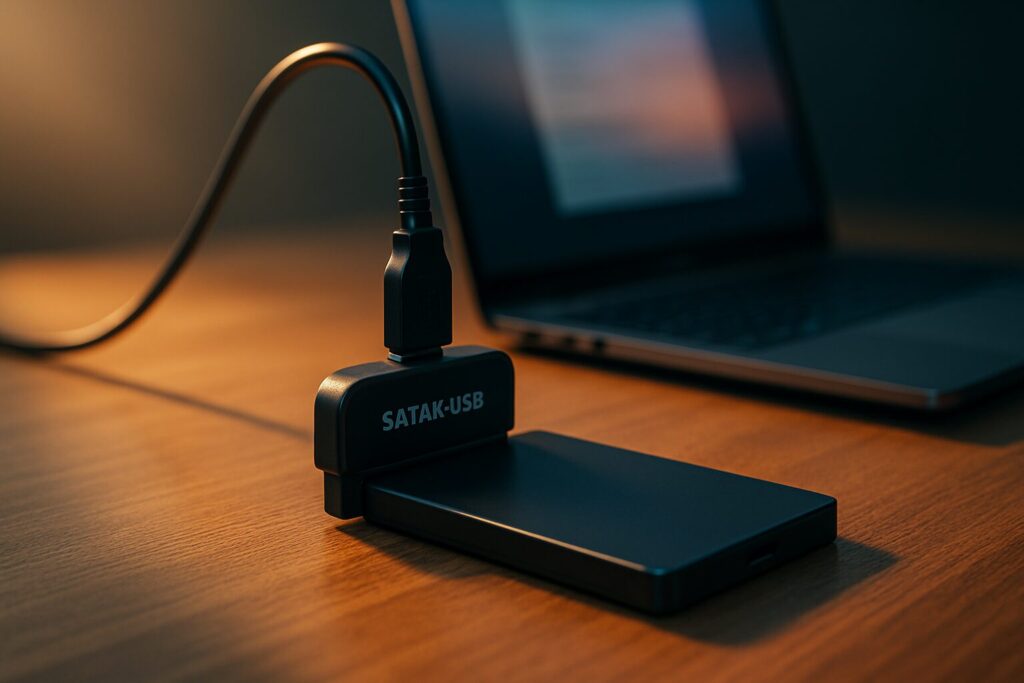
- For 2.5″ SATA SSDs: A simple and cheap SATA to USB 3.1/3.2 adapter cable is all you need.
- Cloning Software: I’ll break down the best options for you in the next section.
Pro-Tip: If you think your current drive might be on its last legs, I highly recommend checking its health with a free tool like CrystalDiskInfo before you start. A drive with bad sectors can cause the cloning process to fail.
The Best Disk Cloning Software of 2026
There are tons of tools to clone a hard drive to an SSD, each with its own perks. Here’s a comparison table with my personal recommendations for 2026, covering both free and paid options.
| Software | Best For | Pros | Cons | Price (Est.) |
|---|---|---|---|---|
| Rescuezilla | Beginners & average users (Windows/Linux) | Completely free and open-source. Super simple GUI. Works with most systems. | Fewer advanced options than paid versions. Requires creating a bootable USB. | Free |
| Macrium Reflect Home | Windows users who want reliability and advanced features. | Extremely reliable. Allows ‘hot cloning’ (from within Windows). Lots of customization. Great support. | The free version was discontinued in 2024. The paid version is their only focus now. | ~$50-70 |
| Clonezilla | Power users and sysadmins (Cross-platform). | Free, powerful, and very versatile. Supports a huge range of file systems. | Text-based interface, not beginner-friendly. Steep learning curve. | Free |
| Acronis Cyber Protect Home Office | Users wanting a full backup and cybersecurity suite. | Live cloning, cloud backups, anti-ransomware protection. Very user-friendly. | Annual subscription model. Can be overkill if you just need to clone once. | ~$50/year |
| Samsung Data Migration | Users with Samsung SSDs. | Free, dead simple, and optimized for Samsung drives. | Only works if the destination drive is a Samsung SSD. | Free (with Samsung SSD) |
| Carbon Copy Cloner (macOS) | macOS users. | The gold standard for creating bootable clones on a Mac. Reliable and feature-rich. | Paid. macOS only. | ~$45 |
How to Clone a Hard Drive: Step-by-Step (By OS)
While every program has its own interface, the general workflow is very similar. Here’s a breakdown of the process for the most common operating systems.
On Windows 11/12 (with Macrium Reflect or Rescuezilla)
For this example, I’ll use the concepts from Macrium Reflect 2026, which remains one of the most robust tools, though it’s now paid. The steps are conceptually identical in free alternatives like Rescuezilla.
- Connect the New SSD: Use your spare M.2 slot or the USB adapter. Windows should detect it, but don’t worry if it doesn’t get a drive letter. In fact, if Windows asks to initialize it, just ignore the prompt—the cloning software will handle it. If you have issues, our guide on how to change a drive letter in Windows might help.
- Install and Run the Software: Download and install your chosen tool. I recommend closing all other applications to ensure no files are in use, which could corrupt the process.
- Select the Source Disk: In the program’s interface, you’ll see a list of connected drives. Select your current hard drive (the one with your OS) as the “Source”. Pay close attention to the drive size and partitions to make sure you pick the right one.
- Select the Destination Disk: Now, choose your new SSD as the “Destination”. WARNING! This step will erase everything on the destination drive. Double-check that it’s empty or that you’ve backed up anything important.
- Adjust Partitions: If you’re cloning to a larger drive, most modern software will offer to expand the main partition to use all the new space. In Macrium, for example, you can drag the partitions over, then select the main one and click “Cloned Partition Properties” to resize it.
- Start the Clone: Review the operation summary. If everything looks correct, begin the process. The time it takes will depend on the amount of data and the speed of your drives and connection (USB/SATA/NVMe). It could be anywhere from 20 minutes to several hours.
- Finish and Verify: The program will notify you when it’s done. You’re almost there!
On macOS
In the Apple ecosystem, the go-to tool is Carbon Copy Cloner (CCC). While the built-in Disk Utility can clone data volumes, it’s not reliable for creating a bootable system clone.
- Connect your new external SSD.
- Open Carbon Copy Cloner.
- Under “Source,” select your current system drive (usually “Macintosh HD”).
- Under “Destination,” choose the new SSD.
- CCC will automatically handle formatting and preparing the destination drive.
- Click “Clone” and let it do its thing.
On Linux
For Linux users, there are two main paths:
- The Easy Way (Recommended): Use Rescuezilla. Download the ISO, create a bootable USB with a tool like BalenaEtcher, and boot your computer from it. The graphical interface will walk you through the process, much like it would on Windows.
- The Terminal Way (Experts Only): The
ddcommand is extremely powerful but also incredibly dangerous. One typo in the destination drive name (of=) can wipe your entire system. An example would be:sudo dd if=/dev/sda of=/dev/sdb bs=4M status=progress. Only use this if you know *exactly* what you are doing. Triple-check your paths. You have been warned.
After the Clone: Final Steps & Troubleshooting
The cloning is finished, but you’re not done yet. These final steps are critical.
- Shut Down and Install the New Drive: Power down and unplug your computer. Open the case or laptop and physically swap the old drive with your new cloned SSD. If you have the space, you can leave the old drive connected as a secondary storage unit.
- Configure the Boot Order in BIOS/UEFI: Power on the computer and enter the BIOS/UEFI setup (usually by pressing F2, F12, or Del during boot). Go to the “Boot” section and make sure your new SSD is set as the first boot device. Save changes and exit.
- Verify That Everything Works: Your computer should now boot up normally, but much faster. Open your programs and check your files to confirm everything is right where it should be.
- Expand the Volume (If Necessary): If the software didn’t automatically resize the partition and you see unallocated space on your new drive, you can fix this easily. In Windows, open “Disk Management,” right-click your main partition (C:), and select “Extend Volume.”
- What to Do with the Old Drive? Once you’re 100% confident the new drive is working perfectly, you can format the old drive and use it for backups, games, or large media files.
Common Problems and How to Fix Them
- PC won’t boot from the new drive: This is almost always a BIOS/UEFI boot order issue. Go back into the setup and double-check that the new SSD is the #1 boot priority.
- You get a “No Operating System Found” error: This can indicate a problem with the boot manager. Tools like Macrium Reflect include a utility to create a rescue disk that can automatically fix Windows boot problems.
- The cloning process fails halfway through: This often points to bad sectors on the source drive. Run a disk check (
chkdsk /f /rin Windows Command Prompt) on the original drive before trying to clone it again.
With this guide, you’re fully equipped to perform a successful disk clone in 2026 and enjoy a faster, more spacious PC than ever before. It’s one of the best investments you can make in your rig!