

This article may contain affiliate links. If you buy through these links, the price is the same for you and the store pays me a small commission that helps keep Tecnoyfoto running.

Updated on January 20, 2026
Home Assistant Blueprints have evolved from an exciting new feature into one of the most powerful and essential tools in any smart home enthusiast’s arsenal. If they impressed us back in 2020, by 2026 they are the bedrock for building a robust, scalable, and shareable smart home. This definitive guide will walk you through everything you need to know to master automations with Blueprints in Home Assistant today.
What Exactly Are Home Assistant Blueprints?
Imagine you’ve crafted the perfect automation: the hallway lights turn on to 50% brightness when motion is detected at night, but only if no one is in the living room. Building that from scratch can take some time. Now, what if you want that same logic for the kitchen, garage, and bathroom lights? Copying and pasting the code, changing entities each time? That works, but it’s inefficient and a nightmare to maintain.
A Blueprint is a reusable automation template. It separates the logic (what to do) from the inputs (what to do it with). The Blueprint creator defines the core logic once and exposes the configurable parts—like “motion sensor to use” or “light to control”—as simple fields for the user to fill in.
In short, Blueprints allow you to:
- Save Time: Deploy complex logic in seconds.
- Reduce Errors: The logic has already been tested and vetted by the community.
- Share with Ease: Share your best automations with others without them needing to understand the underlying code.
- Stay Organized: Update the Blueprint once, and every automation using it can benefit from the improvement.
Manual Automation vs. Blueprints: A 2026 Showdown
To really get the value of Blueprints, it helps to compare them to creating automations manually, whether in the UI or directly in YAML. In my experience, each method has its place, but Blueprints have become a game-changer for the vast majority of use cases.
| Feature | Manual Automation (UI/YAML) | Using a Blueprint |
|---|---|---|
| Reusability | Low. Requires manual copy, paste, and modification for each instance. | High. The same logic can be instantiated countless times with different entities. |
| Initial Setup Complexity | Variable. From dead simple to extremely complex to code. | Very Low. You just fill in the fields the author defined. |
| Shareability | Difficult. You have to share a code block that others must adapt to their own entities. | Effortless. You share a URL, and anyone can import and use it instantly. |
| Maintenance | Individual. To improve the logic, you have to edit each automation separately. | Centralized. Update the Blueprint, and all automations based on it inherit the improvements. |
| Learning Curve | Moderate to high, especially with advanced YAML and templating. | Very Low for the end-user. Moderate for the Blueprint creator. |
The Evolution of Blueprints: Key Upgrades by 2026
Since their introduction in 2020, Blueprints have received massive upgrades. They’re no longer just a cool feature; they’re a complete ecosystem. Here are the most significant improvements we’ve seen over the last few years:
- Integrated Blueprint Exchange: The old forum category has evolved. Now, directly from the Home Assistant UI (via HACS and increasingly in Core), you can search, browse, and filter thousands of community Blueprints, complete with ratings and popularity metrics.
- Version Control: Blueprint authors can now manage versions. This means you can get update notifications and decide whether to apply changes, preventing an update from unexpectedly breaking your existing automations.
- Advanced Selectors: The input fields for a Blueprint are much smarter. They can now filter entities by integration (e.g., “choose any light from the Philips Hue integration”), by device model, or even allow for multiple selections.
- Blueprints for Scripts: The functionality has expanded beyond automations. You can now create reusable Scripts, which are perfect for complex action sequences you want to trigger from multiple places.
How to Import and Use Home Assistant Blueprints (2026 Guide)
The process to import a blueprint in Home Assistant is now incredibly streamlined. In just three steps, you can have a powerful new automation up and running.
Step 1: Find a Blueprint
Your main source will be the community. You can find Blueprints on the official Home Assistant Community Forums, in GitHub repositories, or—the easiest way in 2026—by using the built-in “Downloads” or “Exchange” section directly in your UI.
Step 2: Import the Blueprint
Once you find a Blueprint you like, just copy the URL from its forum page or GitHub repo. Then, in your Home Assistant instance:
- Navigate to Settings > Automations & Scenes.
- Select the “Blueprints” tab.
- Click the blue “Import Blueprint” button in the bottom-right corner.
- Paste the URL into the field and click “Preview.” If it’s a valid Blueprint, you’ll see the details and can confirm the import.

Step 3: Create an Automation from the Blueprint
With the Blueprint loaded into your system, it’s time to put it to work:
- Click the “Create Automation” button on the Blueprint you just imported.
- The automation editor will open, but instead of the usual complex interface, you’ll see a clean list of fields defined by the Blueprint’s author.
- Assign your entities (lights, sensors, switches, etc.) to each required field.
- Give your new automation a name and hit save. That’s it! You now have a fully functional automation.
Top 5 Must-Have Home Assistant Blueprints for 2026
The sheer number of available Blueprints can be overwhelming. Here’s my curated list of the best Home Assistant Blueprints I recommend for any setup, as they solve very common problems.
- Low Battery Notification for All Devices: A classic for a reason. This Blueprint scans all your devices, finds any with a battery level below a threshold you define (e.g., 20%), and sends you a detailed notification. It’s the best way to prevent your sensors from dying unexpectedly.
- Advanced Zigbee Remote Controller: Got an IKEA button, an Aqara switch, or any other Zigbee remote? This type of Blueprint is a lifesaver. You import it, select your remote model, pick the light or group to control, and it automatically maps actions (single click, double click, long press) to functions like on/off, dimming, or color changes. It’s the fastest way to configure your remotes with ZHA or Zigbee2MQTT.
- Open Window/Door Alert with HVAC: This is a fantastic energy-saving Blueprint. If a door or window sensor reports it’s open for more than a minute while your heat or AC is running, it sends you an alert so you don’t waste energy.
- Wake-up Light Simulator: Mimic a natural sunrise to help you wake up more gently. You configure your bedside lamp, the time you want to be fully awake, and a duration (e.g., 20 minutes). The Blueprint will handle fading the light from dim to full brightness over that period.
- Critical & Repeating Notifications: Some alerts are too important to miss. This Blueprint lets you send a notification (e.g., “Water leak detected!”) that repeats every few minutes until you acknowledge it by tapping an action button in the notification itself. Perfect for smoke detectors, water leak sensors, or security alarms.
Ready to Level Up? How to Create Your Own Blueprints
Once you’re comfortable using Blueprints from the community, the next logical step is to create your own. The good news is that any automation you already have can be converted into a Blueprint. The process, in a nutshell, involves:
- Taking the YAML code from an existing automation.
- Adding a
blueprint:section at the top, where you define its name, description, and domain (automation). - Adding an
input:section, where you define the variables the user can configure (e.g.,target_lightormotion_sensor), including a friendly name and a selector type. - Replacing the hardcoded entities in your original automation with the variables you defined using the
!input variable_namesyntax.
While it requires a little YAML practice, the official Home Assistant documentation offers an excellent and detailed tutorial. And don’t forget to share your creations with the community!
Common Blueprint Problems & FAQ
- Why is my Blueprint import failing?
- The most common cause is an incorrect URL. Make sure you are copying the direct URL to the forum topic or the specific `.yaml` file on GitHub. Also, check that your Home Assistant instance is up to date, as newer Blueprints may require recent versions.
- I can’t find the entity I want in the dropdown menu.
- This usually happens because the Blueprint’s author has restricted the entity type (a domain selector). For example, if a field is asking for a `light`, you won’t be able to select a `switch`. Make sure the entity you want to use is the correct type. If needed, you can use a “Switch as X” helper to make a switch appear as a light entity.
- The automation I created from the Blueprint isn’t triggering.
- Use the “Traces” tool. Navigate to the specific automation, click the three-dot menu, and select “Traces.” This will show you a step-by-step log of the execution and tell you exactly which condition failed, helping you debug the issue quickly.
- How do I update a Blueprint I’ve already imported?
- By 2026, most Blueprints managed via HACS or the native UI will notify you of available updates. For manually imported ones, the easiest way is to simply re-import the same URL. Home Assistant will detect that it already exists and offer to overwrite it with the new version.
Continue reading
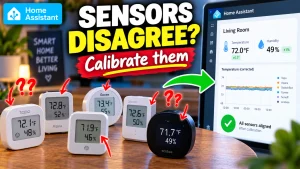
Next related guide · 13 min read
How to Calibrate Temperature and Humidity Sensors in Home Assistant
Place two temperature sensors next to each other and one may report 22.3 °C while the other says 22.8 °C. Add a third sensor…
Continue with this article