

Last updated on February 1, 2026
In the fast-paced world of smart homes, the choice between Zigbee2MQTT (Z2M) and Zigbee Home Automation (ZHA) has been a long-standing debate. But what if I told you that you don’t have to choose? In 2026, the ability to run ZHA and Zigbee2MQTT together with a single coordinator is not just a reality—it’s an advanced strategy to supercharge your Home Assistant ecosystem. This ultimate guide will show you, step-by-step, how to achieve perfect coexistence, transforming one piece of hardware into a dual, ultra-powerful Zigbee control center.
Why Run ZHA and Zigbee2MQTT Simultaneously? The Ultimate Power-User Strategy
You might be asking, “Why bother with the complexity?” The answer is simple: flexibility and power. Each system has its unique strengths, and by combining them, you get the absolute best of both worlds:
- Zigbee2MQTT (Z2M): The Compatibility King. Its database of supported devices is massive and constantly updated. Z2M offers granular control, access to device-specific features (exposes), and a powerful web UI for network management. It’s perfect for those brand-new or obscure devices that ZHA doesn’t yet support out of the box.
- ZHA (Zigbee Home Automation): The Seamless Native. As Home Assistant’s native integration, its main advantage is simplicity and tight integration. Device management, OTA firmware updates, and group creation are handled directly within the Home Assistant interface, making it a robust and convenient option for everyday use.
By using both, you could, for example, manage your standard bulbs and switches with the simplicity of ZHA, while reserving Z2M for that bleeding-edge mmWave presence sensor or for performing advanced mesh network diagnostics. It’s the perfect setup for the enthusiast who refuses to compromise.
Architecture Diagram: How Does the Magic Work?
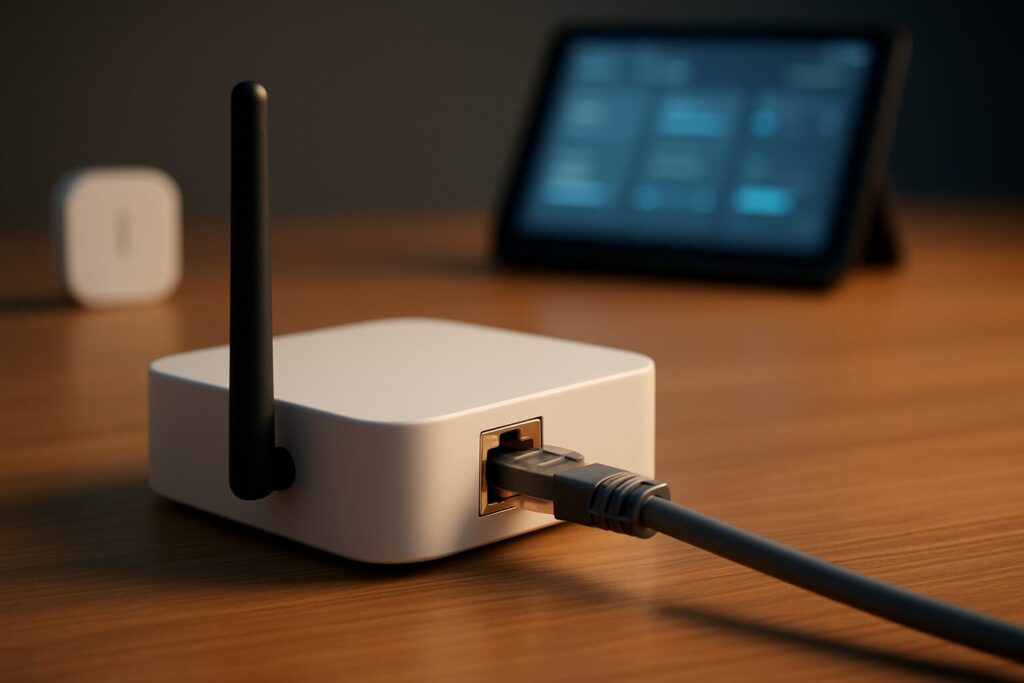
The secret sauce to this setup is one key component: a Zigbee Ethernet (or LAN/WiFi) Coordinator. Unlike traditional USB coordinators that only allow one connection at a time, a network coordinator acts as a server. It exposes the Zigbee radio over a TCP port, allowing multiple clients (in our case, ZHA and Z2M) to connect to it simultaneously.
      +-----------------------------+
      |       Home Assistant        |
      |                             |
      |  +----------+  +----------+ |
      |  |   ZHA    |  |  Z2M     | |
      |  +----------+  +----------+ |
      |       |              |      |
      +-------|--------------|------+
              |              | (TCP/IP over your local network)
              |              |
      +-------V--------------V------+
      |  Zigbee Ethernet Coordinator  |
      |     (192.168.1.100:6638)    |
      +--------------|--------------+
                     | (Zigbee Network)
           +---------+---------+
           |                   |
      +----------+      +-----------+
      |   Bulb   |      |  Sensor   |
      +----------+      +-----------+
Essential Prerequisites: Your Success Checklist
Before we dive into the configuration, let’s make sure you have everything you need. This isn’t a beginner’s task, but with this checklist, you’ll be on the right track.
- ✅ A Zigbee Ethernet/LAN/WiFi Coordinator: This is non-negotiable. Standard USB coordinators like the popular Sonoff Dongle-P/E will not work for this purpose. You need a device that connects to your local network.
- ✅ A working Home Assistant instance: Home Assistant OS or Supervised is recommended for easier management of Add-ons.
- ✅ A Fixed IP Address for the Coordinator: It’s critical that your Zigbee coordinator has a static IP or a DHCP reservation in your router. This prevents its IP from changing and breaking the connection.
- ✅ Basic networking knowledge: You should be comfortable finding a device’s IP address on your local network.
Comparison Chart: Best Zigbee Ethernet Coordinators for 2026
Your choice of hardware is the foundation of this entire setup. Here’s a comparison of the most recommended and community-tested models for 2026.
| Model | Chipset | Connectivity | Key Features | Estimated Price Range |
|---|---|---|---|---|
| SMLIGHT SLZB-06/06M | TI CC2652P7 | Ethernet, WiFi, USB-C | PoE powered, powerful external antenna, rock-solid stability. The ‘M’ model adds Matter (Thread) support. | $65 – $90 |
| ZigStar UZG-01 | TI CC2652P | Ethernet, WiFi, USB-C | One of the originals, great community support, compact design. | $75 – $95 |
| Tube’s Zigbee Gateways | TI CC2652P | Ethernet (PoE) | Robust build quality, highly reliable, focused on PoE connection stability. | $90 – $120 |
Step-by-Step Tutorial: Setting Up Your Dual-Instance System
Alright, let’s get our hands dirty. Follow these steps carefully to configure your dual system.
Step 1: Configure Your Zigbee Ethernet Coordinator
Once your coordinator is plugged into your network, the first step is to find its IP address. You can usually find this in your router’s web interface under a ‘DHCP clients’ or ‘Connected Devices’ section. Once you’ve located it, access the coordinator’s web UI (if it has one) and configure it to run in “TCP Serial Server” mode. Jot down the IP address and the port it provides (it’s usually 6638).
Step 2: Install and Configure the Mosquitto Broker Add-on
Zigbee2MQTT needs an MQTT broker to communicate with Home Assistant, and Mosquitto is the gold standard.
- In Home Assistant, navigate to Settings > Add-ons.
- Click the “Add-on Store” button and search for “Mosquitto broker.” Install it.
- In the Mosquitto add-on’s “Configuration” tab, create a new username and password. You’ll need these credentials in the next step. If you need more details, check out this complete guide to setting up Mosquitto Broker.
- Start the Mosquitto broker add-on.
Step 3: Install and Configure the Zigbee2MQTT Add-on (TCP Connection)
With the broker running, it’s time for Z2M.
- Go to Settings > Add-ons > Add-on Store. Click the three dots in the top-right corner and select “Repositories.”
- Add the official Zigbee2MQTT repository URL:
https://github.com/zigbee2mqtt/hassio-zigbee2mqttand click “Add.” - Search for and install the “Zigbee2MQTT” add-on. Do not start it yet.
- Go to the “Configuration” tab. This is where the magic happens. You need to modify the
serialsection to point to your network coordinator.
[IMAGE: Screenshot of the Zigbee2MQTT add-on configuration in Home Assistant, highlighting the ‘serial’ section.]
Paste the following YAML, replacing the IP address with your coordinator’s:
serial:
  port: tcp://192.168.1.100:6638
Also, ensure the MQTT configuration section points to your local Mosquitto broker using the credentials you created. Now, you can start the Z2M add-on.
Step 4: Integrate ZHA (Socket Connection)
Finally, let’s add ZHA to the mix.
- Go to Settings > Devices & Services and click “Add Integration.”
- Search for “Zigbee Home Automation” (ZHA).
- In the setup wizard, you’ll be asked for the radio type. Choose “Enter radio path manually.”
- For the “Radio Type,” select “EZSP” or the appropriate type for your coordinator (most Silicon Labs-based chips use EZSP, while Texas Instruments chips use ZNP).
- In the serial device path field, enter your coordinator’s address using the
socket://format.
[IMAGE: Screenshot of the ZHA setup wizard, showing the manual radio selection and the device path field.]
The format is as follows (note the use of “socket” instead of “tcp”!):
socket://192.168.1.100:6638
Finish the setup. If everything went smoothly, you now have both ZHA and Zigbee2MQTT running on the same Zigbee network, powered by the same coordinator!
Common Troubleshooting Steps
Even with the best guide, things can go wrong. Here are fixes for the most common issues:
- ZHA or Z2M fails to connect: Double-check that the IP address and port are correct in both configurations. Make sure a firewall isn’t blocking the port. Try power-cycling the coordinator, then restarting the Home Assistant add-ons.
- Devices pair in one system but don’t show up in the other: This is a common misunderstanding. A device pairs to the Zigbee network through one of the interfaces (Z2M or ZHA). Once it’s on the network, its entities will appear in Home Assistant and be accessible. You do not need to pair it in both systems.
- “502 Bad Gateway” error in the Zigbee2MQTT UI: This almost always points to a problem with the Mosquitto connection. Check the Z2M add-on logs for the exact error and verify your MQTT username and password are correct.
- The network is unstable: Ensure the Zigbee channel configured in both ZHA and Z2M is the same. If they try to operate on different channels using the same hardware, it will cause conflicts. The best practice is to set the channel directly in the coordinator’s firmware/settings.
Frequently Asked Questions (FAQ) for 2026
Can I really run ZHA and Zigbee2MQTT together on a single stick?
Yes, but with one critical condition: it must be a network-based Zigbee coordinator (Ethernet/WiFi), not a standard USB stick. The network coordinator allows multiple simultaneous connections to its virtual serial port, something a physical USB port cannot do.
Do I have to pair my devices twice?
No. A device joins the Zigbee network once. You can initiate the pairing process from either the Zigbee2MQTT UI or from ZHA. Once joined, the device is on the network, and both integrations will see it and create their respective entities in Home Assistant.
If I delete a device in ZHA, is it removed from Z2M too?
Yes. When you remove a device from one of the integrations in Home Assistant, you are removing it from the Zigbee network itself. Therefore, it will disappear from both. It’s important to be careful, as an action in one interface affects the entire network.
Does this setup hurt my Zigbee network performance?
If configured correctly, there should be no negative impact. The coordinator manages the actual Zigbee network traffic, and the two integrations are just clients reading from and sending commands to it. The overhead is minimal. However, a misconfiguration (like different channels) can absolutely cause problems.
Which integration should I use to add new devices?
My personal recommendation is to use the Zigbee2MQTT interface for pairing. Its logs are far more detailed and provide much more feedback if the pairing process fails. Once paired via Z2M, the device will automatically appear in ZHA as well.
Conclusion: The Peak of Zigbee Flexibility
Running Zigbee2MQTT and ZHA on a single coordinator is, without a doubt, a power-user setup for those seeking total control. While it requires an initial investment in a Zigbee Ethernet coordinator and a meticulous setup process, the benefits are undeniable. You get the native simplicity and rock-solid stability of ZHA combined with the nearly limitless device compatibility and diagnostic power of Z2M.
In 2026, where interoperability and customization are king, this dual architecture stands out as the definitive solution for building a truly bespoke smart home—with no compromises and ready for any device the future throws at it.