
As an Amazon Associate, I earn from qualifying purchases. En calidad de Afiliado de Amazon, obtengo ingresos por las compras adscritas que cumplen los requisitos aplicables. If you buy through these links, the price is the same for you and Amazon pays me a small commission that helps keep Tecnoyfoto running.

Last updated on March 13, 2026
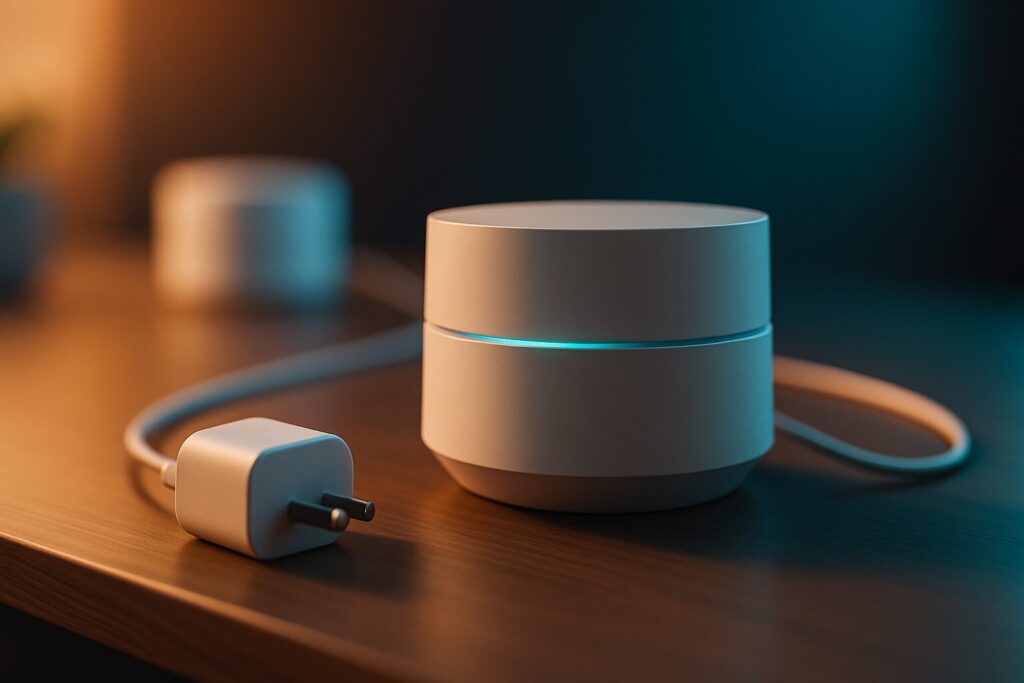
If you’re looking to blanket every corner of your home with fast, stable internet in 2026, the Google Wifi ecosystem, now headlined by the Nest Wifi Pro lineup, is still one of the best mesh systems on the market. While the original “Google Wifi” pucks laid the groundwork, the tech has evolved dramatically. In this definitive guide, I’ll walk you through the complete Google Wifi setup process to get the most out of your network, whether you’re unboxing a new model or upgrading an older one.
Unlike the clunky routers of yesteryear, the entire setup process is absurdly simple and managed right from your phone.
What You’ll Need to Get Started
Before you even open the box, make sure you have these items ready:
- A mobile device (phone or tablet) running iOS or Android.
- The Google Home app. The old “Google Wifi” app is long gone; everything is now centralized in Google Home.
- A Google Account (it’s free and required for management).
- The modem or ONT that your Internet Service Provider (ISP) gave you.
It’s important to understand that the entire system is tied to your Google Account. This enables secure remote management and crucial automatic updates that shield your network from vulnerabilities. While this means a constant link to Google’s services, it’s the 2026 industry standard for ensuring both security and functionality.

Step-by-Step Google Wifi Setup Guide for 2026
I’ve configured dozens of these networks, and the process rarely takes more than 15 minutes. It’s incredibly intuitive, with the app holding your hand every step of the way.
- Download the Google Home App: If you don’t already have it, grab it from the Play Store or App Store. Sign in with your Google Account.
- Connect the Main Point: Your first device (the “router”) connects directly to your ISP’s modem via an Ethernet cableAffiliate link. Then, plug it into a power outlet.
- Start Setup in the App: Open Google Home and tap the “+” icon in the top-left corner. Select “Set up device,” then “New device.” The app should automatically detect the nearby Wifi point.
- Scan the QR Code: Use your phone’s camera to scan the QR code on the base of the device. This securely identifies it.
- Create Your Wi-Fi Network: The app will prompt you to choose a network name (SSID) and a strong password.
- Add More Points (Satellites): Once the main router is up and running, the app will ask if you want to add another point. Plug your other satellite points into outlets in areas with weak coverage and follow the on-screen instructions. The app will even test the signal to help you find the optimal placement for a solid mesh connection.
Pro Tip: For absolute peak performance, if your home is wired with Ethernet, you can connect your Wifi points to each other with a cable. This is called a “wired backhaul,” and it frees up the wireless bands, delivering blistering speeds.
Optimizing Your Network: Key Features in the 2026 Google Wifi App
The real power of the Google ecosystem lies in its dead-simple management through the Google Home app. Here are some of the most useful features I use all the time:
- Device Prioritization: Got a critical video conference or a heavy gaming session planned? You can prioritize traffic to a specific device for a set period, ensuring a lag-free experience.
- Guest Wi-Fi: Create a separate network for visitors with a single tap. This keeps your main password private and your primary network secure.
- Parental Controls (Family Wi-Fi): A must-have feature for families. You can group devices by profile (e.g., your kids’ devices) and pause internet access at specific times (like dinner or bedtime) or block adult content.
- Network Diagnostics: The app lets you run speed tests on your internet connection and also check the “health” of your mesh network, verifying the connection quality between points.
- Matter Integration: The newer Nest Wifi Pro models act as Thread border routers, making them the central hub for your Matter-compatible smart home.
Common Google Wifi Problems & How to Fix Them
While the system is rock-solid, hiccups can happen. Here are solutions to the most frequent issues.
- Wifi point isn’t detected: Make sure it’s plugged in and the light is pulsing. Try moving your phone closer to the point during the initial setup. If all else fails, a factory reset might be the answer. Check out our guide on how to reset Google Wifi.
- Slow or unstable connection: Use the “Test mesh” feature in the app to check the signal between your points. You might need to move a satellite closer to the main router. Thick walls or large appliances can cause interference.
- A device won’t connect to the network: The simplest fix often works: restart the problematic device. You can also have it “forget” the Wi-Fi network and then reconnect by entering the password again.
- Solid red or amber light: A solid amber light usually means the point has no internet connection. Double-check the Ethernet cableAffiliate link going to your modem. A solid red light indicates a hardware problem that might require a restart or contacting Google support.
Google Wifi Alternatives in 2026
The Nest Wifi Pro is a fantastic choice, but the mesh network market is more competitive than ever. If you’re exploring other options, here’s a quick comparison of the best alternatives this year.
| Model | Wi-Fi Standard | Key Features | Estimated Price Range |
|---|---|---|---|
| Google Nest Wifi Pro | Wi-Fi 6E (Tri-Band) | Seamless Google ecosystem integration, Matter/Thread border router, dead simple to use. | Mid-Range |
| Amazon Eero MaxAffiliate link 7 | Wi-Fi 7 (Tri-Band) | Built-in Zigbee/Thread hub, optimized for Alexa, 2.5 and 10 Gbps ports. | High-End |
| TP-Link Deco BE95 | Wi-Fi 7 (Quad-Band) | Extreme performance, Multi-Gig ports, dedicated 6 GHz backhaul. | Premium |
| Ubiquiti AmpliFi Alien | Wi-Fi 6 (Tri-Band) | Touchscreen display, excellent performance, more advanced configuration options. Ideal for power users. | High-End |
Frequently Asked Questions (FAQ) about Google Wifi Setup
- Can I use my old Google Wifi points with the new Nest Wifi Pro?
- Yes, they are compatible, but I wouldn’t recommend it. When you mix them, your entire network defaults to the older Wi-Fi 5 standard, and you lose all the speed and low-latency benefits of the Pro models’ Wi-Fi 6E.
- Does the Google router replace the one from my ISP?
- It replaces the router function, but not the modem or ONT. You must connect the main Google point to your ISP’s equipment. For best performance, I highly recommend putting your ISP’s combo unit into bridge mode if possible.
- Is my browsing data safe with Google Wifi?
- Yes. The system gets automatic security updates. According to Google, the system does not track the websites you visit. It does collect network metadata (like signal performance or data usage) to optimize and improve the service, which is standard practice across the industry.
- How many points do I need for my house?
- As a rule of thumb in 2026, a single Nest Wifi Pro point covers about 1,200 sq. ft. A two-pack is perfect for most apartments and two-story homes (up to 2,200 sq. ft.), and a three-pack can cover up to 3,300 sq. ft.
The Verdict: Is Google Wifi Still Worth It in 2026?
Absolutely. For the average user and even power users who want a “set it and forget it” solution that just works, the 2026 Google Wifi ecosystem, led by the Nest Wifi Pro, is one of the best investments you can make for your home’s digital backbone.
The combination of solid Wi-Fi 6E performance, a trivially easy setup, and powerful management through the Google Home app keeps it a top contender in the market. And if you’re already living in the Google ecosystem, the integration is simply flawless.
Continue reading
Next related guide · 8 min read
eero Outdoor 7 In-Depth Review (2026): Is This the Ultimate Backyard WiFi Solution?
Last updated on March 19, 2026 Getting a fast, stable internet connection beyond the walls of your home has always been a challenge. But…
Continue with this article