
Last updated on March 20, 2026
In the 2026 smart home automation ecosystem, a custom **Home Assistant Google integration** is the definitive step to unlock deep, robust, and private connections to your favorite services. This is no longer just about convenience; it’s about taking back control, ensuring data privacy, and eliminating third-party middlemen. This guide will walk you step-by-step through the **Google Cloud Platform** to link powerful services like Google Calendar or Google Fit directly to your Home Assistant instance.
Throughout this updated guide, I’ve broken down every stage of the process: from creating your project in the Google Cloud console and generating your **Google credentials** via **OAuth 2.0**, to enabling the specific **Google API** you need. I’ll explain in practical terms why each setting is crucial and how it contributes to a secure and efficient integration. With this knowledge, you’ll be perfectly equipped to take your smart home to the next level, harnessing the full synergy between Google’s services and the power of Home Assistant.
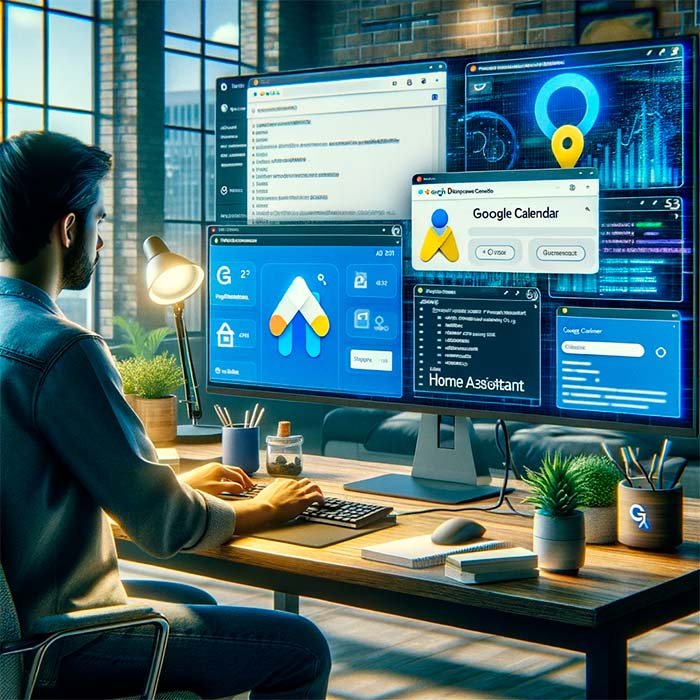
Step-by-Step: Creating Your Google App in 2026
- Create a Project in Google Cloud Platform
- Head over to the Google Cloud Console. This is mission control for all of Google’s developer services.
- Click “Create Project” and give it a name you’ll recognize, like “Home Assistant Integrations.”
- Once it’s created, make sure it’s the selected project at the top of your console.
- Configure the OAuth Consent Screen
- In the navigation menu, go to “APIs & Services” > “OAuth consent screen.” This screen is what you’ll see when authorizing Home Assistant to access your data.
- Select the User Type “External” and click “Create.”
- Fill out the required fields:
- App name: The name of your integration (e.g., “HA Calendar Integration”).
- User support email: Your email address.
- Developer contact information: Your same email address.
- Click “Save and Continue.” You can skip the next few screens (“Scopes” and “Test users”) for now, so just click “Save and Continue” until you’re back at the dashboard.
- Enable the Necessary API
- Go back to the “APIs & Services” dashboard and select “Library.”
- Search for and select the API for the service you want to integrate (e.g., “Google Calendar API” or “Fitness API” for Google Fit).
- Click the “Enable” button to activate it for your project.
- Publish the Application
- Return to the “OAuth consent screen.” You’ll see its status is “Testing.”
- Click “Publish App” and confirm. This crucial step allows the authentication to work persistently without needing to add test users.
- Create OAuth 2.0 Credentials
- In the side menu, navigate to “Credentials.”
- Click “Create Credentials” and select “OAuth client ID.”
- For “Application type,” choose “Web application.”
- Give it a name (e.g., “HA Web Credentials”).
- In the “Authorized redirect URIs” section, add the following URL:
https://my.home-assistant.io/redirect/oauth. This is a critical step that tells Google where to send the successful authentication token. - Click “Create.” A window will pop up with your Client ID and Client Secret. Copy these and save them somewhere safe. You’ll need them in Home Assistant!
Is Creating Your Own App Always Necessary? The 2026 Reality
While creating your own Google application offers maximum control and privacy, it’s fair to ask if it’s always required. In 2026, the Home Assistant ecosystem is more mature than ever. Some official integrations or those available through HACS might come with pre-configured API keys from the developer.
However, my recommendation as an engineer is crystal clear: whenever possible, create and use your own credentials. Why? Because shared keys are subject to global usage quotas. If thousands of users are hitting the same key, the service can be throttled or temporarily disabled for everyone. By using your own credentials, you’re only competing with your own usage, guaranteeing rock-solid reliability for your smart home automation.
Common Troubleshooting Fixes
It’s possible to hit a snag during the process. I’ve compiled the most common errors I’ve seen and how to fix them fast:
| Common Error | Cause & Solution |
|---|---|
| Error 400: redirect_uri_mismatch | This is the #1 culprit. It means the redirect URL in your Home Assistant config doesn’t exactly match the one you authorized in the Google Cloud Platform. Double-check step 5 and make sure https://my.home-assistant.io/redirect/oauth is entered identically in your credentials. |
| Error 403: access_denied | This usually happens if you haven’t published the app (Step 4). If your app is in “Testing” mode, only explicitly added test users can authorize it. Publishing the app removes this restriction. |
| The integration works but disconnects after a few days | If your authentication token expires every week, you almost certainly forgot to publish the app. Apps in testing mode have refresh tokens that expire quickly. |
| API not available or permission error | Verify that you’ve enabled the correct API in the Google Cloud Library (Step 3). For example, for Google Calendar, you need the “Google Calendar API,” not a similarly named one. |
Security Best Practices for Your Google Credentials
Your credentials are as sensitive as your house keys—after all, they grant access to your personal data. Follow these best practices to keep your integration secure:
- Use
secrets.yaml: Never hardcode your Client ID or Client Secret directly into yourconfiguration.yamlfile. Use Home Assistant’ssecrets.yamlfile to store them and reference them. This prevents you from accidentally exposing your credentials if you share your configuration online. - Limit Scopes: While we didn’t dive deep into scopes in this guide, if an integration allows you to define them, only request the permissions you absolutely need. Don’t grant write access if you only need to read calendar data.
- Don’t Share Your Credentials: Treat your Client Secret like a password. Never post it in forums, on GitHub, or anywhere public.
- Perform Periodic Audits: From your Google Account’s security settings, you can see which applications have access to your data. It’s good practice to review this list occasionally and revoke access to services you no longer use.
Implementing these measures will help you build a smart home system that is not only powerful but also robust and secure, protecting your privacy and your family’s. For more on network security, I recommend reading my guide on bulletproofing your smart home.
Frequently Asked Questions (FAQ)
- Do I need to be a developer to do this in 2026?
Answer: While a basic understanding of what an API and OAuth 2.0 are is helpful, it’s not required. I’ve simplified this step-by-step guide to be accessible even if you have zero experience with the Google Cloud Platform. - How do I keep my Google application secure?
Answer: The key is to protect your Client ID and, most importantly, your Client Secret. Always use thesecrets.yamlfile in Home Assistant and never share these credentials publicly. - Can I use a single Google app for multiple Home Assistant integrations?
Answer: Yes! In fact, you should. You can use the same project and credentials for multiple services. Just go back to the Google Cloud Library and enable the different APIs (Calendar, Fit, etc.) you need under that single project. - What do I do if I get the “redirect_uri_mismatch” error?
Answer: This error means the URL in your Google credentials settings doesn’t match what Home Assistant is using. Make sure you’ve added exactly “https://my.home-assistant.io/redirect/oauth” to the “Authorized redirect URIs” section of your OAuth client ID. - Does this process cost anything?
Answer: For typical smart home automation use, the Google APIs fall well within the free tier. You should not incur any costs for integrating services like Google Calendar or Fit into Home Assistant.
Conclusion
Creating your own Google application for Home Assistant has become a streamlined and essential process in 2026. While it requires a few specific steps, the payoff in reliability, control, and privacy is immense. By managing your own **Google credentials**, you ensure a rock-solid integration that isn’t dependent on third-party quotas, putting the true power of **smart home automation** firmly in your hands. By following this guide, any user can achieve a direct, secure connection and completely transform their smart home experience.
Subscribe on YouTube for More Guides