
As an Amazon Associate, I earn from qualifying purchases. En calidad de Afiliado de Amazon, obtengo ingresos por las compras adscritas que cumplen los requisitos aplicables. If you buy through these links, the price is the same for you and Amazon pays me a small commission that helps keep Tecnoyfoto running.

Updated August 26, 2026. This revision was checked against Amazon’s current support documentation and separates actual failures from normal device states and Alexa+ interface changes.
What to know before troubleshooting
- Check whether one Echo or every device is affected; a whole-home failure points to the network or a service outage.
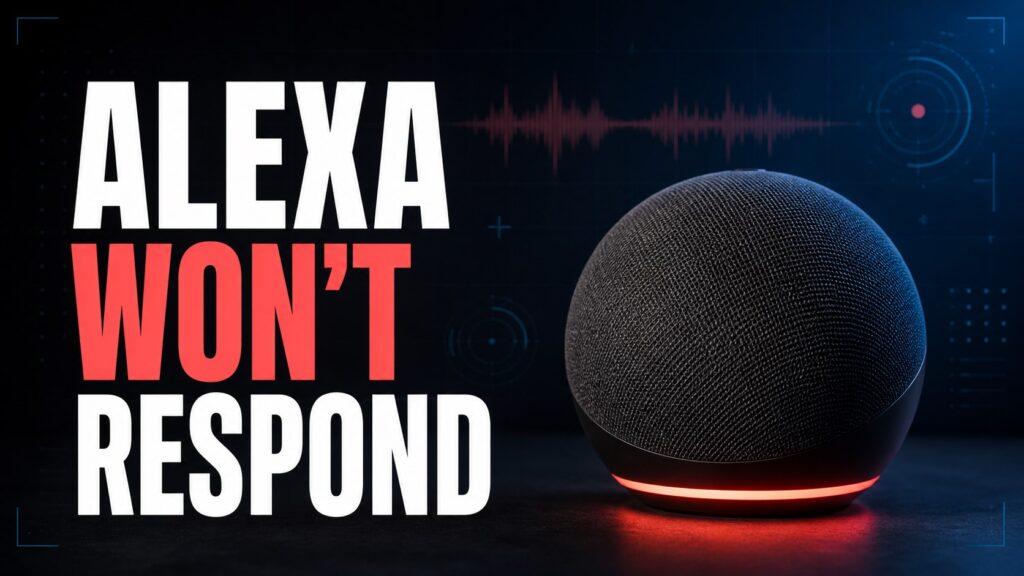
- A solid red light usually means the microphone is muted, while orange indicates setup or connectivity.
- Check power, microphone, and network before erasing data or deregistering the device.
Start with the least destructive check. Restarting is safe; a factory reset erases settings and should be the final step.
See the official support documentationAffiliate link as well. Menu labels can differ between original Alexa, Alexa+, and screen-based Echo devices.
For network-specific steps, see Alexa won’t connect to Wi-Fi. If you truly need a clean start, read how to reset Alexa.
Complete guide and step-by-step fixes
Last updated on January 28, 2026“Alexa not working” is, unfortunately, one of the top phrases searched by Amazon Echo owners. While Amazon’s ecosystem is generally robust, no system is perfect. As an IoT Engineer with 15 years in the trenches, I’ve seen hundreds of cases, and the good news is that most have a simple fix. In this definitive 2026 guide, we’ll break down the problems from the most basic to the most complex, so you can get your smart home back up and running in minutes.
This guide applies to the entire range of Amazon Echo devices, including the Echo Dot (with and without a clock), Echo Pop, Echo, Echo Studio, and the Echo Show family.
Step 0: Is It Your Problem, or Amazon’s?
Before you start tearing apart your Wi-Fi network, the first step is to rule out a widespread service outage. In 2026, our reliance on cloud services is absolute. If the Amazon Web Services (AWS) servers that power Alexa are having issues, your device won’t work no matter how many times you reboot it.
You can quickly check the service status on sites like Downdetector or by searching social media to see if other users are reporting outages. If there’s a massive failure, all you can do is wait it out.
Decoding Alexa’s Light Ring: Your Quick-Fix Cheat Sheet
Your Echo’s light ring is its most direct way of communicating. Understanding what each color means is the key to a fast diagnosis. Here’s an updated 2026 chart with the most common colors and their solutions.
| Light Ring Color | Meaning | Quick Fix |
|---|---|---|
| No Light | The device is off or not receiving power. | Check that the power adapter is securely plugged into both the wall outlet and the device. |
| Solid Blue with Spinning Cyan | Alexa is listening to your command or processing a request. | This is normal operation. If it gets “stuck” in this state, reboot the device. |
| Spinning Orange | Setup mode is active. The device is trying to connect to your Wi-Fi network. | Open the Alexa app on your phone to complete the setup process. If the problem persists, check your Wi-Fi settings. |
| Solid Red Light | The microphone is turned off. Alexa can’t hear you. | Press the microphone button (the icon with a circle and a line through it) on top of the Echo to reactivate it. The red light will disappear. |
| Pulsing Yellow | You have a notification or a pending message, often related to an Amazon package delivery. | Say, “Alexa, what are my notifications?” or “Alexa, read my messages.” |
| Pulsing Green | You have an incoming call or an active Drop In. | Say, “Alexa, answer the call” to pick up or “Alexa, ignore” to decline. |
| Flashing Purple | An error occurred during Wi-Fi setup, or Do Not Disturb mode is enabled. | Double-check that you entered the correct Wi-Fi password in the app. If Do Not Disturb is on, disable it from the app settings. |
Specific Troubleshooting Guide (2026 Edition)
If the light ring didn’t give you the final clue, let’s tackle the most common failures in a structured way.
Problem 1: “My Alexa won’t respond” or “Alexa doesn’t understand me”
This is the most generic issue. You give a command and get silence or a “Sorry, I didn’t get that.”
- Check the Obvious: Is there a solid red light? If so, the mic is muted. Press the button.
- Speak Clearly: Sometimes, background noise or speaking too quickly can confuse the assistant. Check your voice history in the Alexa App (More > Activity > Voice History) to see what it actually heard. You might be surprised.
- Does It Recognize You?: If you have voice profiles set up, make sure it’s recognizing you correctly. You can recalibrate it by saying, “Alexa, learn my voice.”
- Change the Wake Word: In noisy environments or with multiple people talking, the word “Alexa” can be problematic. Try changing the wake word to “Amazon,” “Echo,” or “Computer” from the device settings in the app.
Problem 2: Persistent Wi-Fi Connection Issues
If you frequently see a purple or orange light, or if Alexa constantly tells you it’s having trouble connecting, your Wi-Fi is the culprit.
- Power Cycle Your Network: Unplug your router and your Echo device. Wait 30 seconds. Plug in the router first, wait for it to establish a stable internet connection, and then plug your Echo back in. This simple power cycle fixes about 70% of connectivity problems.
- Proximity and Obstructions: Is your Echo too far from the router or behind a thick wall or a major appliance? The Wi-Fi signal degrades with distance and obstacles. Try moving it closer.
- Modern Networks (2.4 GHz vs. 5/6 GHz): In 2026, most routers use “band steering” to automatically assign the best frequency. However, some IoT devices prefer the longer range of the 2.4 GHz network. If your router allows it, try creating separate network names (SSIDs) for each band and manually connect your Echo to the 2.4 GHz one.
Problem 3: Alexa Won’t Control My Smart Home Devices
You ask it to turn on a light, and it replies, “The device is unresponsive.” This is an increasingly common issue due to the complexity of smart home ecosystems.
- Test the Native App: Before blaming Alexa, open the device manufacturer’s app (Philips Hue, Tuya, Smart Life, Govee, etc.) and check if you can control the device from there. If it doesn’t work there either, the problem is with the device or its service, not Alexa.
- Re-link the Skill: Go to the Skills section in the Alexa app, find the manufacturer’s skill, disable it, and then re-enable it. This forces a re-sync of your credentials and often solves connection problems.
- Conflicts with Matter and Zigbee (Advanced): With the consolidation of Matter as the industry standard, it’s common to have multiple “controllers” in your home (Alexa, Google Home, Home Assistant…). A Zigbee or Matter device can get confused if it’s paired to multiple coordinators at once. My pro tip? Centralize. If you use an advanced system like Home Assistant, it’s better to manage your Zigbee devices there and then expose them to Alexa, rather than connecting everything directly to both systems.
Problem 4: A Specific Skill Has Stopped Working
Everything else is fine, but the skill for your robot vacuum or your favorite news source is suddenly unresponsive.
- Check the Skill’s Status: Open the Alexa Skills store and search for the problematic skill. Read the recent reviews. Sometimes, a developer’s update has introduced a bug, and other users have already reported it.
- Re-authenticate: As mentioned before, disable and re-enable the skill. Many skills require a login that can expire over time, and this process renews it.
The Ultimate Solution: When and How to Reset Your Echo
If you’ve tried everything and your Alexa is not working, it might be time for more drastic measures. There are two levels of reset.
The Soft Reset (Power Cycle)
This is the first and least aggressive step. Simply unplug the power adapter from your Echo device, wait a full minute for all internal capacitors to discharge, and then plug it back in. This resolves temporary software glitches without erasing any of your settings.
The Factory Reset (The Nuclear Option)
Warning! This process will erase all your settings, including saved Wi-Fi networks, and will de-register the device from your Amazon account. Only use this as a last resort or if you plan to sell or give away the device.
The method varies by model:
- Echo Dot (3rd, 4th & 5th Gen) and Echo Pop: Press and hold the “Action” button (the one with a single dot) for about 25 seconds. The light ring will turn orange, then turn off. Release the button. The device will restart in setup mode.
- Echo Show (all models): Press and hold the “Mute” (microphone with a slash) and “Volume Down” buttons simultaneously for about 15 seconds, until you see the Amazon logo on the screen.
- Older Models: Some older Echos may require using a paperclip to press a recessed reset button.
After a factory reset, you will have to set up the device from scratch using the Alexa app, just like it was brand new.
I hope this 2026 guide has been a huge help. Smart home tech can sometimes require patience, but with the right steps, there’s almost always a solution. If you’ve run into a problem that isn’t covered here, drop a comment below and let’s try to figure it out together!
Continue reading

Next related guide · 7 min read
Alexa Won’t Connect to Wi-Fi: Troubleshooting Guide
Updated August 26, 2026. This revision was checked against Amazon’s current support documentation and separates actual failures from normal device states and Alexa+ interface…
Continue with this article