
As an Amazon Associate, I earn from qualifying purchases. En calidad de Afiliado de Amazon, obtengo ingresos por las compras adscritas que cumplen los requisitos aplicables. If you buy through these links, the price is the same for you and Amazon pays me a small commission that helps keep Tecnoyfoto running.

Updated on March 14, 2026
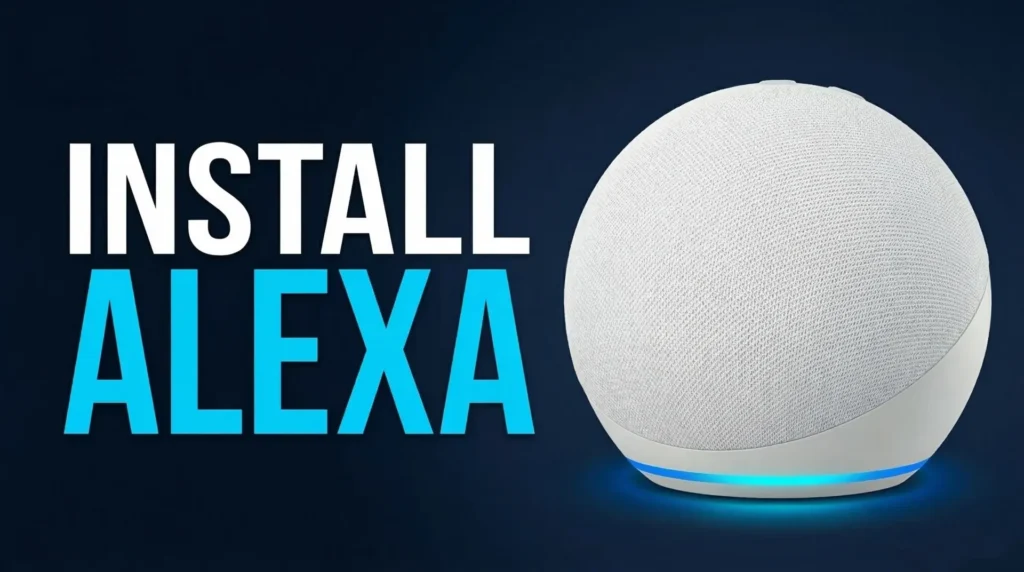
The Amazon Echo Dot has cemented its place as the perfect entry point into the world of voice assistants and smart homes. Its low cost, compact design, and the powerhouse that is the Alexa ecosystem make it a no-brainer. Still, for many, the initial Echo Dot setup can feel a bit daunting. This guide is here to cut through the noise and walk you through every step, from unboxing to voice-controlling your entire home, fully updated for 2026.
Even as new models roll out, the core setup logic through the Alexa app remains virtually identical. I’ll guide you step-by-step to get you up and running on your home network in minutes. More importantly, I’ll show you the massive potential you unlock once you’re done.
Which Echo Dot to Buy in 2026? A Quick Breakdown
Before we dive in, you might be wondering which model is right for you. While Amazon refreshes its lineup frequently, the latest generations have shown a clear evolutionary path. Here’s a simple comparison table with the models you’ll likely find on the market in 2026.
| Feature | Echo Dot (6th Gen) | Echo Dot with Clock (6th Gen) | Echo Dot (5th Gen – Previous Model) |
|---|---|---|---|
| Sound Quality | Improved, more defined bass | Identical to standard 6th Gen | Good, standard for its size |
| LED Display | No | Yes (time, weather, song titles) | Available in a ‘with Clock’ version |
| Built-in Sensors | Temperature, Ultrasound for presence | Temperature, Ultrasound for presence | Temperature |
| Connectivity | Wi-Fi 6E, Bluetooth, Matter Hub | Wi-Fi 6E, Bluetooth, Matter Hub | Wi-Fi 5, Bluetooth, Matter Hub |
| Best For… | Any room, getting started | Bedrooms, desks, kitchens | Budget option if you find it on sale |
My Take for 2026: If your budget allows, the Echo Dot with Clock (6th Gen) offers the best bang for your buck. That LED display is way more useful than you’d think at first glance.
Your Step-by-Step Echo Dot Setup Guide
Alright, let’s get to it. The process is very straightforward if you follow these steps. Make sure you have your Wi-Fi password and your smartphone handy.
Step 1: Plug In and Power Up
Unpack your Echo Dot and its power adapter. Plug it into an outlet. After a few seconds, the light ring will turn orange, and Alexa will greet you, letting you know it’s in setup mode.

Step 2: Download & Sign In to the Alexa App
If you don’t have it already, download the “Amazon Alexa” app from the App Store (iOS) or Google Play Store (Android). Open it and sign in with your Amazon account. If you don’t have one, you’ll need to create an Amazon accountAffiliate link first.
Step 3: Add a New Device
Once you’re in the app, tap the “Devices” tab in the bottom bar. Hit the “+” icon in the top right corner and select “Add Device.” From the list, choose “Amazon Echo,” and then “Echo, Echo Dot, Echo Pop, etc.”.
Step 4: Connect Your Echo Dot to WiFi
The app will ask if your Echo Dot’s light ring is orange. Confirm that it is. The app will then scan for the device. Once it finds it, it will ask you to connect it to your Wi-Fi network. Select your home network from the list and enter the password. This is the key step to connect your Echo Dot to WiFi.
The Echo Dot will now connect to your network. This might take a minute or two. Once it’s connected, the light ring will turn off, and Alexa will confirm that the setup was successful.
Step 5: Finalize the Configuration
The app will guide you through the final steps:
- Choose a Location: Assign the Echo Dot to a room (e.g., “Kitchen,” “Bedroom”). This is super useful for controlling grouped devices later.
- Device Name: You can stick with the default or give it a custom name.
- Set up a Voice Profile: I strongly recommend you complete this step. It allows Alexa to recognize your voice and give you personalized responses. If you run into trouble, check our guide on what to do when Alexa doesn’t recognize your voice.
And that’s it! Your Amazon Echo Dot is now set up and ready for your commands.
Troubleshooting Your Echo Dot Setup
While the process is usually smooth, hiccups can happen. Here are the fixes for the most common setup headaches.
The Alexa App Can’t Find My Echo Dot
If the app isn’t detecting your speaker, first make sure the light ring is orange. If it isn’t, press and hold the “Action” button (the one with the solid dot) for about 20 seconds until the light turns orange. Also, double-check that your phone’s Bluetooth is enabled.
My Echo Dot Won’t Connect to Wi-Fi
This is the most frequent issue. Here’s the rundown:
- Double-check the password: A simple typo is the most common culprit. Seriously.
- Move the Echo Dot closer to your router: For the initial setup, keep it near the router to ensure a strong signal.
- Reboot your router: Unplug it, wait 30 seconds, and plug it back in. A simple reboot can solve a surprising number of mysterious connectivity problems. For advanced users, it might be worth checking your router’s configuration, like putting it into bridge mode if you’re using a mesh network.
- 2.4 GHz vs. 5 GHz Networks: Older models sometimes prefer the 2.4 GHz band, which has a longer range. If you have separate network names (SSIDs), make sure you’re connecting to the right one.
If the problem persists, our deep-dive guide on what to do if Alexa won’t connect to WiFi has more solutions.
The Light Ring is a Weird Color
The light ring is how Alexa communicates. Here’s what the colors mean:
- 🔴 Red: The microphone is physically muted. Press the microphone button to turn it back on.
- 🟡 Yellow: You have a notification or message. Just say, “Alexa, what are my notifications?” Get more details in our guide on why your Alexa is blinking yellow.
- 🟢 Green: You have an incoming call or a Drop In. Check out our guide on the meaning of the green light on Alexa.
Alexa Says “The Device is Not Registered”
This error usually pops up if the Echo Dot was previously linked to another Amazon account. The fix is to factory reset the Echo Dot and go through the setup process again. If that doesn’t work, contact Amazon support. We also have a dedicated guide on how to fix the ‘Alexa device not registered’ error.
Next Steps: What to Do After Your Echo Dot Setup
The setup was just the beginning! Now for the fun part. Here are a few ideas to get the most out of your new Echo Dot.
1. Link Your Music and Podcast Services
In the Alexa app, go to More > Settings > Music & Podcasts. From here, you can link your Spotify, Apple Music, Pandora, and other accounts. Once linked, you can set one as your default service so you don’t have to specify it every time you ask for a song.
2. Create Your First Alexa Routines
Routines are the heart and soul of smart home automation. They let you trigger multiple actions with a single command. For example, a “Good Morning” routine could turn on your smart lights, give you the weather forecast, and start playing your favorite news briefing. Explore our guide on how Alexa Routines work to get started.
3. Explore Skills
Skills are like apps for your Echo. There are thousands of them for games, news, recipes, white noise, and more. Browse the Skills section in the app to discover ones that interest you. Some of the most popular are from major news outlets for daily briefings.
4. Integrate with Your Smart Home System (Home Assistant)
This is where a simple smart speaker becomes the command center for your entire smart home. If you’re a tech enthusiast using Home Assistant, the Echo Dot is the best voice interface you can have.
You can expose your Home Assistant devices to Alexa for voice control (“Alexa, turn on the office light”). The integration is getting easier every year. Plus, if you have Zigbee devices, you can use advanced coordinators like the SMLIGHT SLZB-06 and manage them through Home Assistant Add-ons like Zigbee2MQTT or ZHA, then control them all with your new Echo Dot. With the rise of Matter, interoperability is better than ever, and the newest Echo Dots even act as hubs for this new standard.
I hope this definitive guide has been a huge help. Now it’s your turn to explore and discover everything your new Amazon Echo Dot can do for you and your home.
Continue reading

Next related guide · 7 min read
How to Reset Alexa and Any Amazon Echo
Updated August 26, 2026. This revision was checked against Amazon’s current support documentation and separates actual failures from normal device states and Alexa+ interface…
Continue with this article