Updated on February 6, 2026
There’s nothing more frustrating than seeing the dreaded “Kodi: Check the log for more information” message pop up. It’s one of the most common issues Kodi users face, and it’s not really an error itself—it’s a symptom of a deeper problem. This underlying issue can cause all sorts of headaches, from Kodi running slow to your favorite add-ons crashing or the Kodi cache filling up and causing instability. If you’re dealing with a persistent Kodi log error, you’re in the right place.
In this definitive 2026 guide, I’ll draw on my 15 years of experience to show you how to diagnose and fix these problems at their source, whether you’re using Kodi 21 Omega or the upcoming Kodi 22 Piers. Forget about quick fixes that don’t last; we’re going to understand the problem to apply the right solution.
What is the Kodi Log File and Why Does It Cause Errors?
Before we can fix anything, you need to understand what the “log” actually is. The Kodi log (a simple text file named kodi.log) is like an airplane’s black box. Kodi itself, and every single add-on you install, writes a detailed diary of its operations into this file: what content it’s trying to load, which server it’s connecting to, and most importantly, any errors it encounters.
When you see that notification telling you to check the log, Kodi is essentially saying, “I failed, but I wrote down the exact reason why in my diary.”
Let’s bust a common myth right now: The log file itself doesn’t get “full” or “corrupted” and cause the error. A massive log file is a symptom of an add-on or process that’s constantly failing, not the cause. Therefore, the solution isn’t just to clear the Kodi log; it’s to read it, identify the culprit, and fix the real problem.
Solution 1: The Quick Fix with a Maintenance Add-on (Recommended First)
For most users, the easiest way to resolve issues that trigger a Kodi log error is to use a Kodi maintenance add-on. These tools automate the cleanup of junk files that are often the reason why Kodi is running slow or add-ons are failing.
While there are several maintenance add-ons available, the general steps are nearly identical. I recommend looking for a well-regarded tool in a popular repository.
- Install a Maintenance Add-on: Search within popular repositories for an add-on dedicated to system cleaning and maintenance.
- Navigate to the Maintenance section: Once inside the add-on, look for sections like “Maintenance,” “Cleaning Tools,” or “System Tweaks.”
- Run the cleaning tools: The most important options to run are:
- Clear Cache: This deletes temporary files and is the most effective solution when the Kodi cache is full.
- Clear Packages: This removes old add-on installation files that are no longer needed and are just taking up space.
- Purge Thumbnails: This deletes the image and artwork database, forcing Kodi to rebuild it. It’s a great fix for corrupted or missing images.
- Restart Kodi: After running the cleanup, completely shut down and reopen Kodi for the changes to take effect.
In my experience, this method resolves over 80% of generic log errors, especially those related to performance and caching issues.
Solution 2: The Manual Method – How to Read the Log for a Precise Diagnosis
If the quick fix didn’t work, it’s time to roll up our sleeves and analyze the log file to find the exact culprit. This process is the correct way to tackle the “kodi check the log for more information” message once and for all.
Step 1: Enable Debug Logging
To get the most detailed information possible in the log file, we first need to enable debug mode. Important: This doesn’t fix anything; it just makes the error report more comprehensive.
- Go to Settings (the gear icon).
- Select System.
- In the bottom-left, change the view level to Expert.
- On the left-hand menu, go to Logging.
- Toggle on the Enable debug logging option. You’ll see diagnostic info appear in the top-left corner of your screen.
[IMAGE: Screenshot of the debug logging screen in the Estuary skin on Kodi 21 Omega]
Step 2: Replicate the Error and View the Log
With debugging active, perform the action that triggers the error (e.g., open the failing add-on). Immediately afterward, you need to access the kodi.log file. The easiest way is by using the official Log Viewer for Kodi add-on.
- Go to Add-ons > Download > Program add-ons.
- Find and install Log Viewer for Kodi.
- Open it, and you’ll see the log’s contents. Scroll all the way to the bottom to see the most recent entries, which will often be marked with the word
ERROR.
[IMAGE: Log Viewer for Kodi add-on showing an example of an error line]
Step 3: Identify the Culprit
When scanning the log, look for lines that begin with ERROR:. The text that follows will often give you a clear hint about which add-on is failing. For example:
2026-02-06 11:30:15.321 T:1234 ERROR <general>: [plugin.video.someaddon] Script failed: 'latin-1' codec can't encode characterThis line tells us in plain English that the problem lies within the plugin.video.someaddon add-on. With this information, you’ve isolated the problem. You can now try updating it, reinstalling it, or, if the error persists, searching for a solution specific to that particular add-on.
Other Common Causes and General Solutions
Sometimes the problem isn’t a specific add-on but an external factor or a general configuration issue.
- ISP Blocking: It’s increasingly common for Internet Service Providers (ISPs) to block access to certain servers used by add-ons. If you see connection or timeout errors in the log, the solution might be to use a VPN.
- Broken or Outdated Dependencies: Many add-ons rely on others to function (like scrapers or resolvers). If one of these dependencies fails, it causes a chain reaction. Make sure all your add-ons and their dependencies are kept up-to-date.
- Corrupted Installation: As a last resort, if nothing else works, you might have a corrupt Kodi installation. Before doing anything drastic, make a backup using an add-on like Backup. Then, completely uninstall Kodi, delete its user data folder, and perform a fresh, clean installation.
Recommended Hardware for an Optimal Kodi Experience in 2026
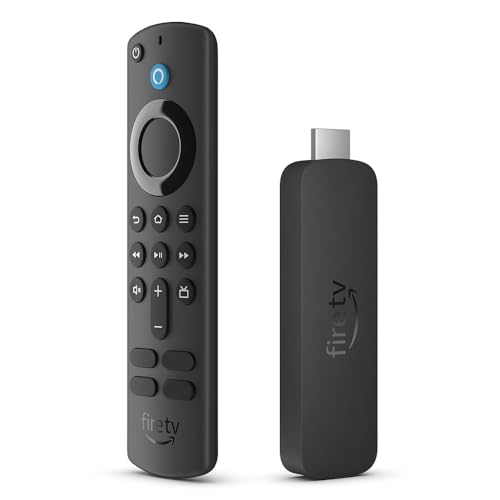
If you’ve optimized your software but still find that Kodi is running slow, your hardware might be the bottleneck. For a smooth experience in 2026, especially with 4K HDR content and modern codecs like AV1, you need a capable device. Here are a few of the best options I’ve personally tested.