
As an Amazon Associate, I earn from qualifying purchases. En calidad de Afiliado de Amazon, obtengo ingresos por las compras adscritas que cumplen los requisitos aplicables. If you buy through these links, the price is the same for you and Amazon pays me a small commission that helps keep Tecnoyfoto running.

Updated August 19, 2026
Have you received a warning that your ONT will stop working?
If you have arrived at this article because Movistar has told you that your ONT may stop working from September 15, 2026, you are in the right place.
Telefónica has clarified that there will not be a general shutdown of every third-party ONT on September 15. Instead, from that date it will begin a gradual phase-out of uncertified equipment connected directly to its fibre network.
The important point, therefore, is not whether you use your own router, but which device is connected directly to the fibre line. Movistar says it has around 50 approved or certified ONT models from different manufacturers.
Receiving the warning does not necessarily mean that your ONT will be blocked. At least one case has already been confirmed in the Movistar Community where a user with an approved Huawei HG8010H received the automatic warning even though Movistar support later confirmed that the ONT could continue to be used.
Movistar is advising customers affected by uncertified equipment to disconnect their current ONT and reconnect the router with integrated ONT that was originally supplied with their installation.
This does not necessarily mean giving up your own router. You can reconnect the Movistar HGU, configure it in single-user mode, known in Spanish as modo monopuesto and commonly referred to as bridge mode, and keep your ASUS, Synology or another compatible third-party router behind it.
The setup would look like this:
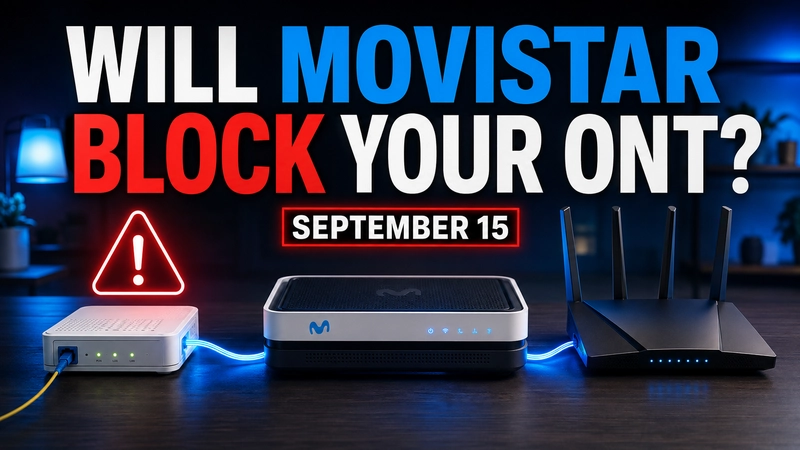
Fibre → Movistar HGU → your own router → home network
The HGU handles the fibre connection, while your own router can continue managing Wi-Fi, firewall rules, devices, AdGuard, VPN connections and the rest of your network.
Telefónica says the reason for this measure is to protect its shared fibre network: an ONT or HGU operating incorrectly can potentially affect other customers connected to the same PON port. This guide focuses on the practical solution for anyone who prefers to reconnect the Movistar HGU without giving up control of their own network.
One of the most common challenges for people who want more control over their home network is using their own router behind the router supplied by their internet provider.
In my case, I use a Synology WRX560, but the same basic approach applies to ASUS routers and other compatible third-party routers.
To avoid double NAT and allow your own router to establish the internet connection directly, the Movistar HGU needs to be configured in single-user mode, commonly referred to as bridge mode.
In this article, I will show you step by step how to configure the Movistar Askey RTF8115VW and how to prepare the router connected behind it so that it can manage your network.
Bridge mode and single-user mode are not exactly the same thing
Although we normally talk about putting the Movistar router into bridge mode, on Movistar HGU routers this configuration is usually called single-user mode or modo monopuesto.
It is not necessarily a full bridge of every function provided by the device. The HGU can continue handling certain Movistar services while passing the internet connection through to the router installed behind it.
Your own router will establish the PPPoE session and receive the public IP address. This prevents both the HGU and the second router from performing NAT at the same time.
Why put the Movistar router into bridge mode?
When the HGU is used as the main router, it handles routing, NAT, the firewall, DHCP and Wi-Fi. If you simply connect another router behind it without configuring the HGU correctly, you can end up with double NAT and a network that is more difficult to manage.
By configuring the HGU in single-user mode:
- You avoid double NAT and delegate internet routing to your own router.
- You can use advanced router features such as firewall rules, VPNs, traffic control, custom DNS or network segmentation.
- You keep greater control over Wi-Fi, connected devices and the internal configuration of your home network.
- You can keep the same network, Wi-Fi name and internal IP addresses, avoiding the need to configure every device in your home again.
How to put a Movistar router into bridge mode
1. Access the Movistar router
- Connect a computer to the HGU using an Ethernet cableAffiliate link or its Wi-Fi connection.
- Enter 192.168.1.1 in your web browser.
- Use the access password printed on the label on the underside of the router, unless you have previously changed it.
The exact menu names may vary slightly depending on the HGU model and firmware version installed.
2. Open the Bridging Setup configuration
- In the configuration menu, open Bridging Setup.
- Locate the interface corresponding to Internet WAN.
- Enable bridge or single-user mode for that connection.
- Check that the internet connection uses VLAN 6, which is normally used by Movistar for internet access.
Do not delete or modify other connections associated with telephone or television services if you use them.
3. Save the changes and restart the HGU
- Click Apply to save the configuration.
- Restart the Movistar router so that the changes are applied correctly.
From this point onwards, your own router will be responsible for establishing the PPPoE connection and managing internet access.
4. Connect your own router
Connect an Ethernet cableAffiliate link from one of the LAN ports on the Movistar HGU to the WAN port on your own router.
In my installation I use a Synology WRX560Affiliate link, but you can use the same approach with an ASUS router or another device compatible with PPPoE connections.
5. Configure the PPPoE connection
Open the administration interface of your own router and configure the internet connection as PPPoE.
- Username: adslppp@telefonicanetpa
- Password: adslppp
On Synology routers, this option is available in the internet connection settings. On other routers, including ASUS models, you will normally find it in the WAN configuration section.
Once the connection has been established successfully, your own router should receive a public IP address.
6. Verify the public IP address
- Check the status page of your own router to see which IP address it has received on its WAN connection.
- You can compare it with the address shown by a service such as WhatIsMyIP.com.
- If both addresses match and the WAN interface on your router does not show a private IP address, the connection is working correctly.
What happens to your home network?
If you keep the same configuration on your own router that you were already using, your devices should notice very little difference.
- Wi-Fi will continue to be managed by your own router.
- Internal IP addresses will continue to be assigned by your router.
- DHCP reservations, firewall rules and port forwarding will remain on your own router.
- AdGuard will continue to work if it is configured on your router or another device on your network.
- Your VPN will continue to work as long as it remains configured on your own router.
The HGU will sit in front of your router as the fibre termination device and as an intermediate step before the router that actually manages your home network.
Tips for optimising your network
- Disable Wi-Fi on the HGU if you are not going to use it, avoiding unnecessary wireless networks and potential interference.
- Do not connect home devices directly to the HGU if you want your entire network to be managed by your own router.
- Keep DHCP enabled on your own router, which will remain responsible for assigning internal addresses.
- Check your VPN and DNS configuration after making the change to ensure traffic is still using the settings you expect.
- Back up your router configuration before making major changes.
Troubleshooting common problems
My own router does not receive a public IP address
Check that the PPPoE connection is configured correctly and that single-user mode is enabled on the HGU. Also check the Ethernet cable between the HGU and the WAN port on your own router.
Then restart the HGU first and wait until the fibre connection has fully synchronised. After that, restart your own router.
I still have double NAT
Check the WAN address received by your own router. If it shows a private address such as 192.168.x.x, the HGU is still routing the internet connection and single-user mode has not been applied correctly.
I cannot access the HGU after making the change
Once the HGU is placed in front of another network, its administration address may no longer be directly accessible from devices connected to your own router. If you need to change its configuration, you can temporarily connect a computer directly to the HGU.
Movistar TV or telephone service is not working
Movistar’s single-user mode is primarily intended to delegate the internet connection. Television and telephone services may require additional configuration, so you should not delete the interfaces associated with these services.
Frequently asked questions
Can I continue using my own router if I received the Movistar warning?
Yes. You can reconnect the Movistar HGU as the fibre termination device and keep your own router behind it so that it continues managing your home network.
Do I need to configure all my devices again?
Normally, no. If you keep the same Wi-Fi network name, password and internal network configuration on your own router, your devices should continue connecting as before.
Will AdGuard and my VPN continue working?
Yes, provided that AdGuard and the VPN remain configured on your own router or on the same devices you were previously using.
Has Movistar sent the warning to every customer?
No. The measure is aimed at certain devices connected directly to the fibre network and, according to Telefónica, the process will focus on uncertified ONTs.
The company has clarified that a gradual phase-out will begin on September 15, 2026, rather than every third-party ONT being disconnected on the same day. Telefónica also says affected customers will be warned before their equipment is blocked.
If I received the warning, does that definitely mean my ONT will stop working?
Not necessarily. At least one case has been confirmed in the Movistar Community where the warning was sent to a customer using an approved Huawei HG8010H. Movistar support explained that the message had been generated automatically after the system detected equipment different from the router normally registered on the line, and confirmed that the ONT could continue to be used.
If you use your own ONT and have received the warning, it is worth checking whether your model is approved or contacting Movistar before assuming that it will definitely stop working.
Are there third-party ONTs approved by Movistar?
Yes. Telefónica says it has a catalogue of around 50 approved or certified ONT models from different manufacturers. The measure therefore does not mean that every standalone ONT will be blocked simply because it is not the HGU originally supplied by Movistar.
Conclusion
Configuring the Movistar HGU in single-user mode allows you to continue using your own router without double NAT and without giving up control of your home network.
For customers who have received the warning and are using an ONT that is not certified, this may be the most practical solution: reconnect the HGU, place it in front of your own router and keep the rest of your network behind the equipment you were already using.
September 15, 2026 will not be a general shutdown. Telefónica has clarified that a gradual phase-out of uncertified equipment will begin from that date and that affected customers will be warned before their service is interrupted. If your ONT is approved, receiving the message does not automatically mean that you need to replace it.
This is not exactly the same as having a standalone ONT, because it adds another device, another power supply and a piece of equipment managed by Movistar. However, it still allows you to keep your own router, Wi-Fi network, AdGuard, VPN and internal network configuration.
Follow me on YouTube

Continue reading

Next related guide · 9 min read
Movistar VoIP with a Custom Router? Here’s How to Get Your Landline Working in 2026
Updated on May 10, 2026 Getting your Movistar landline to work with your own ONT is the final boss fight in taking total control…
Continue with this article