

Updated on January 23, 2026
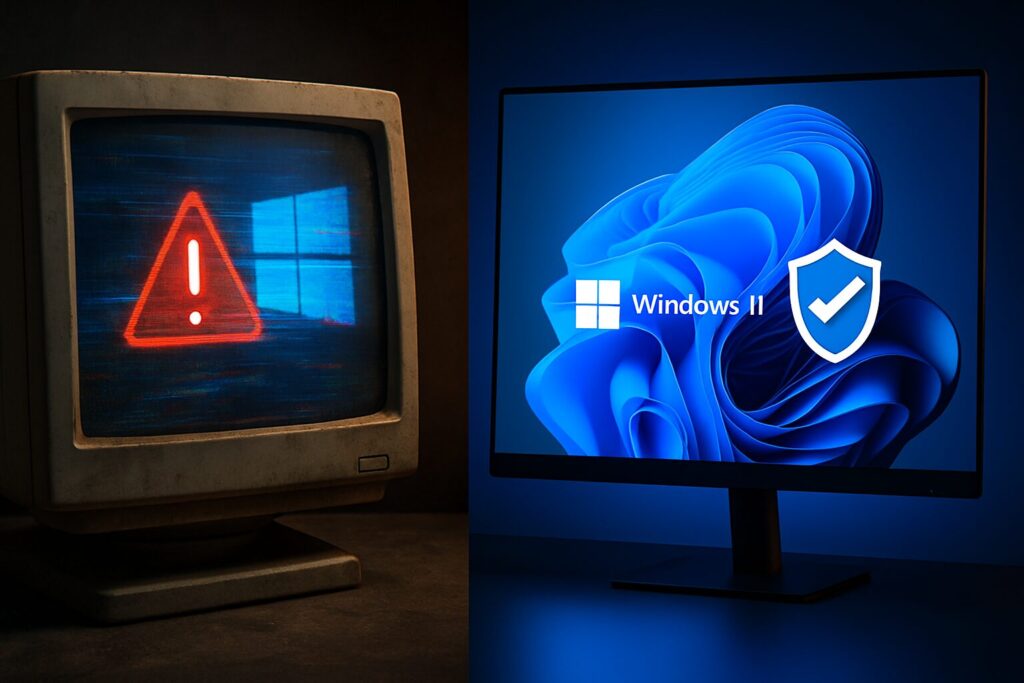
The deadline has passed. October 14, 2025, marked the official Windows 10 end of life. It’s now 2026, and if your PC is still running this legacy operating system, you’re facing a critical decision. Burying your head in the sand is not a viable long-term strategy. As a tech expert with over 15 years in the trenches, I’m here to break down the risks you’re facing and, more importantly, lay out every solution you have in this definitive, updated 2026 guide.
What Does Windows 10 “End of Support” Actually Mean?
In simple terms, it means Microsoft has stopped looking after Windows 10. As of late 2025, your PC no longer receives:
- Security Updates: New vulnerabilities discovered by cybercriminals will not be patched.
- Non-Security Updates: No new features, performance enhancements, or bug fixes will be released.
- Assisted Technical Support: If you run into a problem, Microsoft’s official support channels will no longer help you.
Your computer will still turn on, yes, but it’s like living in a house with the front door unlocked in a bad neighborhood. It’s not a matter of if something goes wrong, but when.
The Real Risks of Using an Unsupported Windows 10 in 2026
As a systems and security pro, I have to hammer this point home. Sticking with Windows 10 right now is a dangerous gamble. The main risks of using an unsupported Windows 10 are:
- Malware and Ransomware: Attackers actively target unpatched operating systems. Your PC is a sitting duck for viruses that can steal your data or hijack your computer and demand a ransom.
- Software Incompatibility: Modern software (browsers, office suites, editing programs) will stop supporting or working correctly on Windows 10. Developers won’t waste resources on an obsolete OS.
- Driver and Peripheral Issues: If you buy a new printer, graphics card, or any other piece of hardware, you’ll likely struggle to find compatible drivers for Windows 10.
- Performance Degradation: Without optimizations, the system will become progressively slower and more unstable over time.
The Exception: Extended Security Updates (ESU)
There is a temporary, paid escape hatch, but it’s not for everyone. Microsoft offers a paid program called Extended Security Updates (ESU). This service provides critical and/or important security updates for up to three years.
Primarily designed for businesses, the ESU program is a lifeline for those who can’t immediately migrate their machines. It buys you time, but it’s a stopgap measure, not a permanent solution.
The Main Solution: Upgrade from Windows 10 to Windows 11 for Free
The most logical and recommended path is to make the jump to Windows 11. As of today in 2026, the upgrade is still free for users with a valid Windows 10 license. The biggest hurdle, and the reason many are still on Windows 10, is the strict Windows 11 hardware requirements.
Does My PC Meet the Windows 11 Requirements?
Here are the key specs your computer needs to have:
- Processor: 1 gigahertz (GHz) or faster with 2 or more cores on a compatible 64-bit processor or System on a Chip (SoC).
- RAM: 4 gigabytes (GB).
- Storage: 64 GB or larger storage device.
- System Firmware: UEFI, Secure Boot capable.
- TPM: Trusted Platform Module (TPM) version 2.0. This is often the biggest deal-breaker.
- Graphics Card: Compatible with DirectX 12 or later with a WDDM 2.0 driver.
The easiest way to check is by using Microsoft’s official “PC Health Check” app. If the tool says you’re not compatible, it’s almost certainly due to a lack of TPM 2.0 or an unsupported CPU.
How to Upgrade to Windows 11 (If Your PC is Compatible)
If your rig meets the requirements, the process is straightforward:
- Go to Settings > Update & Security > Windows Update.
- Click on Check for updates.
- If the Windows 11 upgrade is available for your device, you’ll see an option to download and install it.
- Follow the on-screen prompts. The process can take a while and will restart your PC several times.
What If My PC Isn’t Compatible?
This is where things get interesting for the tech-savvy. It is technically possible to install Windows 11 on many unsupported computers by bypassing the TPM 2.0 and CPU checks. However, you need to know this is an unofficial method not supported by Microsoft. It could lead to risks, such as not receiving future feature updates.
If you still want to proceed at your own risk, there are numerous guides online that detail how to use tools like Rufus to create a modified installer that bypasses these checks.
Decision Time: Your Options After Windows 10 End of Life
To help you decide, I’ve put together this table summarizing all your choices in 2026:
| Option | Pros | Cons | Estimated Cost | Best For… |
|---|---|---|---|---|
| Upgrade to Windows 11 (Compatible PC) | Secure, modern, officially supported, new features. | Requires specific hardware. Different UI. | Free | Most users with PCs from the last 5-6 years. |
| Buy a New PC with Windows 11 | New, fast, optimized hardware with warranty and full support. | The most expensive option. | $400 to $2000+ | Users with very old hardware or those seeking a major performance boost. |
| Install Windows 11 (Unsupported PC) | Lets you use the new OS on old hardware at no cost. | No official support, risk of instability, potential issues with future updates. | Free | Advanced users and enthusiasts who understand the risks. |
| Switch to a Windows Alternative (Linux/ChromeOS) | Free, highly secure, perfect for reviving old hardware. | Learning curve, potential incompatibility with specific software (Adobe, advanced Office, some games). | Free | Users who primarily use a web browser, students, or those prioritizing security and privacy. |
| Stick with Windows 10 (NOT RECOMMENDED) | Requires no immediate action. | Extreme security risk, progressive software and hardware incompatibility. | Free (but the cost of a cyberattack is high) | Nobody. Only for air-gapped machines running a single, specific offline task. |
Beyond Windows: A World of Alternatives
If your PC isn’t compatible with Windows 11 and you don’t want to buy a new one, 2026 is the perfect year to explore other options. The two most solid Windows alternatives are:
- Linux: Far from being just for coders, modern distributions like Linux Mint or Ubuntu offer a polished, user-friendly desktop experience that feels similar to Windows. They are incredibly secure, stable, and perfect for breathing new life into older computers. Most of the software you need (browsers, office suites like LibreOffice, media players) is readily available.
- ChromeOS Flex: This is Google’s answer to resurrecting old laptops. It transforms your PC into a Chromebook—a lightweight, fast, and secure OS focused on the cloud and web apps. If you spend 90% of your time in a browser, this is a fantastic choice.
My Final Verdict as a Tech Pro
Here in early 2026, inaction is no longer a strategy. My advice is clear:
- Check your PC’s compatibility with Windows 11. This is the first and most important step that defines your path forward.
- If it’s compatible, upgrade ASAP. It is the safest, most feature-complete solution.
- If it’s not compatible, assess your options honestly. If your budget allows, buying a new PC with Windows 11 is the smartest long-term investment. If not, installing a Linux distribution like Mint is an excellent, secure, and free alternative that will extend your machine’s useful life.
Staying on Windows 10 is an unnecessary risk. The future is here, and with rumors of a potential Windows 12 on the horizon, now is the time to modernize and protect your digital life.
Continue reading

Next related guide · 9 min read
Spain’s IA360 Plan: what it proposes and what could actually change
Spain's IA360 Plan, a new roadmap designed to accelerate the development and adoption of artificial intelligence during 2026 and 2027. On paper, it includes…
Continue with this article