

Updated on January 28, 2026
While Amazon Echo devices come with their own solid calling system and the incredibly useful Drop In feature, integrating Skype is still one of the most powerful and versatile communication upgrades you can make in 2026. Linking your account lets you tap into millions of Skype users worldwide and call landlines and mobile numbers—often at cheaper rates than traditional carriers—all with simple voice commands. It’s a game-changer for international calls.
In this definitive guide, I’ll walk you through everything you need to know to set up and master the Skype integration on Alexa, from the initial linking process to troubleshooting the most common hiccups.
How to Link Skype with Alexa in 2026: A Step-by-Step Guide
The process to get your Alexa Skype calls up and running is straightforward and handled entirely within the Alexa mobile app. Before you start, make sure your app is updated to the latest version available on your device’s app store.
- Open the Alexa app on your smartphone or tablet.
- Tap on the “More” tab, located in the bottom-right corner.
- Select “Settings” from the menu.
- Scroll down to the “Alexa Preferences” section and tap on “Communication”.
- Inside Communication, you’ll see a list of services. Tap on “Skype”.
- A sign-in screen will pop up. Enter your Microsoft account credentials (the same ones you use for Skype) and hit “Sign In”.
- Next, the app will ask for permission to access your contacts and make calls. Grant the permissions to complete the setup.

Pro Tip: After linking your accounts, it can take a few minutes for your Skype contacts to sync. If you try to call someone immediately and Alexa can’t find them, give it a few minutes and try again.
Essential Alexa Voice Commands for Skype You Need to Know
Once you’re set up, making calls is as natural as any other Alexa function. The key is to specify “on Skype” at the end of your command to ensure Alexa doesn’t default to its native calling system. Here are the most important Alexa voice commands for Skype.
| Voice Command | What Alexa Does |
|---|---|
| “Alexa, call Mom on Skype.” | Starts an audio call to the contact “Mom” from your Skype address book. |
| “Alexa, Skype Dad.” | A shorter, more direct way to start a call with a Skype contact. |
| “Alexa, call 555-123-4567 on Skype.” | Dials the specified phone number using your Skype Credit or calling plan. |
| “Alexa, answer.” | Answers an incoming Skype call on your Echo device. |
| “Alexa, hang up” or “Alexa, end call.” | Terminates the active Skype call. |
Making Skype Video Calls on Your Echo Show
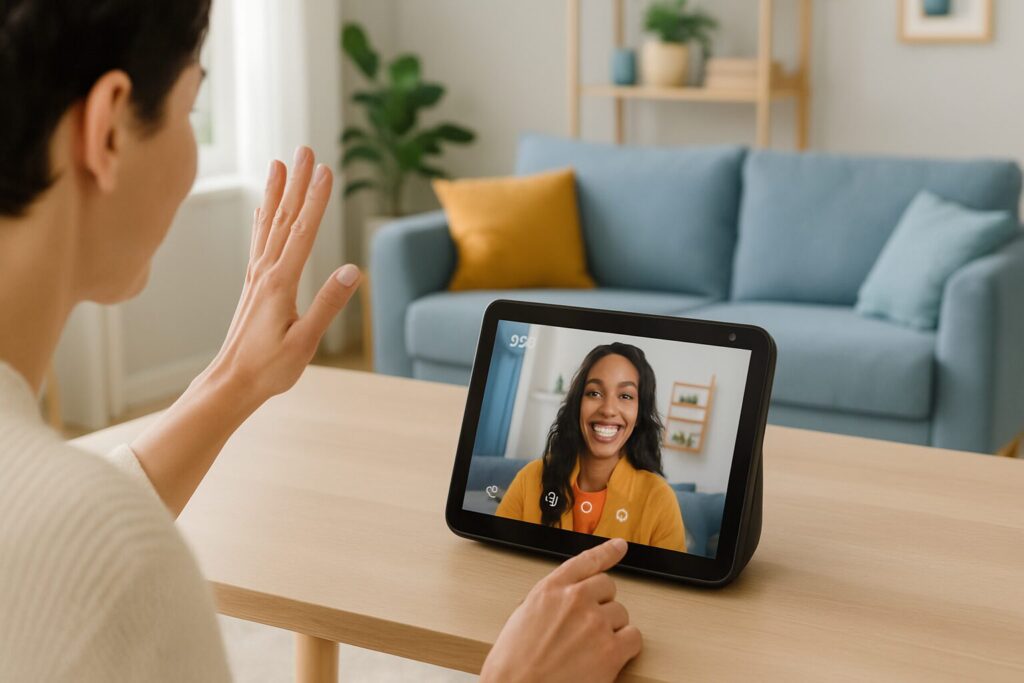
If you have an Echo device with a screen, like an Echo Show 8 or Echo Show 10, you can make Skype video calls with Alexa automatically. The process is identical to an audio call; if your contact and your device support video, the call will start with the camera enabled.
Just say: “Alexa, video call John on Skype.”
This feature is perfect for face-to-face chats with family or for quick work meetings without having to fire up your laptop.
Troubleshooting Common Alexa & Skype Issues
While the integration is generally rock-solid, you might run into a few snags. Here are the solutions to the most frequent Alexa Skype call problems I’ve encountered.
Alexa Can’t Find My Skype Contacts
This is easily the most common issue. First, make sure you’ve waited at least 10-15 minutes since you linked the account to allow for a full contact sync. If the problem persists, try these steps:
- Double-Check Permissions: In the Alexa app, navigate to
Settings > Communication > Skypeand ensure all permissions have been granted. Sometimes an app update can reset these. - Use the Exact Name: Alexa needs you to say the name precisely as it appears in your Skype contact list.
- The Old Unlink and Relink: As a last resort, unlink your Skype account from the Alexa app and go through the setup process again from scratch. This usually fixes it.
Poor Call Quality or Choppy Audio
Bad audio or video quality is almost always a network issue. A voice or video call requires a stable, constant stream of bandwidth. If your network is congested (e.g., someone is streaming 4K video, downloading large files, etc.), call quality will suffer.
- Move Your Echo Closer to the Router: A stronger Wi-Fi signal makes a big difference.
- Reboot Your Router: It’s a classic for a reason. Unplugging your router for 30 seconds solves more problems than you’d think.
- Consider a Mesh Network: If you have a large home or one with thick walls, a Mesh Wi-Fi system can dramatically improve coverage and stability in every room.
- Segment Your Network (Advanced): For tech-savvy users, network segmentation can help prioritize traffic for devices like your smart speakers, ensuring they always have the bandwidth they need.
Frequently Asked Questions (FAQ) about Skype and Alexa in 2026
Is it free to use Skype with Alexa?
Calls between Skype users (from your Echo to someone else’s Skype account) are completely free. Calls to landline or mobile phone numbers will use your Skype Credit or be covered by your calling subscription if you have one. This is especially cost-effective for making international calls.
Which Echo devices are compatible?
Skype voice calling is compatible with the entire range of Amazon Echo and Alexa-enabled devices, from the compact Amazon Echo Pop to the Echo Dot with Clock. For video calls, you’ll need a device with a screen, such as any model from the Echo Show family.
Are there still country-based limitations?
Nope. Unlike the early days of this integration, in 2026, the Skype calling feature on Alexa is widely available globally in all regions where both Amazon Alexa and Skype officially operate.