
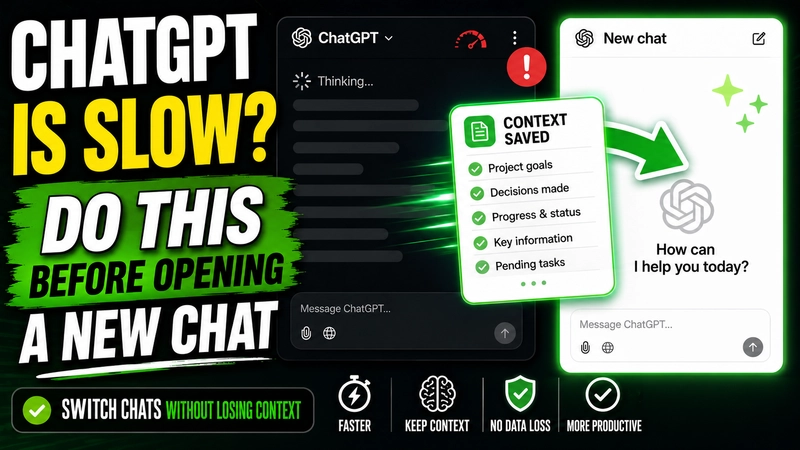

If you use ChatGPT for hours to work, create content, prepare videos, organize projects, solve technical problems, or manage tasks, this has probably happened to you at some point: the chat starts working fine, but after a while each response takes longer, the conversation feels heavier, and continuing inside the same chat becomes uncomfortable. In short, ChatGPT is slow.
This is not always a problem with your computer, your browser, or your internet connection. Many times, you are simply working in a conversation that has become too long, with a lot of accumulated context, previous instructions, decisions, changes, corrections, and pending tasks.
In those cases, a very practical solution is to open a new chat. The problem is obvious: if you start a new conversation from scratch, you may lose all the context you had built up.
The good news is that you can prepare the chat switch before doing it.
In this article, I’ll show you how to switch chats in ChatGPT without losing context, using a simple prompt to create a structured summary or “continuation key.”
📹 Related video:
Quick Prompt to Switch Chats Without Losing Context
If you want the direct version, copy and paste this prompt into the long ChatGPT conversation before opening a new chat:
I want to start a new conversation without losing context. Summarize and “save” everything we have done so far: goals, decisions, progress, pending tasks, key data, and any important details. Then give me a single word or short phrase, like a “continuation key,” that I can paste at the beginning of the new conversation so you can pick up exactly where we left off. Response format:
1) CONTEXT SUMMARY structured clearly in bullet points
2) CURRENT STATUS what is done / what is still missing
3) NEXT STEPS concrete list
4) CONTINUATION KEY: “<phrase>”
This prompt helps you move the important information from a long conversation into a new, cleaner chat.
Why ChatGPT Can Become Slow in Long Chats
When you work for a long time inside the same conversation, ChatGPT accumulates information: what you asked for, the answers it gave you, the corrections you made, the project goals, and the decisions you took along the way.
That is useful because it gives the conversation continuity. But it can also become a problem if the chat gets too long.
You may notice things like:
- Responses become slower.
- The chat takes longer to start writing.
- The conversation feels less fluid.
- Finding previous information becomes harder.
- ChatGPT may not be as clear about which parts of the context matter most.
- Continuing to work inside the same chat becomes less practical.
ChatGPT has memory and history features that can help in some situations, but they should not be treated as a guarantee that every detail from a previous conversation will always be available in a new chat. That is why, when the context matters, it is better to give it clearly and directly.
How to Use the Prompt Step by Step
First, go to the ChatGPT conversation that has become very long or that is starting to feel slow.
Paste the prompt from above and let ChatGPT generate the summary. If the conversation is very long, it may take a little while, but the goal is to do it once so you can continue in a much cleaner chat.
When ChatGPT replies, you will usually have two options.
The first option is to copy only the continuation key, if ChatGPT has generated a short phrase that is clear and useful enough.
The second option is to copy the full structured summary and paste it into the new chat.
Personally, for important projects, I recommend copying the full summary or at least checking that the continuation key contains enough information. If the project is simple, the key may be enough. But if you are working on something complex, such as a script, a strategy, an automation, a smart home project, or a long planning session, it is better to bring more context into the new chat.
What to Do in the New Chat
When you open the new chat, you can start with something like this:
I am coming from a previous conversation. Here is the context so we can continue from where we left off: [PASTE THE CONTINUATION KEY OR FULL SUMMARY HERE] From now on, work with this context in mind.This small step helps a lot because it makes clear to ChatGPT that you are not starting a random new conversation. You are continuing a previous project.
When This Method Is Worth Using
This method is especially useful if you use ChatGPT to:
- Create YouTube scripts.
- Prepare articles or long-form content.
- Work on technology projects.
- Organize professional tasks.
- Plan automations.
- Manage smart home projects.
- Analyze documents.
- Prepare content strategies.
- Solve technical problems.
- Continue a long conversation with many accumulated decisions.
It is also useful if you notice that ChatGPT is starting to respond more slowly, or if you simply want to organize the work before continuing.
Common Mistakes When Switching Chats in ChatGPT
The most common mistake is opening a new chat too quickly and assuming ChatGPT will automatically understand everything that happened before.
Another mistake is copying only a very short summary that does not include the important decisions, pending tasks, or style instructions. In a simple conversation, that may be enough. But in a serious project, it can create confusion later.
It is also a mistake not to review the summary before moving to the new chat. This method is useful, but it is not magic. If something important is missing, ask ChatGPT to add it before you continue.
For example, you can say:
Also add the technical decisions we made, the errors we already ruled out, and the exact style I want to keep.The better the context you give to the new chat, the better the answers will be.
Final Prompt to Copy
Here is the final prompt again, ready to copy:
I want to start a new conversation without losing context. Summarize and “save” everything we have done so far: goals, decisions, progress, pending tasks, key data, and any important details. Then give me a single word or short phrase, like a “continuation key,” that I can paste at the beginning of the new conversation so you can pick up exactly where we left off. Response format:
1) CONTEXT SUMMARY structured clearly in bullet points
2) CURRENT STATUS what is done / what is still missing
3) NEXT STEPS concrete list
4) CONTINUATION KEY: “<phrase>”
Conclusion
If ChatGPT is slow after a very long conversation, opening a new chat can be a good solution. But do not do it without preparing the context first.
Before clicking “New chat,” ask ChatGPT to summarize the important information and create a continuation key. That way, you can keep working in a clean conversation without losing the goals, decisions, progress, and pending tasks of the project.
It is a simple method, but very useful if you use ChatGPT seriously for work, content creation, project organization, or productivity.
📹 Step-by-step video:
Continue reading

Next related guide · 9 min read
Spain’s IA360 Plan: what it proposes and what could actually change
Spain's IA360 Plan, a new roadmap designed to accelerate the development and adoption of artificial intelligence during 2026 and 2027. On paper, it includes…
Continue with this article