
Updated on July 31, 2026
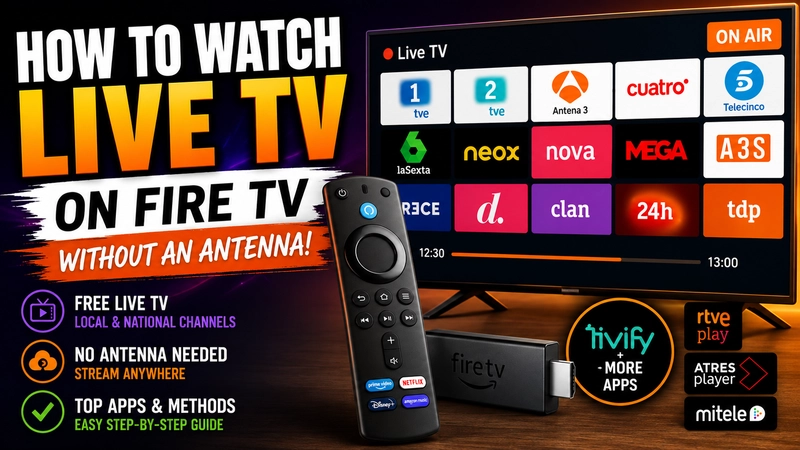
Wanting to how to watch live tv on fire tv without an antenna is the best move if you don’t have a traditional coaxial wall outlet in your room, if your signal drops out during bad weather, or if you simply prefer having everything integrated into one streaming hub. Thanks to modern streaming tech, it is remarkably easy to ditch the traditional cable setup and stream live broadcasts with outstanding picture quality on any Amazon media device. If you’re still figuring out which model to get for your living room setup, I recommend reading my detailed review on what Fire TV to buy.
Disclaimer: The content of this article is for educational and informational purposes only. At Tecnoyfoto, we do not develop, host, or distribute any of the third-party add-ons, software, or services mentioned, nor are we affiliated with their creators. We strongly oppose piracy and unauthorized content distribution. You are solely responsible for how you choose to use the information provided here.
Official Amazon Appstore Methods: Streaming Live TV Made Easy
If you don’t want to mess around with advanced workarounds or manual sideloading, the official Amazon Appstore offers fantastic, 100% legal apps to watch live broadcasts for free. My absolute go-to recommendation after daily testing is Tivify for Fire TV. Their free tier gives you access to a solid lineup of local and national channels in real time, complete with handy advanced features like pausing live playback or scheduling cloud DVR recordings.
Other stable, native alternatives include the official apps from major broadcast networks. Apps like official streaming apps can be downloaded straight from the Fire Stick app store, usually requiring nothing more than a free account signup to start watching live feeds instantly.
Comparison Table: Best Options to Watch Live TV on Fire TV (2026)
To help you pick the right method for your setup, I’ve put together a quick breakdown comparing the pros and cons of each alternative:
| App / Method | Requires Sideloading? | Cost | Pros | Cons |
|---|---|---|---|---|
| Tivify | No (Official Store) | Free (Paid plans available) | Great TV guide, cloud recording, and 7-day catch-up. | Contains ads on the basic free plan. |
| Open Source Streaming Apps | Yes (Manual sideloading) | 100% Free | Open-source, no account required, lightweight resource usage. | Requires manual APK updates from time to time. |
| Official Network Apps | No (Official Store) | Free (Premium tiers optional) | Official streaming stability and massive on-demand catalogs. | Must switch between different apps to watch different networks. |
How to Install Third-Party Streaming Apps on Fire TV Step-by-Step
If you’re looking for a unified open-source solution that aggregates tons of live streams from around the globe, sideloading a dedicated media app is usually the route enthusiasts take. While older versions of Fire OS required tools like Send Files to TV, the process has become much more streamlined if you install Downloader on your Fire Stick.
Step 1: Enable Developer Options on Fire OS
Amazon hides the developer settings by default in recent software updates. To allow the installation of apps from unknown sources, follow the essential trick detailed in my guide on how to enable Developer Options on Fire TV:
- Navigate to Settings (the gear icon on the far right of the home screen).
- Go to My Fire TV and click on About.
- Highlight the very first item in the list (which displays your exact device model, e.g., “Fire TV Stick 4K Max”).
- Press the Select button on your remote 7 times consecutively. A notification will pop up at the bottom saying: “No need, you are already a developer.”
- Hit the Back button on your remote, and you’ll see the newly unlocked Developer Options menu appear. Open it and make sure Apps from Unknown Sources is turned on.
Step 2: Download and Set Up the Downloader App
Now that your device is ready for side-loaded apps, we’ll grab the official sideloading utility from the app store:
- Use the main search bar on your Fire TV home screen and type in Downloader.
- Download and install the official app (look for the orange icon).
- Once installed, go back to: Settings > My Fire TV > Developer Options > Install Unknown Apps and toggle Downloader to “ON” to grant it storage write permissions.
- Open the Downloader app.
- In the URL text box on the home tab, enter your trusted source web address:
https://www.google.com/ - Click Go to load the page via the built-in browser.
- Navigate to the download section for Android, select the TV-optimized version (Android TV/Fire OS), and click the APK download link.
- Once the file finishes downloading, the Fire OS installer prompt will pop up automatically. Click Install, and then Done to delete the leftover installer file and save storage space.
Step 3: Install Your Preferred Streaming APK
You’re now ready for a clean installation, using a procedure very similar to what we follow when we install Kodi on Amazon Fire TV Stick:
Troubleshooting: What to Do If Streams Lag or Fail to Load
In today’s crowded streaming landscape, some internet service providers occasionally apply traffic shaping or temporary blocks that can interfere with third-party IPTV and live streaming servers. If you run into playback issues, I strongly suggest reviewing my guide on how to bypass ISP restrictions using DNS and a VPN, which will instantly restore smooth, uninterrupted playback.
Enjoying live broadcasts without traditional coaxial cables is smoother and more powerful than ever. If you enjoy tinkering with media boxes, you’ll feel right at home if you’ve ever tested how to watch live TV on Google TV, since both platforms share the same core mobile OS adapted for the big screen.
Continue reading
Next related guide · 5 min read
How to Watch Live TV on Google TV Without an Antenna in 2026
Updated on July 31, 2026 If you have a Chromecast with Google TV, the modern Google TV Streamer, or any device running Android TV,…
Continue with this article