
Updated on July 31, 2026
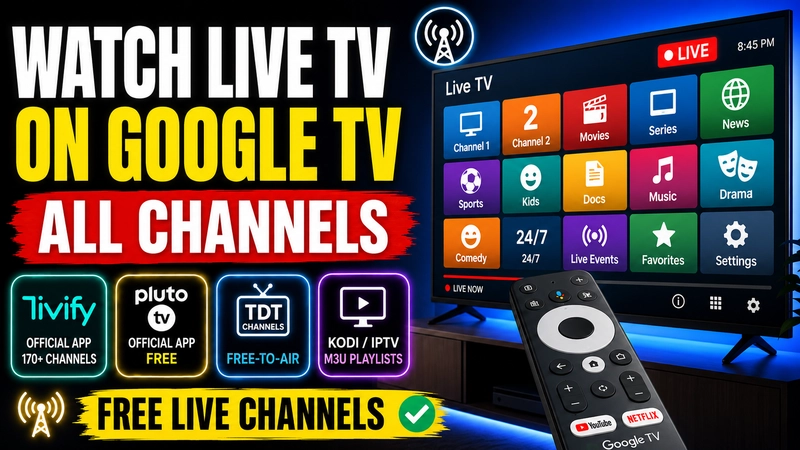
If you have a Chromecast with Google TV, the modern Google TV Streamer, or any device running Android TV, you’ve probably realized that tuning into traditional local broadcasts no longer requires a coaxial antenna cable. However, the absolute worst user experience is jumping back and forth between individual streaming apps just to change the channel. In my lab testing, I’m all about efficiency: centralizing all free live TV channels into a single, unified interface.
Thankfully, there are fantastic live TV apps for Google TV that aggregate broadcasts without the headache. In this guide, I’ll walk you through the best official methods straight from the Google Play Store, how to set up community-favorite external tools like TDT Channels, and how to deploy legal IPTV playlists for power users who want a professional-grade streaming setup.
Disclaimer: This article is for educational and informational purposes only. We do not develop, host, or distribute any of the mentioned add-ons, software, or services, nor are we affiliated with their creators. We strongly oppose piracy and unauthorized content usage. You are solely responsible for how you choose to use the information provided here.
Comparison of Methods to Watch Live TV on Google TV
Before diving into the weeds, I’ve put together a quick comparison table so you can pick the option that best fits your tech skills and viewing needs:
| Method / App | Ease of Use | Approx. Channels | Cost | Requires Account? |
|---|---|---|---|---|
| Tivify (Free Plan) | Very High (Play Store) | 170+ channels | Free (ad-supported) | Yes |
| Pluto TV | Very High (Play Store) | 100+ themed channels | Free | No |
| TDT Channels | Medium (Manual APK Sideload) | 600+ global channels | Free & Ad-Free | No |
| Kodi / IPTV Player | Advanced (m3u Playlists) | Unlimited (varies by list) | Free | No |
Note: If you’re using an Amazon streaming stick instead of Google, I suggest checking out my dedicated guide on how to watch live TV on Kodi.
Method 1: Official Apps Straight from the Play Store
If you don’t want to mess around with advanced menus or file transfers, the Google Play Store right on your TV offers instant solutions ready to download.
Tivify: The Best Official Alternative
In my opinion, the crown jewel for commercial streaming aggregation is Tivify. This app stands out because it respects traditional broadcast channel layouts and features an interface identical to a standard cable box. Its ad-supported free tier is exceptional, letting you watch regional and national channels without spending a dime. It only requires a quick account setup, and its H.264/H.265 video compression delivers smooth playback even on modest internet connections.
Pluto TV: Free-Ad-Supported Streaming TV (FAST) Channels
While Pluto TV doesn’t replace standard local broadcast networks, it’s an essential companion app for any Google TV setup. It features over a hundred free themed channels dedicated to movies, series, comedy, and documentaries that integrate seamlessly into the “Live” tab of your main Google home screen.
Method 2: Sideloading TDT Channels (Manual APK)
If you’re looking for an ad-free tool packed with hundreds of open-source and public TV and radio streams from around the globe, the community’s go-to choice is TDT Channels. Because this app aggregates public IPTV broadcast links and isn’t hosted on the official Play Store, you’ll need to enable developer options on Google TV to install it manually via APK.
Don’t sweat it—just follow this step-by-step walkthrough I use on all my devices:
Step 1: Prep Your Google TV for Sideloading
Google TV locks down security by default to prevent third-party installations. Here is how to unlock it:
- Head over to the Settings menu on your Google TV (gear icon).
- Navigate to System > About.
- Scroll down to Android TV OS Build and click the center button on your remote repeatedly (about 7 times) until you see the toast message: “You are now a developer.”
- Head back a couple of menus, open Settings > Privacy > Security & Restrictions (or Apps depending on your OS version), and turn on permissions for unknown sources. Grant the file transfer app (in this case, Send Files to TV) the necessary storage rights.
Step 2: Transfer and Install the APK File
To push the installation file from your smartphone to your TV without messing with USB drives:
- Install the Send Files to TV app on both your phone and your TV. Both downloads are free via their respective app stores.
- Open the official TDT Channels website using your mobile browser and download the latest Android APK build available.
- Fire up the file transfer app on both screens (ensure they’re hooked up to the same Wi-Fi network). Tap “Send” on your phone to beam over the APK, and “Receive” on your TV.
- Once transferred, fire up a file manager on your Google TV (like File Commander) to run the APK and install it. Boom—you’re done and ready to stream.
Method 3: Legal M3U IPTV Playlists in Media Players
For digital video and audio enthusiasts who demand maximum image clarity and zero storage bloat from third-party apps, utilizing structured IPTV playlists is the ideal solution. Platforms like TDTChannels offer clean, legal links formatted as .m3u8 or .m3u files grouping public streams together.
Using Kodi on Google TV
If you already have Kodi installed on your Google TV, you don’t need any extra bloatware. The media center itself handles live TV streams like an absolute pro:
- Launch Kodi and head over to the Add-ons section.
- Search for and install the built-in PVR IPTV Simple Client add-on from the official Kodi repository.
- Configure the add-on by dropping in the URL of the legal M3U playlist provided by authorized platforms.
- Restart Kodi, and you’ll see every channel automatically populated under the “TV” section, complete with Electronic Program Guide (EPG) support.
To expand your media center’s capabilities further, I recommend looking through my handpicked selection of the best Kodi addons.
Buffering or Geo-Restriction Issues?
On occasion, certain public regional or national streams might suffer throttling from your internet service provider or geo-blocks if you’re traveling abroad. If you experience unexpected stuttering, the easiest fix is to change your DNS settings in your Google TV network configuration, or route your connection through a secure virtual private network by following our guide on bypassing ISP blocks with DNS and VPN.
Continue reading
Next related guide · 5 min read
How to Watch Live TV on Fire TV Without an Antenna in 2026
Updated on July 31, 2026 Wanting to how to watch live tv on fire tv without an antenna is the best move if you…
Continue with this article