
As an Amazon Associate, I earn from qualifying purchases. En calidad de Afiliado de Amazon, obtengo ingresos por las compras adscritas que cumplen los requisitos aplicables. If you buy through these links, the price is the same for you and Amazon pays me a small commission that helps keep Tecnoyfoto running.

Updated on March 13, 2026
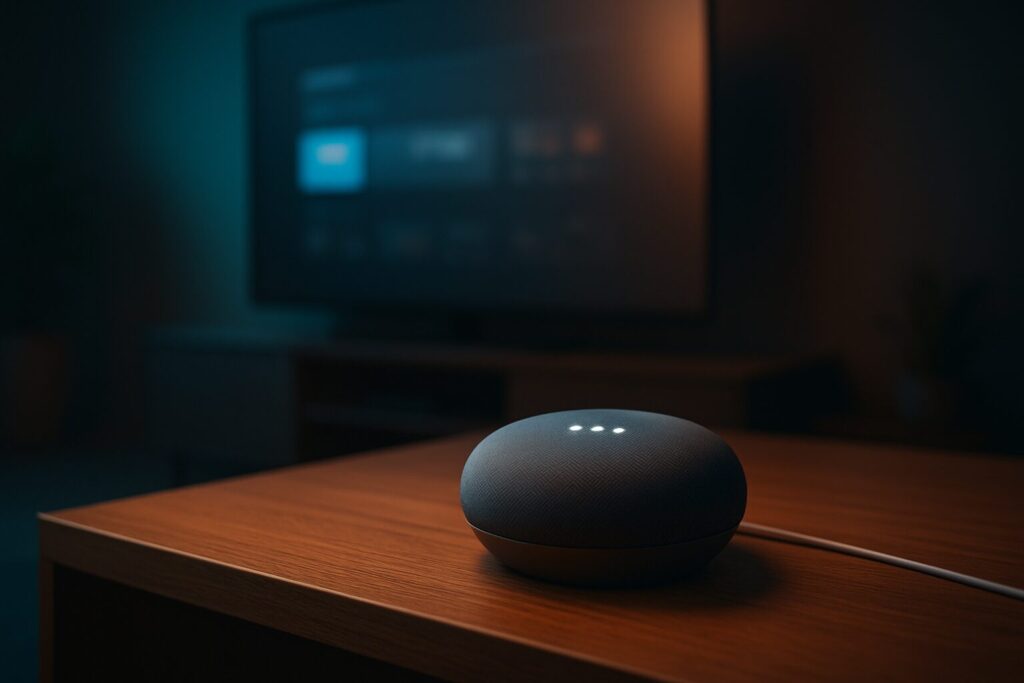
In 2026, your TV is more than just a screen—it’s the command center for your smart home entertainment. Integrating it into the Google ecosystem with the Google Home app and Google Assistant completely transforms the experience. This connection lets you use simple voice commands to turn your TV on and off, control the volume, launch apps like Netflix or YouTube, and even ask it to play a specific show or movie. In this definitive guide, I’ll show you every up-to-date method to connect Google Home to your TV and unlock its full potential.
Prerequisites: What You’ll Need to Get Started
Before we dive into the different methods, make sure you have the following on hand. This is the foundation for a smooth, hassle-free setup.
- A smartphone or tablet: With the Google Home app installed.
- A Google account: You’ll need to use the same one across all your devices.
- A stable Wi-Fi network: Your TV (or streaming device) and your phone must be on the same network. If you have spotty coverage, consider a Mesh Wi-Fi system.
- A compatible device: This could be a Smart TV with Google TV/Android TV, a Chromecast, or a smart universal remote.
Method 1: The Easy Way (Smart TVs with Google TV or Android TV)
The simplest and most direct way to link your TV to Google Home is if you already own a Smart TV running on Google’s OS. In 2026, most TVs from brands like Sony, TCL, Hisense, Philips, and Xiaomi come with Google TV (or its predecessor, Android TV) right out of the box. These systems have “Chromecast built-in,” which means the technology is already integrated.
The setup is usually automatic during the TV’s first boot-up, where it will prompt you to sign in with your Google account. If you skipped that step, here’s how to do it manually:
- Make sure your TV and smartphone are on the same Wi-Fi network and signed into the same Google account.
- Open the Google Home app on your phone.
- Tap the “+” button in the top-left corner and select “Set up device.”
- Choose “New device” and select the home where you want to add the TV. The app will then scan for nearby devices.
- When your TV appears in the list, select it and follow the on-screen instructions to complete the link.
Once completed, your TV will appear as another device in your digital home, ready for voice control.
Method 2: The Universal Fix (Using a Chromecast with Google TV)
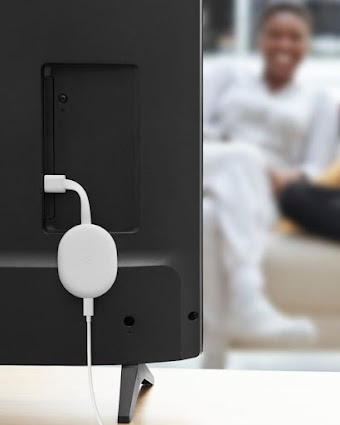
If your TV doesn’t have Google TV or runs a different OS like Tizen (Samsung) or webOS (LG), your best bet is to get a Chromecast with Google TV. This small dongle plugs into your TV’s HDMI port and not only lets you cast content from your phone but also adds a full-fledged smart TV interface and a physical remote.
The process to set up Google Home with a Chromecast is incredibly intuitive:
- Plug the Chromecast into an HDMI port on your TV and connect it to a power outlet with its adapter.
- Turn on your TV and switch to the correct HDMI input. You should see the Chromecast welcome screen.
- Open the Google Home app on your phone. It will typically auto-detect the new device and show a prompt to begin setup. If not, go to the “+” > “Set up device” > “New device.”
- The app will guide you through connecting the Chromecast to your Wi-Fi, linking your Google account, and setting up the remote to also control your TV’s volume and power.
- Once finished, you’ll be able to control both the Chromecast and basic TV functions (power, volume) using the Google Assistant.
Method 3: How to Connect Google Home to a TV Without Chromecast
Is it possible to control your TV with Google Home without using a Chromecast? Yes, though the options are more limited and usually require extra hardware. These are ideal solutions for power users looking to centralize control over older or natively incompatible devices.
Smart Universal Remotes (IR/Wi-Fi Blasters)
Devices like the Broadlink RM4 ProAffiliate link or the SwitchBot Hub 2 act as a bridge between Google Assistant and your gadgets that use an infrared (IR) remote, like older TVs, air conditioners, or sound systems. They work by “learning” the signals from your original remotes, allowing you to trigger them with your voice.
To set up a Broadlink device with Google Home, the general steps are:
- Set up the Broadlink device using its own mobile app and connect it to your Wi-Fi.
- Use the Broadlink app to add your TV and clone its remote control buttons (power, volume, channels, etc.).
- In the Google Home app, go to “+” > “Set up device” > “Works with Google.”
- Search for the Broadlink service (or the brand of your smart remote) and link your account.
- Once linked, the devices and scenes you created in the Broadlink app will appear in Google Home, ready to be voice-controlled.
Best Smart Universal Remotes (2026 Comparison)
| Model | Connectivity | Compatibility | Estimated Price Range (USD) | Best For… |
|---|---|---|---|---|
| Broadlink RM4 ProAffiliate link | Wi-Fi, IR, RF (433MHz) | Google Home, Alexa, IFTTT | $50 – $65 | Controlling almost any IR device and some RF devices like shades or fans. |
| SwitchBot Hub 2 | Wi-Fi, IR, Bluetooth | Google Home, Alexa, HomeKit, Matter | $75 – $95 | SwitchBot ecosystem users and those looking for future-proof Matter compatibility. |
| Moes UFO-R11 | Wi-Fi, IR | Google Home, Alexa (via Tuya/Smart Life) | $25 – $35 | A budget-friendly solution for controlling basic IR devices. |
Leveraging HDMI-CEC for Smarter Control
HDMI-CEC (Consumer Electronics Control) is a feature that allows devices connected via HDMI to talk to each other. A Chromecast, for example, can use CEC to turn your TV on and automatically switch to its HDMI input when you cast content to it. For this to work, the feature must be enabled on both your TV and the connected device.
Look for an option in your TV’s settings menu with a name like Anynet+ (Samsung), SimpLink (LG), Bravia Sync (Sony), or Viera Link (Panasonic) and make sure it’s turned on.
Essential Voice Commands for Your TV in 2026
Once everything is set up, it’s time for the fun part: voice control. Here’s a list of commands to use with your Google Assistant-enabled TV. Remember, if you only have one TV linked, you don’t need to specify its name (e.g., “the living room TV”).
- Basic Commands:
- “Hey Google, turn on/off the TV.”
- “Hey Google, volume up/down on the TV.”
- “Hey Google, set volume to 30% on the TV.”
- “Hey Google, mute/unmute the TV.”
- Playback Control:
- “Hey Google, pause/resume.”
- “Hey Google, stop.”
- “Hey Google, next/previous episode.”
- “Hey Google, fast-forward 2 minutes.”
- “Hey Google, rewind 30 seconds.”
- Opening Apps & Specific Content:
- “Hey Google, open YouTube on the TV.”
- “Hey Google, play House of the Dragon on Max on the TV.”
- “Hey Google, search for cooking recipe videos on YouTube on the TV.”
- “Hey Google, turn on English subtitles.”
Unlike in previous years, the 2026 Google Assistant is much smarter, allowing you to ask for specific seasons and episodes naturally.
Troubleshooting: Common Problems & Quick Fixes
Sometimes, things don’t go as planned. Here are solutions to the most common issues you might face when trying to link your TV with Google Home.
- The TV doesn’t appear in the Google Home app: Double-check that your phone and TV (or Chromecast) are connected to the exact same Wi-Fi network. Try rebooting both devices and your router. Also, make sure you’re signed into the same Google account on everything.
- Power on/off commands don’t work: If you’re using a Chromecast, make sure it’s plugged into the wall with its own power adapter, not a USB port on the TV. The TV’s USB port often loses power when the TV is off. Also, verify that the HDMI-CEC feature is enabled in your TV’s settings.
- Google Assistant says it can’t control Netflix/Max/etc.: Go to the Google Home app, tap your profile icon > “Assistant settings” > “Video.” Make sure your streaming service accounts are properly linked there.
- Voice control is slow or unresponsive: This is usually a Wi-Fi issue. Try moving your router closer to the TV or consider upgrading to a Mesh Wi-Fi system to improve the signal throughout your home.