
This article may contain affiliate links. If you buy through these links, the price is the same for you and the store pays me a small commission that helps keep Tecnoyfoto running.

Updated on January 27, 2026
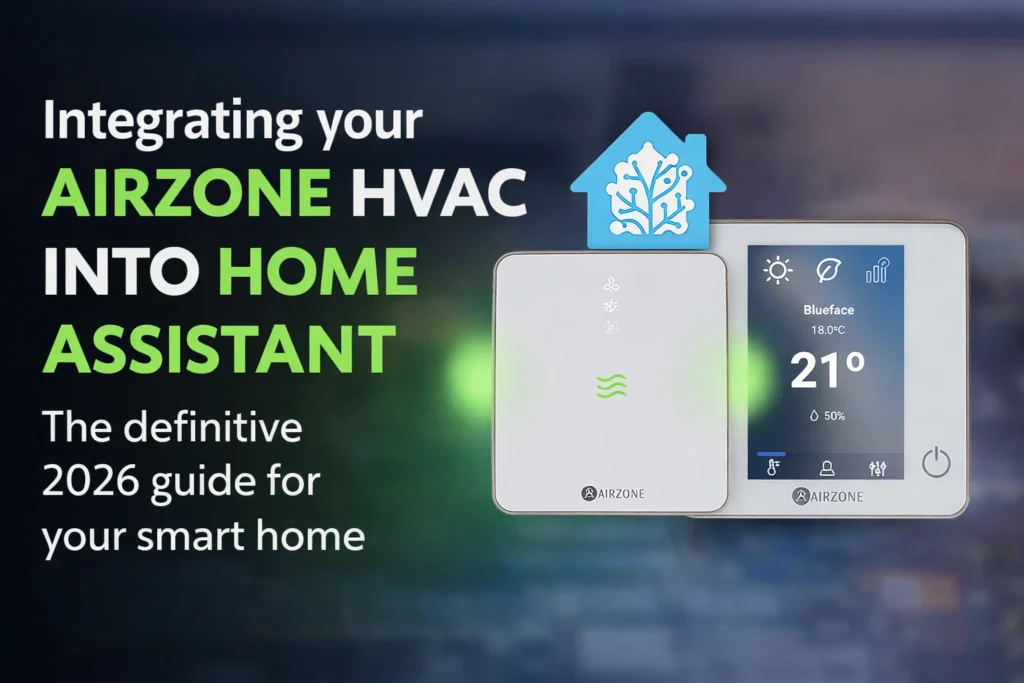
Integrating your Airzone HVAC system into Home Assistant is, without a doubt, one of the most impactful projects you can tackle for smart comfort and energy efficiency. A few years back, I installed an Airzone Flexa 4 system in my own home, and I’ve been deep-diving into its integration possibilities ever since. This is the definitive, up-to-date 2026 guide to get your own system connected robustly, helping you choose the method that best fits your needs.
Prerequisites for Integration
Before we jump into the configuration, it’s crucial to make sure we have everything in order. A little prep work now will prevent most of the common Airzone Home Assistant integration problems down the line. Here’s your 2026 checklist:
- Compatible Airzone System: Most modern Airzone systems, like the Flexa, Easyzone, and RadianT365 series, and gateway devices like the Airzone Aidoo Pro, expose a local API—the preferred route for integration. If you have an older model, make sure it has an “Airzone Webserver” or an equivalent device connected to your network.
- Network Connection: Your main Airzone hub or gateway must be connected to the same local network as your Home Assistant server. For the local integration, I strongly recommend assigning a static IP address to your Airzone system from your router. This ensures the connection never drops if the device reboots.
- Home Assistant Version: Make sure you’re running a recent version of Home Assistant (2026.1 or newer) to get the most stable, feature-rich native integration.
Integration Methods: Airzone Cloud vs. Local API
Home Assistant offers two paths to connect with Airzone. The choice between Airzone cloud vs. local is fundamental and will hinge on your priorities for privacy, speed, and reliability.
Comparison Chart: Local vs. Cloud Integration (2026)
| Feature | Local API Integration | Cloud Integration |
|---|---|---|
| Speed | Instantaneous. Commands are executed directly on your local network. | Fast, but with slight latency as it relies on Airzone’s servers. |
| Privacy | Maximum. No usage or control data ever leaves your home. | Lower. All traffic is routed through the manufacturer’s servers. |
| Internet Dependency | Zero. Works perfectly even if your internet connection goes down. | Total. If your internet or Airzone’s servers are down, you lose control from Home Assistant. |
| Setup Ease | Simple, but requires knowing the IP address of the Airzone system. | Very easy. Just requires your Airzone app username and password. |
| Reliability | Rock-solid. With no external dependencies, this is the most robust option. | High, but subject to the availability of third-party services. |
Step-by-Step Guide: Your Airzone Home Assistant Integration (2026)
Setting up your Airzone Home Assistant integration has become incredibly streamlined thanks to the native support. Here’s how to do it with the current 2026 interface.
Method 1: Local API Integration (Recommended)
This is my go-to choice for its speed and privacy. The only real requirement is access to your device’s Airzone local API.
- Navigate to Settings > Devices & Services in your Home Assistant dashboard.
- Click the Add Integration button in the bottom right corner.
- In the search bar, type “Airzone” and select it.
- Home Assistant will ask for the connection method. Choose “Connect to a device on the local network”.
- Enter the IP address of your Airzone Webserver (which you identified earlier) and the port, if prompted (usually 3000).
- That’s it! Home Assistant will automatically discover all your zones (thermostats) and the main unit. I recommend assigning each new entity to its corresponding area for better organization.
Method 2: Cloud-Based Integration
If you can’t use the local API or just prefer the simplicity of the cloud, the process is just as intuitive.
- Follow steps 1, 2, and 3 from the method above.
- When Home Assistant prompts for the connection method, select “Connect via Airzone Cloud”.
- Enter the email and password you use for the official Airzone app.
- After validating your credentials, the integration will complete, and your devices will appear in Home Assistant.
Troubleshooting Common Issues
Even with a straightforward process, hiccups can happen. Here are solutions to the most common Airzone Home Assistant integration problems.
Connection Error or Invalid IP
If Home Assistant can’t connect during the local setup, double-check the following:
- Correct IP: Make sure the IP address you entered is correct and the device is online. You can use a network scanning app on your phone to find and verify it.
- Firewalls or VLANs: If you use advanced network configurations like VLAN segmentation, ensure that your Home Assistant instance has permission to communicate with the Airzone device’s IP address.
Entities Are Missing or Unavailable
Sometimes, after an update or a reboot, entities can get stuck in an unavailable state.
- Reload the Integration: Go to the Airzone integration under “Devices & Services,” click the three-dot menu, and select “Reload.”
- Reboot the Devices: A full reboot of your Home Assistant server and the main Airzone unit often resolves temporary communication glitches.
Awesome Automations with Airzone and Home Assistant
Once integrated, the real magic happens with automations. Here are a few practical ideas to get you started.
Automation Idea #1: Presence-Based Climate Control
Automatically turn off the HVAC system when everyone leaves the house to save energy.
- Trigger: The state of
zone.homechanges to0. - Action: Call the
climate.turn_offservice for all your Airzone thermostat entities. - Level Up: Use presence sensors like the SONOFF SNZB-06PAffiliate link for even more granular, room-by-room control.
Automation Idea #2: Shut Off AC When a Window Opens
Stop wasting cooled air if a window is opened in a climate-controlled room.
- Trigger: The state of a Zigbee door/window sensor changes to ‘on’ (open).
- Action: Call the
climate.turn_offservice targeting the specific Airzone thermostat for that room.
Conclusion
In 2026, integrating Airzone with Home Assistant is a mature, stable process that’s well within reach for any user. Personally, I will always recommend the local API integration whenever possible for its robustness and respect for privacy. The ability to combine Airzone’s sophisticated climate control with the rest of your smart home sensors and devices unlocks a world of possibilities for improving comfort and drastically cutting your energy bill. It’s truly one of the most satisfying integrations you can set up.