

Updated on May 10, 2026
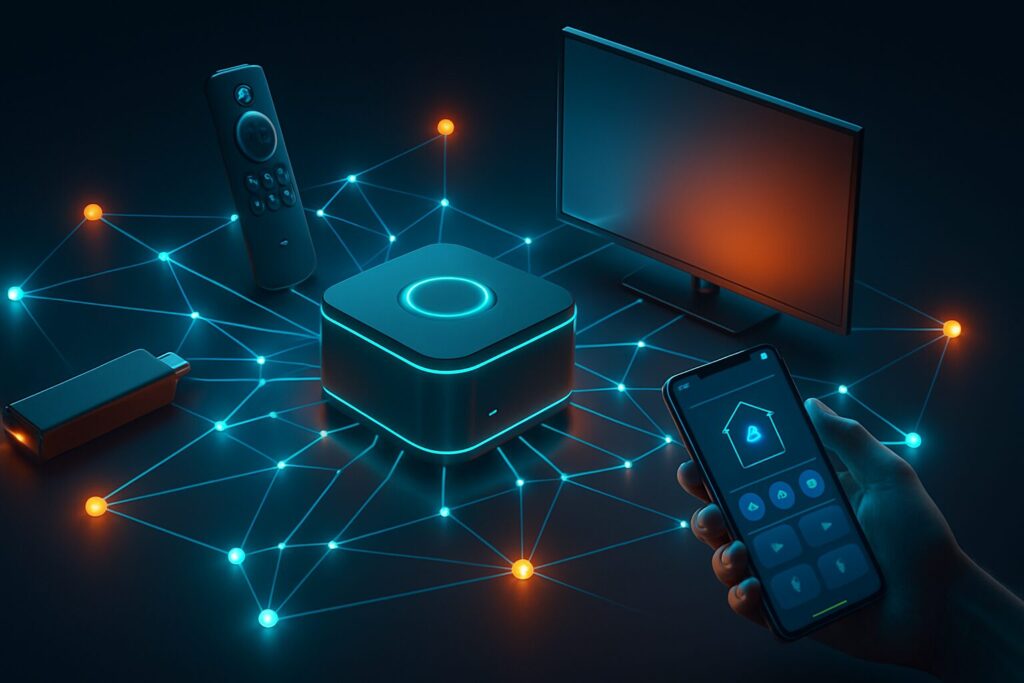
Lost your Fire TV remote *again*? Did the batteries die right before the season finale? Or are you just sick of hunting and pecking with the D-pad to type in passwords and search terms? In 2026, the official Fire TV Remote App from Amazon is way more than just an emergency backup; it’s become an essential tool for efficiently managing any device in the Fire TV family, from the entry-level sticks to the powerhouse Amazon Fire TV Cube.
In this definitive guide, fully updated for 2026, I’ll walk you through not only how to set up the app on your phone or tablet but also how to master its advanced features, troubleshoot the most common issues, and understand why it often beats the physical remote that came in the box.
Download the Official Fire TV Remote App
First things first, you need the app. It’s free and it’s the official one from Amazon. Be sure to download it from the official app stores to avoid third-party clones bloated with ads or potential security risks.
System Requirements and Compatibility in 2026
To ensure a smooth experience, your mobile device needs to meet some minimum requirements. Support for older operating systems has been phased out over time. As of 2026, here’s the Fire TV App compatibility I recommend to avoid headaches:
- Fire Tablets: Works on all 8th generation Fire tablets (2018 models) and newer.
- Android: Android 12 or higher is required. While it might work on older versions, stability and access to all features aren’t guaranteed.
- iOS / iPadOS: You’ll need to have iOS 17 or later installed.
How to Set Up the Fire TV Remote App Step-by-Step
The pairing process is quick and painless. You just need your phone and your Fire TV powered on and handy. Follow these steps:
- Connect both devices to the same Wi-Fi network. This is the most critical step and the cause of 90% of all connection failures. Your phone and your Fire TV must be on the exact same local network.
- Open the Fire TV app on your phone or tablet. The app will immediately start scanning your network for compatible devices.
- Select your Fire TV from the list of available devices that appears on the app screen.
- Enter the PIN code. A 4-digit code will appear on your TV screen. Type it into the app on your phone to confirm the pairing.
- You’re all set! Once the code is verified, the remote interface will pop up on your phone, and you can start controlling your Fire TV.
Exploring the Fire TV App’s Killer Features
While it mimics the physical remote, the app offers unique advantages that elevate the user experience. These are its main functions:
- Trackpad Navigation: The central area of the app acts as a trackpad. You can swipe your finger to navigate the interface (up, down, left, right) and tap to select. It’s much faster and more intuitive than repeatedly clicking a physical D-pad.
- On-Screen Keyboard: Tapping the keyboard icon lets you use your phone’s full keyboard. Entering emails, complex passwords, or searching for specific titles becomes a trivial task instead of a chore.
- Voice Control with Alexa: Press and hold the microphone icon to talk to Alexa. You can search for content, launch apps, control playback, or even manage other Alexa-compatible smart home devices.
- Quick App Access: An “apps” icon displays a list of everything you have installed, allowing you to launch any app with a single tap, no need to navigate through the main menu.
- Playback Controls: The Play/Pause, Fast Forward, and Rewind buttons work exactly like they do on the physical remote.
Advanced Alexa Integration: Voice Commands for 2026
The integration with Alexa is seamless. Beyond basic commands, in 2026 you can use your phone to control your entire ecosystem:
- Basic Commands: “Alexa, open Netflix,” “Alexa, find sci-fi movies,” “Alexa, pause.”
- Smart Home Control: “Alexa, show the front door camera” to see the feed from your compatible security camera on the TV, or “Alexa, turn off the living room lights.”
- Routines: If you’ve configured Alexa Routines, you can trigger them from the app. For example: “Alexa, turn on movie mode,” which could dim the lights and turn on the TV.
Face-Off: Fire TV App vs. Alexa Voice Remote Pro (2026 Edition)
Is the app still worth using if you’ve splurged on Amazon’s most advanced remote? Absolutely. Here’s a head-to-head breakdown so you can decide.
| Feature | Fire TV Remote App | Alexa Voice Remote Pro |
| Cost | Free | Additional Cost (approx. $35-$45) |
| Keyboard | Full, fast, and comfortable keyboard. Perfect for passwords. | D-pad navigation on a virtual keyboard. Slow. |
| Remote Finder | Not applicable (it’s on your phone). | “Find My Remote” feature that plays a sound. |
| Power | Uses your phone’s battery. | AAA batteries or rechargeable. |
| Physical Buttons | No. Touch-based interface. | Yes, with backlighting and tactile feedback. |
| Customizable Buttons | No. | Yes, 2 programmable buttons for launching apps or running routines. |
| More Info | – | Check out Amazon’s official product page. |
Common Problems & Solutions (2026 Update)
Here’s a breakdown of the most frequent Fire TV App connection problems and how to crush them for good.
The app can’t find my Fire TV
- Check Your Wi-Fi Network: This is the number one culprit. Make sure both your phone and the Fire TV are connected to the EXACT same network. If you have separate 2.4GHz and 5GHz networks with different names, ensure both devices are on the same one.
- Reboot Everything: The classic fix that never fails. Power cycle your Fire TV (unplug it from the wall for 30 seconds), your phone, and most importantly, your router.
- AP Isolation: Some network configurations, especially guest networks, prevent devices from seeing each other. If you’re tech-savvy, check your router settings to ensure this option is disabled. If you use VLANs, make sure both devices are on the same one. For more info, check our guide on how to segment your home network.
- Active VPN: If you’re using a VPN on your phone, it might be blocking local network communication. Disable it temporarily to complete the pairing process.
The pairing code doesn’t appear on the TV
- Make sure you’re on the Fire TV home screen when the app is searching. If you’re inside an app like Netflix or Prime Video, the PIN code pop-up might not appear. Go back to the main menu and try again.
- Check that you don’t have “ADB Debugging” enabled if you don’t need it. It can sometimes interfere. You can manage this from the Developer Options menu.
The connection constantly drops
- This is usually a symptom of a weak or unstable Wi-Fi signal. Try moving your router closer to your Fire TV or consider a mesh Wi-Fi system to improve coverage throughout your house.
- Aggressive battery-saving apps on your phone might be killing the Fire TV app in the background. Add the app to your battery manager’s exception list.
Continue reading
Next related guide · 7 min read
Amazon Fire TV Stick 4K (2026) In-Depth Review: The Ultimate TV Upgrade?
Last updated on January 20, 2026 In the fiercely competitive streaming landscape of 2026, where every millisecond of load time and every shade of…
Continue with this article