
As an Amazon Associate, I earn from qualifying purchases. En calidad de Afiliado de Amazon, obtengo ingresos por las compras adscritas que cumplen los requisitos aplicables. If you buy through these links, the price is the same for you and Amazon pays me a small commission that helps keep Tecnoyfoto running.

Last Updated: March 14, 2026
Welcome to the definitive guide to your Fire TV CubeAffiliate link setup in 2026. As a tech blogger and A/V enthusiast, I’ve watched these devices evolve, and this year’s model is, without a doubt, the most powerful media hub Amazon has ever built. In this article, I’ll walk you through everything, step-by-step. We’re going beyond the initial setup to show you how to squeeze every last drop of performance out of it, from optimal placement to making it the brain of your smart home.
Fire TV Cube Models in 2026: Which One Should You Buy?
As of 2026, Amazon has streamlined its lineup to two core models. While they share the same DNA, they’re aimed at slightly different users. Knowing the difference is the first step before you even plug it in.
| Feature | Fire TV CubeAffiliate link (4th Gen) | Fire TV CubeAffiliate link Pro |
|---|---|---|
| Processor | Octa-Core 2.2 GHz | Octa-Core 2.5 GHz with enhanced AI |
| RAM | 3 GB | 4 GB |
| Connectivity | Wi-Fi 6E, 1Gbps Ethernet, HDMI 2.1 (In/Out) | Wi-Fi 7, 2.5Gbps Ethernet, HDMI 2.1a (In/Out) |
| Smart Home Hub | Alexa, IR, Matter | Alexa, IR, Matter, Integrated Zigbee 3.0 Hub |
| Estimated Price | $139.99 | $189.99 |
Here’s my take: if your smart home ecosystem is built (or will be built) on Zigbee, the Pro version is a smart investment. It massively simplifies your setup by eliminating the need for an external coordinator. For everyone else, the standard model is more than powerful enough.
Where to Place Your Fire TV Cube for Optimal Performance
Once you’ve unboxed it, placement is critical. This isn’t just about looks; it directly impacts voice control and IR performance. Follow these tips:
- Keep It In Sight: Place it outside of closed cabinets or entertainment centers. The Cube needs a clear line of sight to control your TV, soundbar, or A/V receiver via infrared (IR).
- Away From Your Speakers: Position it at least 20 inches (about 50 cm) from any speakers. This prevents audio from your sound system from interfering with the far-field microphones, ensuring Alexa hears you clearly.
- Point It Forward: The Amazon logo should face where you normally sit. The mics are optimized to pick up your voice from that direction.
- Easy Access to Connections: Make sure you have a power outlet nearby and that the distance to your TV’s HDMI port is manageable. Remember, an HDMI cable is not typically included in the box.
- Network Signal: While its Wi-Fi is excellent, for no-compromise 4K HDR streaming, my advice is always the same: use the included Ethernet adapter and go wired. This guarantees a stable, interference-free connection.
Hardware and Connections: A Step-by-Step Breakdown
The Fire TV Cube is a three-in-one beast: a high-end media streamer, an Alexa smart speaker, and a universal remote. Understanding its hardware is key.
Connecting to Your TV and Network
The connection is straightforward. Use a high-quality HDMI 2.1 cable to connect the “HDMI Out” port on the Cube to a compatible HDMI port on your TV (usually labeled eARC/ARC for the best audio control). Plug in the power adapter and, if you’re going wired, the network cable into the Ethernet adapter.
When you turn on your TV, select the HDMI input source that the Fire TV Cube is connected to.
The Alexa Voice Remote: Setup and Features
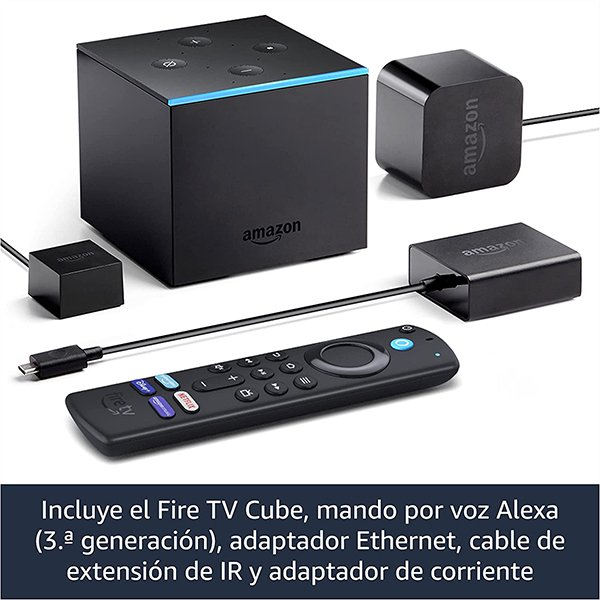
While the Cube is designed for hands-free voice control, the remote is essential for the initial setup and for those times you don’t want to talk. The 2026 models typically ship with the Alexa Voice Remote Pro, which includes backlit buttons, customizable shortcuts, and a remote finder. During the first boot, the Cube will guide you through pairing, a process that takes just a few seconds.
The IR Blaster: Controlling Your Other Gear
The Cube has an omnidirectional IR blaster built-in. However, if you have devices inside a cabinet, use the included IR extender cable. Plug one end into the Cube’s IR port and place the other end near the sensors of the gear you want to control. During the setup, the system will help you identify and program your TV, soundbar, and other equipment.
Your Definitive 2026 Fire TV Cube Setup Guide
With everything plugged in, the Fire OS welcome screen will appear. Follow these steps for a perfect setup:
- Pair Your Remote: Press the Home button (the one shaped like a house) on your remote. The device will detect it automatically.
- Select Language: Choose your preferred language from the list.
- Connect to Your Network: Select your Wi-Fi network and enter the password. If you connected via Ethernet, this step will be skipped. Pro tip: you can change your DNS settings later for a potentially faster connection.
- System Update: The Fire TV Cube will now check for, download, and install the latest version of Fire OS. This can take several minutes and may require a restart. Be patient and don’t unplug it.
- Sign In to Your Amazon Account: Enter your Amazon email and password. If you checked the “Link to my account” option when you bought it, this step might complete automatically.
- Save Wi-Fi Password: You’ll be asked if you want to save your Wi-Fi password to your Amazon account to make setting up other devices easier. It’s a secure and recommended option.
- Set Up Parental Controls: Configure parental controls now if the device will be used by children.
- Configure Equipment Control: This is a crucial step! Follow the on-screen instructions to teach the Fire TV Cube how to control the power and volume of your TV and sound system. You’ll have to confirm with your remote if the power and sound tests work correctly.
- Choose Your Apps: The system will suggest installing popular streaming apps. You can select them now or do it later from the Appstore.
And you’re done! With that, your 2026 Fire TV Cube is up and running, ready for action.
Beyond Streaming: Your New Smart Home Hub
The true power of the 2026 Fire TV Cube is its ability to act as your central smart home hub. Thanks to its support for the Matter standard, it can communicate with a massive range of devices. If you have the Pro model, its integrated Zigbee hub lets you connect lights, sensors, and plugs directly without needing extra bridges—a huge advantage for those of us who use systems like Home Assistant and want a clean setup with ZHA (Zigbee Home Automation).
The Must-Have Apps for Your Fire TV Cube in 2026
The app store is vast, but here are the apps I consider essential:
- Streaming: Netflix, Prime Video, Disney+, HBO Max, Apple TV+, Hulu, YouTube, Twitch.
- Music: Spotify, Amazon Music, Apple Music, Tidal.
- Live TV: Sling TV, YouTube TV, Pluto TV, and other free services like Tubi.
- Utilities: Downloader (for sideloading apps), Send Files to TV (for transferring files from your phone or PC).
- Media players: You can install compatible players to manage your local library and play content from your home network.
Common Fire TV Cube Problems (And How to Fix Them)
Even the best tech can have hiccups. Here are solutions to the most common issues:
- Remote is unresponsive: Bring the remote close to the Cube and hold the Home button for 10 seconds to force it to re-pair. If that fails, replace the batteries.
- Video stutters or quality is low: This is almost always a network issue. Restart your router and the Fire TV Cube. If it persists, connect it via Ethernet. In larger homes, a mesh Wi-Fi system like the Amazon Eero can be the ultimate solution.
- Alexa can’t hear me or doesn’t respond: Make sure the microphone mute button isn’t on (the light will be red). Check that the Cube isn’t too close to your speakers. If Alexa isn’t recognizing your voice, try re-training your voice profile in the Alexa app.
- The device reboots on its own: This can be a sign of overheating or an issue with the power adapter. Ensure the Cube is in a well-ventilated spot and always use the original power brick and cable. As a last resort, you can perform a factory reset.
Top Alternatives to the Fire TV Cube in 2026
While the Cube is a fantastic choice, there are other great players on the field:
- Apple TV 4K: The go-to for anyone deep in the Apple ecosystem. It offers a polished interface and stellar performance, though it comes at a premium price.
- NVIDIA Shield TV Pro: Still the king for cloud gaming enthusiasts (GeForce NOW) and for playing back massive, high-bitrate local files, thanks to its powerful AI upscaling.
- Chromecast with Google TV (4K): A more budget-friendly option with a great UI and the power of Google Assistant, but with less raw horsepower and none of the Cube’s smart hub capabilities.
The Verdict: Is the Fire TV Cube Worth It in 2026?
The bottom line? Absolutely. In my testing, the Fire TV Cube (4th Gen) and its Pro sibling aren’t just excellent media players with support for every modern audio and video format (Dolby Vision, Atmos). Their deep integration with Alexa and their role as a smart home command center make them unique in their class. If you’re looking to unify your entertainment and your smart home with your voice, there is no more complete or powerful option on the market today. Its price, while not cheap, is more than justified by the sheer versatility and performance it delivers.
Continue reading
Next related guide · 7 min read
Fire TV Cube (2nd Gen) Review 2026: The Ultimate Retro Streaming Bargain?
Updated on January 29, 2026 Fire TV Cube (2nd Gen) Review 2026: A Retro Streaming Steal? Years after its launch, the Amazon Fire TV…
Continue with this article