As an Amazon Associate, I earn from qualifying purchases. En calidad de Afiliado de Amazon, obtengo ingresos por las compras adscritas que cumplen los requisitos aplicables. If you buy through these links, the price is the same for you and Amazon pays me a small commission that helps keep Tecnoyfoto running.

Updated August 2, 2026
To install unknown apps on a Fire TV, first determine whether your device runs Fire OS or Vega OS. On Fire OS, you can authorize Downloader or another file manager to install an APK. On Vega OS devices, including the Fire TV Stick 4K Select and the 2026 Fire TV Stick HD, Android APK files are not compatible and the familiar permission is not available.
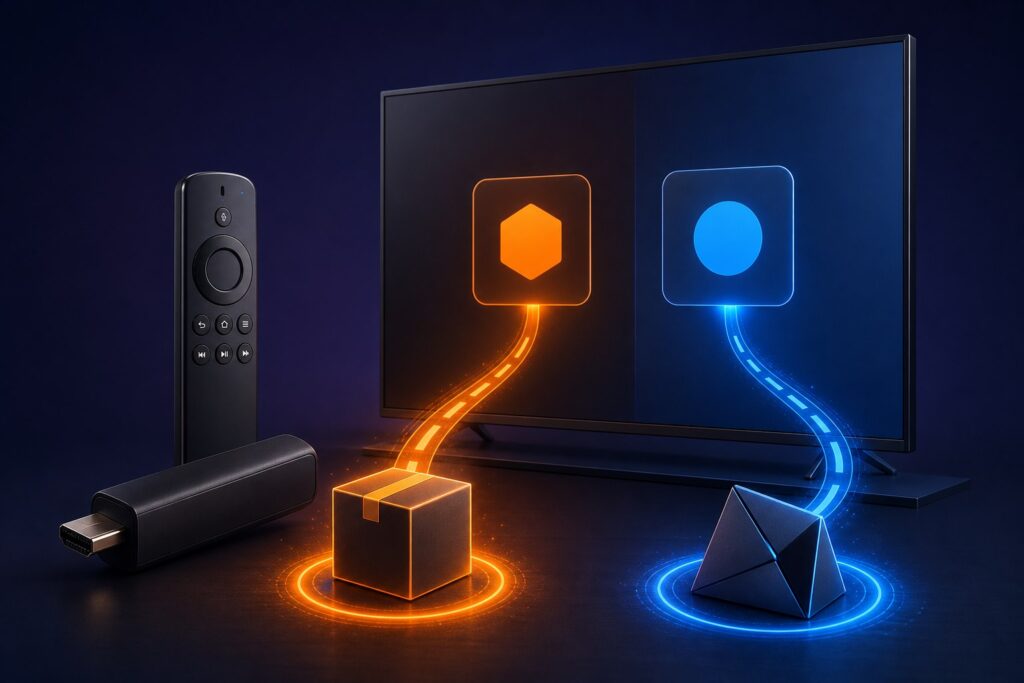
Fire OS vs. Vega OS: the key difference
Fire TV devices traditionally used Fire OS, an Android-based platform that can run compatible APK packages. Amazon now also uses Vega OS, a different operating system with a different app format. That means older Downloader tutorials do not apply to every current Fire TV.
| Representative model | Operating system | Android APK support |
|---|---|---|
| Fire TV Stick HD (2026) | Vega OS 1.1 | No |
| Fire TV Stick 4K Select (2025) | Vega OS 1.1 | No |
| Fire TV Stick 4K Plus (2025) | Fire OS 8 | Yes, when the APK is compatible |
| Fire TV Stick 4K and 4K Max, 2nd gen (2023) | Fire OS 8 | Yes, when the APK is compatible |
| 2024 Stick HD, Lite, 3rd-gen Stick, and earlier models | Fire OS, version varies | Usually yes |
| Fire TV CubeAffiliate link and Fire TV smart TVs | Varies by model | Check the exact model |
This table covers common devices, not every regional variation. Amazon says that, beginning with Fire TV Stick 4K Select, future Fire TV Sticks will use Vega. Always verify the full model name before buying a device specifically for sideloading.
How to identify your Fire TV model
- Open the Settings gear from the Home screen.
- Select My Fire TV or Device & Software.
- Open About and note the exact model and software version.
Menu wording can vary on Fire TV Edition televisions. If the system information mentions Vega, skip the Fire OS instructions below and read the Vega section.
How to enable unknown apps on Fire OS
1. Install Downloader or your preferred installer first
Open Amazon Appstore, search for Downloader, and install it. Fire OS only lists apps that can request the installation permission, so Downloader may not appear under Install unknown apps until it has been installed.
2. Reveal Developer Options if they are hidden
- Go to Settings > My Fire TV or Device & Software.
- Open About.
- Highlight the Fire TV device name and press the remote’s center button seven times.
- Go back one screen. Developer Options should now be visible.
For ADB, troubleshooting, and the separate System X-Ray menu, see our complete Fire TV Developer Options guide.
3. Authorize only the installer app
- Open Settings > My Fire TV/Device & Software > Developer Options.
- Select Install unknown apps.
- Choose Downloader or the app you will use and set it to On.
Older Fire OS versions may instead show one global switch named Apps from Unknown Sources. Enable it only for the installation and turn it off afterward. You do not need ADB debugging for Downloader.
How to install an APK with Downloader
- Open Downloader and grant storage access if Fire OS requests it.
- Enter the official HTTPS address supplied by the app developer.
- Download the APK and review the package name and requested permissions.
- Select Install. If Android reports a parsing error or incompatibility, do not bypass it with a random modified package.
- Delete the downloaded APK after installation to recover storage space.
- Disable Downloader’s unknown-app permission when you no longer need it.
What if your Fire TV uses Vega OS?
Vega OS does not run Android APK files. Its apps use Amazon’s VPKG format. A developer mode exists for registered developers who need to test Vega applications, but it requires a developer account, device registration by DSN, and Vega development tools. It is not a consumer workaround for Android sideloading.
If an app is missing on Vega, search Amazon Appstore, use the service’s web player if the browser and provider support it, cast from another device when available, or use a compatible Fire OS/Android TV device. Avoid websites claiming that a hidden toggle can make Vega install APKs.
Troubleshooting on Fire OS
- Developer Options is missing: open About and press the exact device-name row seven times.
- Downloader is not listed: install and open it once, then return to Install unknown apps.
- Downloader is absent from Appstore: confirm the device region and model. Do not install an unknown clone.
- “App not installed” appears: the package may target an unsupported Android version or CPU architecture, conflict with an installed signature, or require services unavailable on Fire TV.
- The app opens sideways or cannot use the remote: it was probably designed for a touchscreen. APK compatibility does not guarantee a TV-friendly interface.
- The permission menu does not exist: recheck whether the device runs Vega OS.
Security and updates
Amazon Appstore normally handles update delivery and screening. A sideloaded app may not update automatically, so you must monitor its official release channel. Remove unused apps, keep Fire TV software current, review permissions, and never enter account credentials in a package of uncertain origin.
Frequently asked questions
Can Fire TV Stick 4K Select install APK files?
No. Fire TV Stick 4K Select runs Vega OS, which does not support Android APK packages.
Does the 2026 Fire TV Stick HD support Downloader and APKs?
It uses Vega OS 1.1 and cannot install Android APK files. App availability depends on the Vega catalog.
Do I need ADB debugging for Downloader?
No. On Fire OS, enable the per-app Install unknown apps permission for Downloader. Leave ADB debugging off unless you are deliberately connecting a trusted computer.
Can every Android app run on Fire OS?
No. An app may depend on Google Play services, a touchscreen, a different processor, or a newer Android API. Use a version officially provided for Fire TV whenever possible.
Related guides and official sources
- Enable Developer Options and ADB on Fire TV.
- Amazon Fire TV device specificationsAffiliate link.
- Amazon: installing and running Fire TV appsAffiliate link.
- Amazon: APK/AAB and VPKG app formatsAffiliate link.
Continue reading

Next related guide · 5 min read
How to Enable Developer Options on Fire TV (2026)
Updated August 2, 2026 Fire TV Developer Options are hidden by default. On Fire OS, open Settings > My Fire TV (or Device &…
Continue with this article