
This article may contain affiliate links. If you buy through these links, the price is the same for you and the store pays me a small commission that helps keep Tecnoyfoto running.

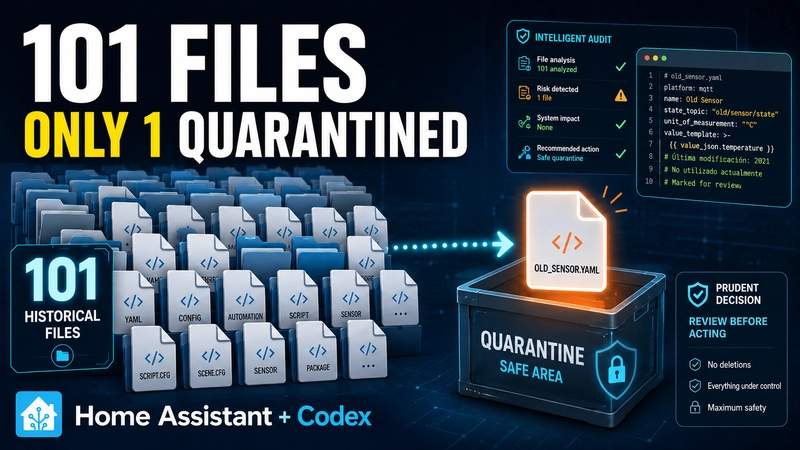
The results of this audit can be summarized as follows:
| Historical files reviewed | 101 |
| Files moved to external quarantine | 1 |
| Files left untouched | 100 |
| Files deleted | 0 |
This distinction matters: we did not delete any files. Out of the 101 historical items, only one was moved to an external quarantine. The other 100 were left untouched because there was not enough evidence to confirm that they were no longer in use.
The goal: clean up Home Assistant without breaking anything
After using Home Assistant for several years, it is normal to accumulate old configurations, tests, copies, YAML fragments, integration files, and data generated by add-ons.
The problem is that an old file is not necessarily a useless file. It may still be loaded through an include, a package, an integration, a dashboard, or an add-on. It may also be used only once a month, during a vacation, in a specific season, or when the alarm is armed.
The absence of a direct reference by name does not prove that a file is unused.
For this reason, the process was carried out slowly and in several stages:
- Initial inventory in read-only mode.
- Candidate classification.
- Search for direct and indirect references.
- Critical review of the initial classification.
- Selection of a small batch.
- Selection of a quarantine location outside Home Assistant.
- Movement of a single file with integrity verification.
- Post-move verification without restarting Home Assistant.
- Observation period before considering any deletion.
Before you begin: safety rules
If you use Codex from an environment that has access to your actual Home Assistant files, the AI may be able to read them and, once authorized, modify them. It is therefore important to establish very clear rules from the first prompt.
- Create and download a recent backup before authorizing any changes.
- Do not paste passwords, tokens, API keys, or cookies into the chat.
- Always begin in read-only mode.
- Do not allow any files to be moved until you have reviewed the classification.
- Do not confuse valid YAML with a fully validated home.
- Do not delete files directly: use a reversible quarantine first.
- Work with very small batches at the beginning.
- Any uncertain item must be classified as DO NOT TOUCH.
Home Assistant allows you to split your configuration using !include, packages, and different !include_dir_* variants. Some of these inclusions recursively scan entire directories. You can learn more in the official documentation on splitting the configuration.
Why an old folder may still be active
A safe audit cannot be limited to searching for each file name in configuration.yaml. It must also review:
!include,!include_dir_list,!include_dir_named,!include_dir_merge_list, and!include_dir_merge_named.- Packages and files loaded from other YAML files.
- Dashboards managed through YAML or the user interface.
- Resources stored in
wwwand references using/local/. - Automations, scripts, scenes, and templates.
- Code inside
custom_components. - ESPHome configurations and packages.
- Files used by Zigbee2MQTT and MQTT.
- Paths built dynamically by scripts.
- Folders monitored or managed by add-ons.
- External processes, scheduled tasks, or containers.
- Monthly, vacation, seasonal, or alarm-related functions.
What we found in the analyzed installation
The initial review started with 101 items in the historical set. During the new pass, two recent items also appeared, but Codex kept them in the DO NOT TOUCH category as well. To avoid mixing figures, the opening summary of this article refers only to the 101 historical items.
Location and age were not enough to consider any file safe to move. An indirect include, an add-on, an infrequent automation, or a seasonal function could still be using it even if its name did not appear in a direct search.
After several reviews, Codex narrowed the practical review down to eight very small historical YAML files that were about five years old. Seven required further checks. Only one, measuring 392 bytes and approximately 1,900 days old, became a reasonable candidate for external quarantine.
Where the quarantine should be stored
Creating another folder inside config does not guarantee isolation. It may fall within the scope of a recursive include and may also be included in full backups.
The official documentation states that a full backup includes, among other things, configuration directories, shared data, manually installed add-ons, certificates, and media. You can find more information in the official backup documentation.
The preferred option is an encrypted folder located on a NAS, computer, or external drive that meets the following conditions:
- It is not inside Home Assistant.
- It is not mounted in Home Assistant.
- It is not shared with ESPHome, Zigbee2MQTT, or other add-ons.
- It is not part of a monitored folder.
- It is not published through
www, media, or dashboards. - It has restricted permissions.
- It has its own backup.
If you do not have external storage, an internal quarantine is still better than deleting files directly. However, you must assume that it could be included in backups and carefully review all recursive includes.
Prompts for running your own audit
The following prompts have been adapted so you can use them in your own installation. They are not a word-for-word transcript of every sentence written during the recording: I have organized and strengthened them to make them clearer, more cautious, and more reusable. Replace the text in brackets with your own information, but do not include passwords, tokens, keys, or private addresses.
Prompt 1: initial inventory in read-only mode
This first prompt prohibits all modifications and requests only an aggregated inventory.
I want to continue a real audit of my Home Assistant installation.

If they exist, first review the following without displaying their contents:
- [RELATIVE_PATH_TO_AUDIT_PLAN]
- [RELATIVE_PATH_TO_WORK_LOG]

If those documents do not exist, state that clearly and continue with a new audit.

Mandatory rules:
- Work in READ-ONLY mode initially.
- Do not modify, move, or delete anything.
- Do not restart or update any services.
- Do not open or display the contents of sensitive files.
- Do not display secrets, tokens, cookies, passwords, keys, private URLs, network addresses, personal names, or identifiable data.
- Replace any sensitive data with [REDACTED].
- Display only relative paths, and redact file names that could reveal private information.
- Before each command, explain exactly which read-only query you want to run and why.

First, review the status of any existing quarantine and prepare a safe inventory of cleanup candidates.

Return only:
- category;
- quantity;
- approximate size;
- age;
- risk.

Do not print file contents, and do not propose moving anything yet.
Prompt 2: in-depth candidate classification
The absence of a named reference must not be interpreted as proof of abandonment. This prompt requires a search for indirect loading mechanisms.
Now classify the candidates, but remain in read-only mode and do not display sensitive content.

The absence of a direct reference by name does NOT prove that a file is unused.

When applicable, also check:
- file and directory includes, including !include_dir_*;
- packages and paths loaded indirectly;
- dashboard and www resources;
- files used by custom_components or integrations;
- ESPHome, Zigbee2MQTT, and MQTT paths;
- scripts or processes that build names dynamically;
- folders monitored or managed by add-ons;
- whether the current quarantine could be included in the active configuration or backups.

For each candidate, report only:
- category;
- evidence of use or abandonment;
- direct, indirect, or unverifiable reference;
- risk of touching it;
- high, medium, or low confidence.

Any uncertain item must remain classified as DO NOT TOUCH.

Do not propose any changes yet.
Prompt 3: critical review with high reasoning effort
Once the initial classification is complete, it is useful to ask the model to act as its own devil’s advocate.
Before proposing any file movement, critically review your own classification using high reasoning effort.

For every candidate you considered safe or probably historical, look for reasons why it could still be active.

Review especially:
- indirect loading mechanisms;
- integrations;
- add-ons;
- dashboards;
- infrequent tasks;
- monthly automations;
- vacation or seasonal use;
- security and alarm functions;
- devices that may currently be disconnected.

Do not make any changes.

Return three groups:
1. high-confidence candidates;
2. items that need further verification;
3. items that must not be touched.

Also explain the limitations of this verification and which real-world uses in the home cannot be validated immediately.

Do not display any sensitive data.
Prompt 4: design a safe quarantine strategy
Without creating folders or moving files, propose a quarantine strategy suitable for this installation.

Before recommending a location, verify that it is outside:
- folders included or loaded by Home Assistant;
- paths managed or monitored by ESPHome, Zigbee2MQTT, MQTT, integrations, or add-ons;
- active dashboard and resource configuration;
- any recursive loading mechanism that has been detected.

Distinguish between:
- a historical file with no sensitive data;
- a file containing expired credentials;
- a file containing credentials that may still be active;
- a historical copy that must be retained;
- unnecessary personal data.

For each case, explain:
- reason;
- risk;
- required protection;
- rollback procedure;
- how to verify it.

Also clarify whether the proposed location would be included in Home Assistant backups.

Do not execute anything and do not display sensitive values or names.
Prompt 5: select a small first batch
I understand that creating another quarantine inside Home Assistant is not advisable if it could be included in backups or fall within the scope of an include.

The final quarantine will be outside the installation, preferably in an encrypted folder that is neither mounted nor shared with Home Assistant, ESPHome, Zigbee2MQTT, or any add-on.

I want to be practical and cautious. First review a small batch of low-risk candidates.

Show me a specific list divided into three groups:
1. do not touch;
2. needs further verification;
3. reasonable candidate for quarantine.

For each candidate, explain in simple terms:
- what type of file it is;
- why you suspect it is no longer used;
- which checks you have performed;
- which uncertainties still remain.

Use stable anonymous identifiers if a file name could reveal private information.

Do not move or modify anything yet.
Prompt 6: verify the external destination
Before using this prompt, mount the external folder yourself through the operating system. Do not paste usernames or passwords into the chat.
I want to use this external location for the quarantine:

[ALREADY_MOUNTED_EXTERNAL_PATH]

Do not display the full path again or any identifiable information.

Before moving any files:
- confirm that the folder exists;
- verify that its metadata can be accessed;
- check for potential write permission without creating any files yet;
- confirm that it is outside the Home Assistant directory tree;
- search the local configuration for exact references to that location;
- check whether it appears as mounted storage or storage managed by Home Assistant or its add-ons, when that information is available;
- state any limitation that prevents you from certifying complete isolation.

Do not list files in the destination.
Do not display usernames, shares, or credentials.
Do not create folders and do not move anything yet.
Prompt 7: move a single candidate with verification
This is the first prompt that authorizes an actual modification. Carefully review the identifier and destination before sending it.
Move only candidate [CANDIDATE_ID] to the external location we have just validated.

Mandatory rules:
- Do not move any other file.
- Do not create folders.
- Do not overwrite existing files.
- Confirm that the identifier maps unambiguously to exactly one file.
- Verify that the source is inside the authorized quarantine.
- Calculate a SHA-256 hash of the original.
- Copy the file to the destination first.
- Calculate a SHA-256 hash of the copy.
- Before removing the original, record the identifier, original path, destination, size, date, hash, and restoration procedure in the authorized manifest.
- Remove the original only if both hashes match and the manifest has been saved correctly.
- If the copy, verification, or manifest update fails, preserve the original.
- Do not display the name, path, hash, or contents on screen or in the chat.
- Return only the operation status, confirmation that the manifest was updated, and the checks performed.
Prompt 8: post-move verification without restarting
Now verify the first batch without restarting or modifying anything else.

Check safely and without displaying sensitive data:
- that the expected active items are still present;
- that the configuration can be validated using the available non-destructive method;
- whether any new related errors have appeared in the logs;
- references in affected dashboards and resources;
- related automations, scripts, and integrations;
- that the inventory and rollback information match the actions performed.

Separate the results into:
1. validated now;
2. pending observation during real-world use;
3. signs that would require a rollback.

Do not confuse a valid YAML configuration with full functional validation of the home.

Include the following household checks:
- dashboards have no newly broken cards;
- normal automations have no new errors;
- related integrations remain available;
- no critical function has been affected;
- observation of monthly, seasonal, or alarm-related processes.
How to validate the configuration without restarting
In Home Assistant OS, go to Settings → Developer Tools → YAML → Check configuration. From the terminal, you can also use:
ha core checkIn Home Assistant Container, change the container name if you are not using the default:
docker exec homeassistant python -m homeassistant --script check_config --config /configAlways check the current method for your installation type in the Home Assistant OS documentation or the Home Assistant Container documentation.
A valid YAML configuration only proves that the structure can be parsed. It does not prove that every automation, integration, dashboard, and device in the home works correctly.
What we checked after moving the file
After moving the only candidate, the static verification confirmed the following:
- The seven YAML files that required further verification were still present.
- The other protected historical items remained unchanged.
- The selected file had been removed from the internal quarantine.
- The external copy existed and had passed the integrity check.
- Home Assistant was still responding.
- The immediate static check detected no related errors.
- No reference to the moved file was found in the 152 dashboard and resource files reviewed.
- No other item was restarted, reloaded, or modified during verification.
These checks are encouraging, but they still do not justify permanently deleting the file.
Observation period: six weeks in this test
For this test, I decided to keep the file in external quarantine for six weeks. This is not a universal timeframe or an automatic guarantee: during that period, the home must be used normally while monitoring:
- Dashboards used by all profiles and devices.
- Daily and weekly automations.
- Scripts run manually.
- Related integrations and add-ons.
- ESPHome and Zigbee2MQTT devices.
- Home Assistant and add-on logs.
- Alarms and security functions.
- Monthly processes.
- Vacation routines.
- Heating, cooling, irrigation, or other seasonal functions.
Six weeks may cover many normal functions, but not all of them. An irrigation system, a holiday automation, or a heating function may require observation across a complete seasonal cycle. When the period ends, the file should not be deleted automatically: the inventory, logs, and actual restoration capability must first be reviewed again.
Signs that require restoring the file
- An include or file-not-found error appears.
- An integration stops loading.
- An automation or script begins to fail.
- A dashboard displays broken cards or resources.
- A device stops compiling, updating, or connecting.
- A critical security or alarm function is lost.
- A new related error appears in the logs.
- A monthly, vacation, or seasonal task fails.
- The external copy changes hash, becomes corrupted, or is no longer accessible.
- The original location cannot be reconstructed with confidence.
The inventory is as important as the quarantine
In this test, the external copy was intact, but the persistent inventory did not yet contain the original path or hash. This did not cause a functional failure, but it did prevent us from safely continuing with a second batch.
For every moved file, it is advisable to store the following information in an encrypted manifest:
- Anonymous identifier.
- Original path.
- External location.
- Size.
- Date moved.
- SHA-256 hash.
- Reason for classification.
- Checks performed.
- Earliest review date.
- Restoration procedure.
Frequently asked questions
Can a five-year-old file be deleted?
Not necessarily. It may still be loaded through an include, used as a package, or depend on a process that runs only occasionally.
Why not delete it directly?
Because a reversible quarantine allows you to recover the file if a problem appears. Permanent deletion should be the last step, not the first.
Can I store the quarantine inside Home Assistant?
You can, but it is not ideal. It could be included in a full backup or fall within the scope of a recursive load. If you have no other option, use a location explicitly excluded from the configuration and review every include.
Can I give Codex my NAS password?
It is not recommended. Mount the resource yourself through the operating system and give Codex only the already authenticated path. Never publish credentials in the prompt.
When can I permanently delete the file?
Only after completing an appropriate observation period, confirming that no errors or references exist, testing the related functions, and verifying a complete rollback procedure. Even then, deletion should be treated as a separate final decision, not as the automatic step that follows quarantine. Seasonal processes require waiting for the relevant cycle.
Conclusion
The goal of a safe cleanup is not to delete as many files as possible. The goal is to reduce risk without breaking Home Assistant.
We started with 101 historical items and ended up moving only one. That may seem like a small result, but it is exactly what should happen when the evidence is insufficient: the other 100 remain untouched.
AI can review thousands of references, includes, files, and logs, but the final decision is still ours. Codex can report that it found no dependency within the scope of its checks; it cannot prove that no dependency exists. Only real-world use of the home can confirm that a monthly, seasonal, or security-related function continues to work.
Read first, classify second, verify next, move only a small batch, and do not delete anything until the installation has been observed for a reasonable period.
Related content
- ChatGPT, Codex, and Home Assistant: how to use AI in your installation.
- secrets.yaml in Home Assistant: protect passwords, keys, and tokens.
- How to create automatic Home Assistant backups.
- How to troubleshoot Home Assistant logs with artificial intelligence.
Continue reading

Next related guide · 14 min read
How to Audit Home Assistant with AI Using Codex: Full Prompt Included
In this article, we are going to see how to audit Home Assistant using Codex and VS Code, without allowing AI to modify anything…
Continue with this article