
This article may contain affiliate links. If you buy through these links, the price is the same for you and the store pays me a small commission that helps keep Tecnoyfoto running.

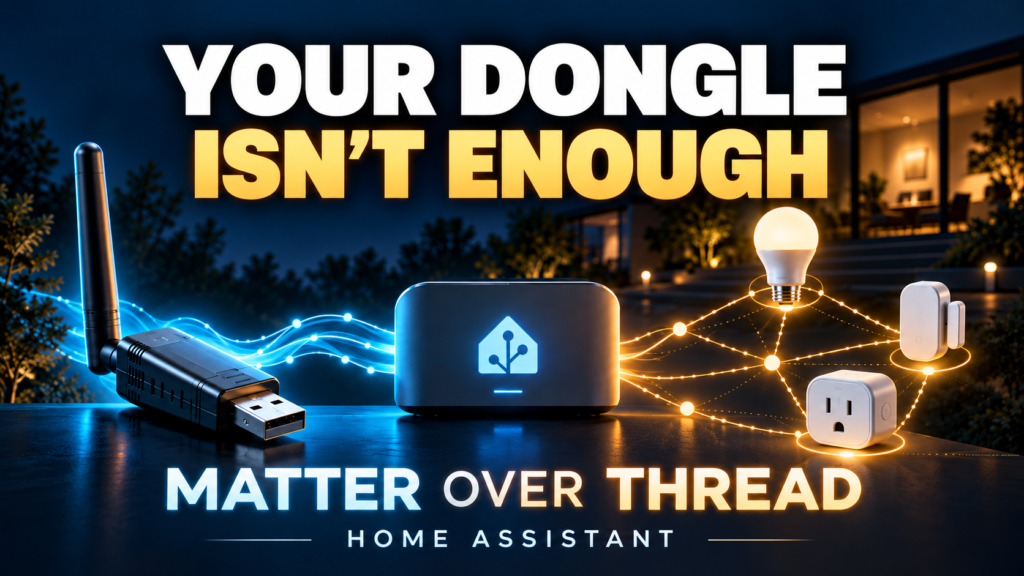
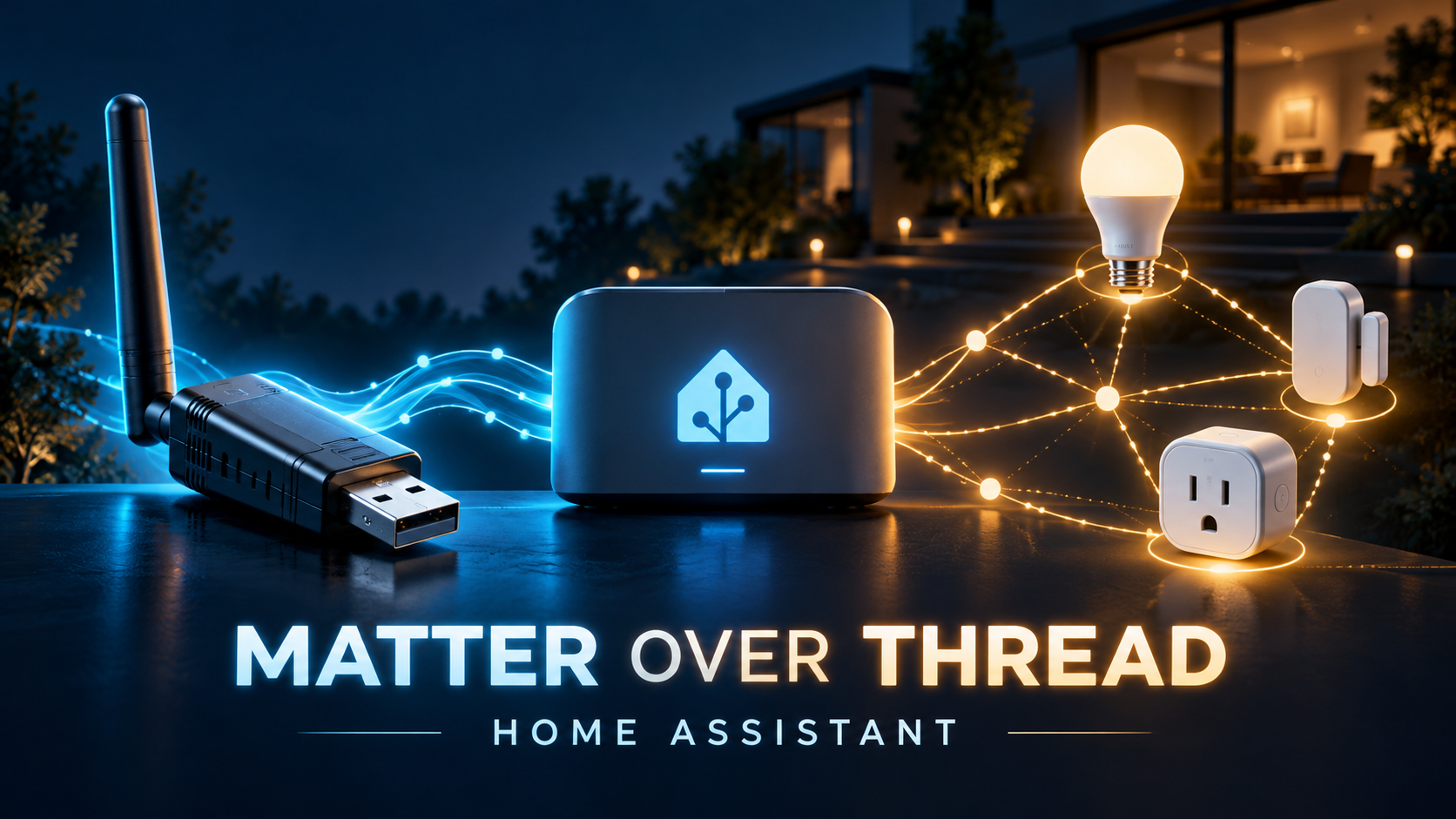
Setting up Matter over Thread in Home Assistant takes more than plugging in a USB dongle. The radio needs the right firmware, OpenThread Border Router must be running, and your phone needs the correct Thread credentials. Matter Server completes the setup so Home Assistant can control your devices.
In the Tecnoyfoto video, I build this infrastructure with a Sonoff Dongle Plus CC2674P10, also called Dongle-PP10, while keeping my existing Zigbee setup. This companion guide explains the process and the checks worth making before scanning your first Matter QR code.
Disclosure: Sonoff provided the dongle used in the video. This article includes an affiliate link; Tecnoyfoto may earn a commission at no additional cost to you.
Matter, Thread, OTBR, and Matter Server: what each one does
Matter is the application protocol; Thread is the network. Matter defines how to control a light, an outlet, or a sensor. Thread carries that communication over a low-power, IPv6-based wireless mesh. Matter devices can also use Wi-Fi or Ethernet, so a Matter logo alone does not tell you that a device uses Thread.
| Component | Job | In this setup |
|---|---|---|
| Thread RCP radio | Handles the radio side. | Sonoff PP10 running OpenThread RCP firmware. |
| Thread Border Router | Routes traffic between the Thread mesh and your home IP network. | PP10 plus OpenThread Border Router running on the Home Assistant host. |
| Thread integration | Displays networks and border routers and manages credentials. | Preferred-network configuration. |
| Matter Server | Runs the Matter controller. | An app connected to Home Assistant’s Matter integration. |
| Home Assistant Companion | Helps with commissioning and phone credentials. | The Android or iPhone app. |
RCP stands for Radio Coprocessor. The PP10 provides that radio, but it is not a standalone border router in this configuration. Matter Server does not connect directly to the Sonoff’s USB port either: the controller communicates over the IP network.
For more background, read what Matter is and how it works. This guide focuses on building the infrastructure with a dedicated Thread radio.
What you need before starting
- An updated Home Assistant OS installation and a recent backup. This is the supported route for the official Matter Server app, which requires a 64-bit platform.
- A Sonoff Dongle-PP10 or another compatible Thread adapter. Other models may require different firmware and settings.
- A USB extension cable to keep the antenna away from the host, storage devices, metal, and interference sources.
- A compatible phone running Home Assistant Companion, with Bluetooth enabled and connected to the appropriate local network.
- Working local IPv6 and mDNS discovery. For the initial setup, avoid guest Wi-Fi or isolation between your phone, Home Assistant, and the border router.
- A separate Zigbee coordinator if you want to keep your Zigbee network running as I do in the video.
Home Assistant Container requires you to manage additional services and networking yourself. It does not have the Home Assistant OS app store. These OS instructions are not an equivalent Docker installation guide.
How to set up Matter over Thread in Home Assistant
1. Dedicate the Sonoff to Thread
Identify the adapter you are going to use. In the video, I keep Zigbee2MQTT and its current coordinator, and dedicate the new PP10 to Thread. Changing the firmware on your active Zigbee coordinator can leave that network without its radio.
Thread and Zigbee share the 2.4 GHz band and underlying radio technology, but they do not share a mesh. Installing Matter Server does not turn a Zigbee bulb into a Thread repeater.
2. Flash the correct OpenThread RCP firmware
Connect the PP10 to your computer and open Sonoff Dongle Flasher in a browser that supports its serial connection. Select the device and choose OpenThread / Thread RCP firmware for CC2674P10.
In the video, I select 460800 baud. Record the setting for the firmware you actually install: OTBR must use the matching rate later. Do not copy a firmware image or baud rate from a ZBDongle-E, ZBDongle-P, or Dongle-M tutorial just because it is another Sonoff product.
Confirm the erase warning only for the correct adapter, click Flash, and wait for completion. Reconnect through the flasher to verify that it shows OpenThread firmware. Use the official PP10 flashing guide as the model-specific reference.
3. Check that Home Assistant detects the USB adapter
Connect the dongle to your Home Assistant host through the extension cable. Open Settings → System → Hardware → All hardware, or the equivalent in your version, and locate the PP10.
The video shows ttyUSB1, but that number can change. For OTBR, select the persistent /dev/serial/by-id/... path belonging to the SONOFF Dongle Plus CC2674P10. My machine has two radios: identify the correct one rather than choosing it by list position.
4. Install and configure OpenThread Border Router
Go to Settings → Apps → Install app and search for OpenThread Border Router. Older versions call this section Add-ons. Install OTBR and open its configuration.
| Setting | Configuration shown in the video |
|---|---|
| Device | The PP10’s /dev/serial/by-id/... path, not the Zigbee coordinator’s. |
| Baudrate | 460800, matching the selected firmware. |
| Hardware flow control | Off in this setup. |
| Log level | notice. |
| OTBR firewall | On. |
| NAT64 / Beta | Off in this setup. |
Save, enable start on boot and the watchdog if available, and start the app. These settings describe the hardware in the video: they are not universal settings for every adapter. If OTBR cannot communicate with the radio, check the model, firmware, port, and baud rate first, then consult the manufacturer’s flow-control instructions.
5. Check the Thread network
Open the OTBR logs, then the Thread configuration. Depending on your version, find it under Settings → Devices & services → Thread or Settings → Connectivity → Thread. Home Assistant can discover the integration automatically when it detects the border router.
You should see the border router and a Thread network. If there is no previous preferred network, OTBR may create one named ha-thread-xxxx. Check that Home Assistant knows its credentials and that you have selected the network you intend to use.
The step people miss: Thread credentials on your phone
Seeing a network in Home Assistant does not mean your phone has its credentials. Setting it as preferred on the server is not enough either: commissioning through Companion may use the phone’s preferred network. Check this when scanning a Matter QR code does not complete successfully.
On Android
In Home Assistant Companion, open Settings → Companion app → Troubleshooting → Sync Thread credentials. Follow the prompts and check the confirmation that Home Assistant’s credentials have been added to your phone.
On iPhone
In Companion, open the Thread configuration and find Send credentials to phone under the preferred network. The location and wording can vary by version; follow the iPhone section of the official Thread documentation.
The direction matters: sending credentials to the phone and sending them to Home Assistant solve different problems. For a new Home Assistant-created network, we want the phone to know that network.
What if you already have a Google or Apple Thread network?
In the video, Home Assistant remembers a network from an old Google Nest device, while my phone prefers another network. After choosing the appropriate network, I add the new border router to the preferred one. Then I check the logs and remove an old entry with no active router.
This does not mean every Thread network automatically merges. To join Home Assistant’s border router to an existing network, first import its credentials from a phone that has access to it, make it preferred, and follow the supported border-router joining procedure. Networks with different credentials remain separate meshes until you reconfigure them.
Do not delete a network that still has devices or routers in use just because a second entry appears. Also, a Thread network and a Matter fabric are different things: sharing Thread transport does not automatically give Home Assistant control of a device already added to Apple Home or Google Home. You still need to commission or share that device with Home Assistant’s Matter controller.
6. Install Matter Server and check the Matter integration
Add the Matter integration under Settings → Devices & services. On a regular Home Assistant OS installation, it can install the official Matter Server app during configuration. If you already have it, check that the app is running and the integration connects to it.
Enable start on boot and, if desired, the watchdog. In the video, I leave automatic updates disabled. That means updating manually and maintaining backups, rather than leaving the server on an old version indefinitely.
7. Before adding your first device
- OTBR starts and recognizes the correct radio.
- Thread shows the border router and the network you want to use.
- Your phone has that network’s credentials.
- Matter Server is running and the Matter integration connects.
- The device carries both Matter and Thread logos and is in commissioning mode.
With that foundation ready, open Companion and add the Matter device by scanning its QR code. The video prepares the infrastructure; installing the Sensereo detectors is covered in the next video. The Thread integration displays network infrastructure; the Matter integration controls Matter accessories.
Matter over Thread won’t connect: what to check first
| Symptom | First check |
|---|---|
| OTBR won’t start or cannot find the radio. | RCP firmware, serial path, baud rate, exclusive USB access, and USB passthrough if Home Assistant runs in a VM. |
| The network appears, but QR commissioning fails. | Phone credentials, Bluetooth, commissioning mode, and proximity during setup. |
| The device joins but doesn’t respond. | Local IPv6, mDNS/multicast, and connectivity between Home Assistant and the border router. |
| Two networks appear and each system prefers a different one. | Which credentials each system knows and which network each border router actually belongs to. |
| Frequent radio failures. | Adapter placement, USB extension, and 2.4 GHz interference. |
| Zigbee stops working after the change. | Check that you didn’t flash or select the existing Zigbee coordinator. |
Local IPv6 does not require IPv6 service from your ISP. Matter needs IPv6 connectivity and local discovery on your home network, not an IPv6 internet connection. Isolated guest Wi-Fi or incomplete VLAN rules can block those exchanges. First test on a local network where the components can communicate, then plan segmentation.
In the logs, Role child → router indicates a role change, while Partition ID identifies a Thread partition. These are useful details in the demonstrated setup, but they do not prove that a Matter accessory has been commissioned. Repeated ChannelAccessFailure messages can indicate a busy channel. An occasional NoAck from a sleeping device does not automatically mean you should reflash the dongle.
To expand coverage, check that your always-powered devices support the Thread router role. Battery sensors are generally end devices; do not expect them all to repeat the signal. Changing the channel after commissioning devices may require recovering some of them afterward, so plan that adjustment before deploying the mesh.
Frequently asked questions
Is a Thread dongle enough to use Matter?
Not in this setup. You need the RCP radio, OpenThread Border Router, a Matter controller, and the correct credentials to commission devices.
Can I keep Zigbee2MQTT?
Yes. In the video it keeps its coordinator and network. The new PP10 is dedicated to Thread, without converting or migrating Zigbee devices.
Do I need the Sonoff if I already have a compatible border router?
Not necessarily. Home Assistant can reach a Thread network through a compatible third-party border router. The phone, credentials, and commissioning process still matter.
Does Thread need internet access to control devices?
Matter communication can work locally. Initial setup, updates, or other manufacturer features may have additional requirements; local control does not mean every related service is completely independent of the internet.
Does the PP10 turn Zigbee sensors into Matter devices?
No. Changing the radio’s firmware does not change your sensors’ protocol. A Matter bridge is a different function and a different setup.
The dongle in the video and what comes next
The Sonoff Dongle Plus CC2674P10 used in the videoAffiliate link lets you dedicate a radio to Thread. Check current pricing and availability; you do not need this exact model if you already have a compatible solution.
Get 10% off: use coupon code TECNOYFOTO at checkout on Sonoff.
To review controllers and devices, see our Home Assistant Matter integration guide. The next practical step is adding Matter over Thread detectors to the infrastructure we have just prepared.
Sources and technical review
Based on Tecnoyfoto video 812 and checked against manufacturer and Home Assistant documentation on October 14, 2026. Menu names and some features may change between versions.
- Home Assistant: Thread networks, credentials, and troubleshooting.
- Home Assistant: Matter setup and network requirements.
- Sonoff: PP10 compatibility and RCP role.
- Thread Group: end devices, routers, and coverage.
Continue reading

Next related guide · 7 min read
Sensereo MS-1 Interlink and MSC-1 Review: Home Assistant
The Sensereo MS-1 Interlink has a clear purpose: when one alarm detects smoke, other compatible Interlink units can sound too. Matter over Thread adds…
Continue with this article