

Updated on March 14, 2026
Controlling your house with your voice has gone from a sci-fi dream to an everyday reality. By 2026, the Amazon Alexa ecosystem has matured into a powerful command center for your smart home. Whether you’re just getting started or looking to get the most out of your devices, this definitive guide will teach you all the Alexa smart home commands you need, from initial setup to the most complex automations.
Getting Started: How to Set Up New Devices in the Alexa App
Before you can use voice control, you need to add your devices. The process has been massively simplified thanks to standards like Matter, but the basic steps are still the same. Here’s the dead-simple way to set up Alexa devices.
- Open the Alexa App: On your smartphone or tablet, launch the Alexa application.
- Go to Devices: Tap on the “Devices” tab in the bottom navigation bar.
- Add a New Device: Tap the “+” icon in the top-right corner and select “Add Device”.
- Choose the Device Type: Alexa will show you a list of categories (Light, Plug, Thermostat, etc.). Pick the one that matches your gear. If your device is Matter-compatible, you can often just select “Matter” and scan a QR code for a nearly instant setup.
- Follow the Instructions: The app will guide you to put your device into pairing mode. Alexa will then scan your network for it. Once found, you’ll be prompted to assign it to a room.
- Install the Skill if Needed: For some devices, especially older or more specialized ones, you’ll need to enable their specific Alexa smart home skills. Search for the brand’s skill (e.g., “TP-Link Tapo,” “Philips Hue”), enable it, and sign in with your manufacturer’s account to link it with Alexa.
Once it’s set up, you’re ready to start using voice commands! If you run into any trouble, check out our guide on how to set up your Amazon Echo from scratch.
Organize Your Home: Creating Device Groups
Got multiple smart lights in your living room? Saying “Alexa, turn off living room light 1,” “Alexa, turn off living room light 2″… is a real pain. The solution is Groups. By grouping devices, you can control them all at once with a single command.
For example, if you create a group named “Living Room” that includes all the lights, plugs, and the thermostat in that space, simply saying “Alexa, turn off the living room” will shut down every device in that group. It’s a game-changer for convenience.
The Magic of Automation: A Complete Guide to Alexa Routines
Alexa Routines are the key to a truly intelligent home. They let you chain multiple actions together that run automatically based on a trigger. Forget about barking orders one by one; with routines, your home works for you.
Every routine has two parts:
- When… (The Trigger): This is what kicks off the routine. It can be a voice command (“Alexa, good morning”), a specific time, a motion sensor detecting movement, your arrival home (geofencing), and more.
- Alexa will… (The Action): This is what happens when the trigger fires. You can turn on lights, adjust the thermostat, play your favorite radio station, get the weather forecast, and so much more.
Here are a few examples of routines I’ve configured in my own home:
- “Good Morning” Routine: When I say, “Alexa, good morning,” the bedroom shades open gradually, the lights fade on to 30%, the thermostat kicks up to 70°F (21°C), and Alexa reads me the daily news briefing.
- “Movie Night” Routine: The command “Alexa, it’s movie time” triggers the main living room lights to turn off, the LED strip behind the TV to glow a dim blue, and the smart plug for the popcorn maker to switch on.
- Security Routine: If the front door sensor is opened between 1:00 AM and 6:00 AM, all the lights in the house blast on to 100% brightness, and every Echo device announces, “Intrusion detected at the front door.”
The possibilities are endless. Routines are what elevate your setup from a cool gadget to a genuinely smart home.
Most Popular Alexa-Compatible Devices in 2026
The ecosystem of Alexa-compatible devices is massive. Here’s a quick rundown of the most reliable categories and brands that I’ve personally tested and can vouch for.
Smart Lighting
This is the gateway drug for most people. It lets you change colors, dim the lights, and set schedules.
- Philips Hue: The gold standard. Rock-solid reliability, fantastic color quality, and a massive ecosystem.
- Govee: Excellent bang for your buck, especially for LED strips and ambient lighting.
- Nanoleaf: Famous for their decorative, modular light panels. Perfect for creating a unique vibe or a killer gamer setup.
Smart Plugs
These turn any dumb appliance (lamps, coffee makers, fans) into a smart one.
- TP-Link Tapo: Easy to set up and super reliable. Their energy-monitoring models are my personal favorites.
- Meross: Another solid brand with a huge variety of products, including smart power strips.
- SONOFF: They offer more advanced solutions, like Zigbee-based plugs, which are ideal for building a more robust and responsive mesh network.
Thermostats & Climate Control
Save money on your energy bill by intelligently controlling your heating and A/C.
- Google Nest Thermostat: Yeah, it’s from the competition, but its Alexa integration is excellent, and its learning capabilities are top-notch.
- Tado°: Climate specialists. Their geofencing feature automatically turns down the heat when you leave home.
- Airzone: For homes with zoned HVAC systems, their smart thermostats offer granular control over every room. Check out our guide on integrating Airzone with Home Assistant for advanced setups.
Security Cameras & Locks
Keep an eye on your home and control access from anywhere.
- Ring and Blink: Since they’re owned by Amazon, the integration with Echo Show devices for viewing camera feeds is seamless and native.
- EZVIZ: They offer a massive catalog, from indoor cameras to advanced smart locks.
- Nuki: Their smart lock is one of the most full-featured and easy-to-install options that fits over your existing deadbolt.
The Ultimate List of Alexa Smart Home Commands
I’ve updated and expanded the original command list, organizing it by device type so you can find what you need in seconds.
Lighting
| To do this… | Say this… |
|---|---|
| Turn On / Off | “Alexa, turn on / turn off [light name or group name].” |
| Adjust Brightness | “Alexa, set [light name] to [50] percent.” “Alexa, brighten / dim [light name].” |
| Change Color | “Alexa, change the [light name] to [blue, red, magenta…].” |
| Adjust White Tone | “Alexa, set the light to warm white / cool white / daylight.” “Alexa, make the light warmer / cooler.” |
Climate (Thermostats & A/C)
| To do this… | Say this… |
|---|---|
| Set Temperature | “Alexa, set the thermostat to [72] degrees.” “Alexa, raise / lower the temperature by [2] degrees.” |
| Check Temperature | “Alexa, what’s the temperature in the [living room]?” “Alexa, what’s the thermostat set to?” |
| Change Mode | “Alexa, set the air conditioner to cool / heat / auto.” |
Security (Cameras, Locks, and Sensors)
| To do this… | Say this… |
|---|---|
| View a Camera | “Alexa, show me the [front door camera].” (Requires an Echo Show or Fire TV device). |
| Control Locks | “Alexa, lock the front door.” “Alexa, is the front door locked?” “Alexa, unlock the front door.” (Requires a 4-digit voice code for security). |
| Check Sensors | “Alexa, is the bedroom window open?” |
| Activate Alexa Guard | “Alexa, I’m leaving.” (Activates Away mode). “Alexa, I’m home.” (Deactivates the mode). |
Routines, Scenes, and Groups
| To do this… | Say this… |
|---|---|
| Activate a Routine or Scene | “Alexa, turn on [routine/scene name].” For example: “Alexa, movie time.” |
| Control a Group | “Alexa, turn on [group name].” “Alexa, set [group name] to 70%.” |
Beyond the Basics: Advanced Tips & Skills
To really max out your smart home, you have to go beyond basic commands. Alexa smart home skills are like apps that add new features. Brands like iRobot (for Roomba vacuums) or Somfy (for motorized blinds) have their own skills that enable device-specific controls.
For power users seeking total customization, I highly recommend exploring platforms like Home Assistant. It allows you to unify devices from hundreds of different brands (even those without official Alexa support) and create incredibly powerful automations. Inside Home Assistant, you can install Apps (formerly known as Add-ons) to connect services like Zigbee, Z-Wave, or MQTT, and then expose everything to Alexa for unified voice control.
Frequently Asked Questions (FAQ) about Alexa and Smart Homes
- Alexa says she can’t find my device. What do I do?
- First, make sure the device is plugged in and connected to the same Wi-Fi network as your Echo. Try power-cycling the device and your router. If it’s still not showing up, check in the Alexa app to see if the manufacturer’s skill needs to be re-enabled. Sometimes, changing a password on the manufacturer’s account can de-link it. If the problem persists, check our guide on what to do when Alexa says a device is not registered.
- Can I change a device’s name in the Alexa app?
- Yes! And you absolutely should. This makes your voice commands feel more natural. In the Alexa app, go to “Devices,” select the one you want to rename, tap the gear icon (settings), and choose “Edit Name”.
- My Alexa routine isn’t working. Why?
- Double-check the trigger. If it’s a voice command, make sure you’re saying the exact phrase. If it’s time-based, check that the AM/PM is correct. You should also verify that the actions within the routine are configured properly and that the devices involved respond to individual commands.
- What do the colored lights on my Echo mean?
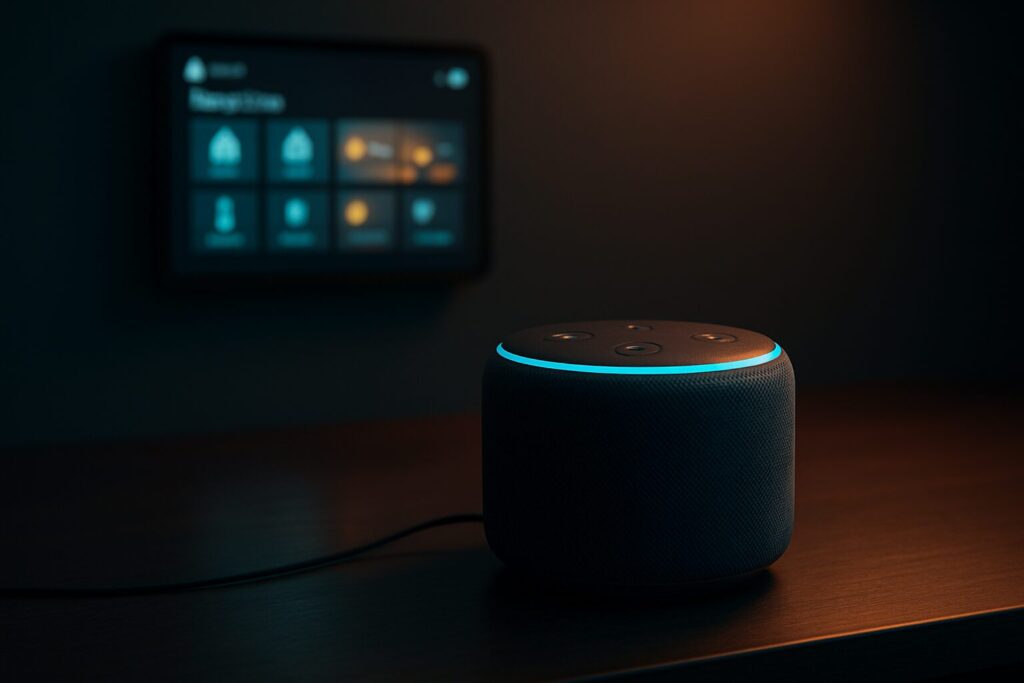
- Each color has a meaning. A spinning cyan-blue light means she’s listening. A pulsing yellow light indicates you have a notification or message. A green light means you have an incoming call. A solid red light means the microphone is muted. You can learn more in our guides on the meaning of the yellow light or what the green light means.
- Does Alexa always need an internet connection?
- Yes. To process your voice commands and communicate with cloud servers and your smart devices, Alexa always needs an active internet connection.