
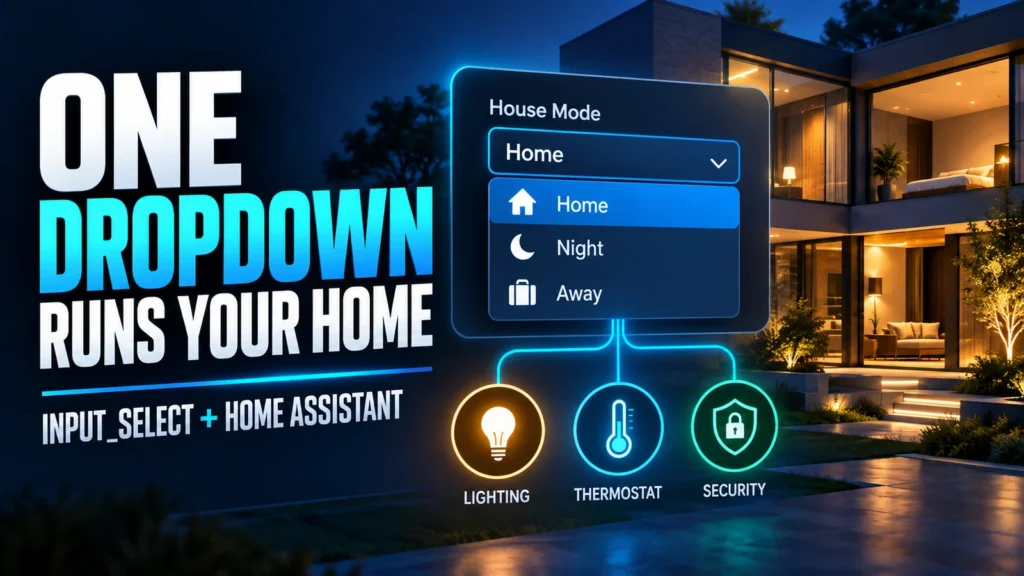

Home Assistant input_select turns a list of choices into a dropdown. It stores one state—such as Home, Night, or Away—that dashboards, automations, scripts, and scenes can read or change.
Quick answer: go to Settings > Devices & services > Helpers, select Create helper, and choose Dropdown. Add your options and save. Home Assistant creates an input_select... entity that can be a trigger, condition, or action target.
What input_select does
An input select is a virtual entity, not a physical device. Automations interpret its selected value. It is ideal for mutually exclusive choices: house modes, scenes, HVAC profiles, robot-vacuum rooms, or media sources. For on/off use input_boolean; for a number use input_number. See our Home Assistant helpers guide for a comparison.
Create a dropdown helper in the UI
- Open Settings > Devices & services > Helpers.
- Select Create helper, then Dropdown.
- Name it House mode and add Home, Night, and Away.
- Choose an optional icon and save.
The entity will look like input_select.house_mode. Confirm its ID under Entities or Developer tools > States. A normal installation does not require you to add default_config: manually.
Configure input_select in YAML
input_select:
  house_mode:
    name: House mode
    options:
      - Home
      - Night
      - Away
    initial: Home
    icon: mdi:home-switch
options is required; name, initial, and icon are optional. Without initial, Home Assistant restores the previous state. Quote words such as "On", "Off", "Yes", and "No" because YAML can treat them as booleans. Validate changes and call input_select.reload. Our YAML course covers indentation and structure.
Add it to a dashboard
Add an Entity or Entities card containing input_select.house_mode. Every manual choice updates the helper state and can trigger an automation.
type: entity
entity: input_select.house_mode
name: House mode
Use input_select in an automation
This example turns off two areas when the dropdown changes to Away:
alias: Turn off the house in Away mode
triggers:
  - trigger: state
    entity_id: input_select.house_mode
    to: "Away"
actions:
  - action: light.turn_off
    target:
      area_id: [living_room, kitchen]
mode: single
The helper can also be a condition. The visual editor provides select.selection_changed and select.is_option_selected; state triggers and conditions remain easy to read in YAML.
select_option vs set_options
Use input_select.select_option to choose an existing value:
actions:
  - action: input_select.select_option
    target:
      entity_id: input_select.house_mode
    data:
      option: "Home"
The value must match exactly. You can also call select_next, select_previous, select_first, or select_last. By contrast, input_select.set_options replaces the entire list; it does not merely change the selected value.
actions:
  - action: input_select.set_options
    target:
      entity_id: input_select.cleaning_zone
    data:
      options: [Living room, Kitchen, Bedroom]
Templates, scenes, and startup state
Read the choice with states('input_select.house_mode') and all options with state_attr('input_select.house_mode', 'options'). A scene can set input_select.house_mode: Night. At startup, initial takes priority; without it, Home Assistant restores the last state.
Common problems
- It will not change: put
optionunderdataand match the text exactly. - The list disappears: find an automation calling
set_options. - True or False appears: quote YAML boolean-like words.
- The value changes after restart: inspect
initial. - Automations loop: avoid two automations writing values back to each other.
input_select is not a select entity
You create an input_select to store an abstract value. A select entity usually comes from an integration and configures a real device or service. They look alike but use different action domains.
Use the official input_select documentation as the technical reference. Reviewed September 13, 2026.