
Last updated: August 2, 2026
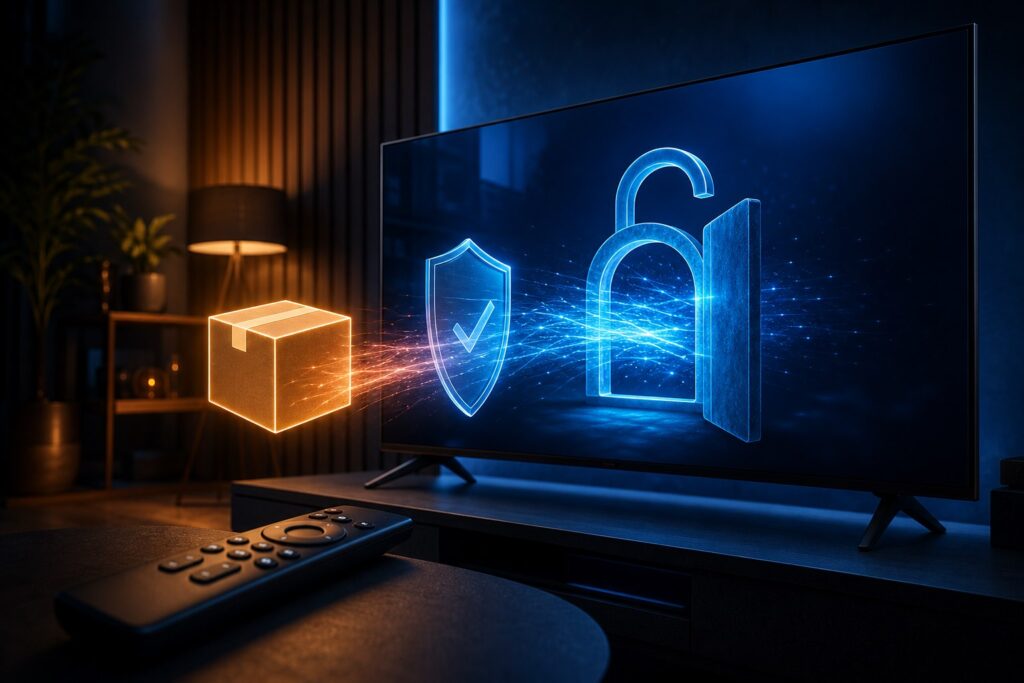
To enable unknown sources on Google TV, allow the app that opens your file—such as Downloader or a file manager—to install outside apps. This is a per-app permission, not one master switch for the entire device. On many newer Google TV devices, the setting appears when you try to open an APK. Older interfaces may place it under Settings > Apps > Security & Restrictions.
Menu names and paths vary by Android TV version and manufacturer. This guide covers both layouts and explains what to do when the setting is missing.
Choose the right path for your Google TV
| What you see | What to do |
|---|---|
| The APK warning includes a Settings button | Open Settings, enable Allow from this source for that app, go back, and select Install. |
| You can find Install unknown apps or Unknown sources | Open that menu and grant permission only to Downloader, your browser, or the file manager you plan to use. |
| The setting is missing or grayed out | Enable Developer options, then search again. The full fallback process is below. |
Best shortcut: try opening the APK first. Android will often send you directly to the exact permission screen, even if the TV manufacturer moved it.
Method 1: Allow the source when you open an APK
- Install the tool you will use to download or open the file, such as Downloader or a file manager, from Google Play.
- Download or transfer a compatible APK and open it from that app.
- When Google TV says the app is not allowed to install unknown apps, select Settings.
- Turn on Allow from this source, or the equivalent setting, for that app.
- Press Back to return to the package installer, then select Install.
Since Android 8, Android has provided a screen for managing trusted external sources individually. Google TV wording and placement can differ, but the principle is the same: you can authorize Downloader without giving every app the same access.
Method 2: Find Unknown sources in Settings
On Chromecast with Google TV and many Sony, TCL, Philips, Hisense, or Xiaomi TVs, you may find one of these paths:
- Settings > Apps > Security & Restrictions > Unknown sources.
- Settings > Privacy > Security > Install unknown apps.
- Settings > Apps > Special app access > Install unknown apps.
Open the list and enable only the app that will launch the APK. If your TV has a Settings search tool, look for unknown, install apps, or security.
If the setting is missing: Enable Developer options
Some older or customized firmware builds hide the control until Developer options are enabled:
- Open Settings > System > About.
- Find Android TV OS build or Build number.
- Press the center button on your remote seven times until the developer confirmation appears.
- Return to Settings and look for Unknown sources again, or reopen the APK.
Enabling this menu does not grant APK installation permission by itself. For ADB, network debugging, and advanced settings, see our dedicated guide to enabling Developer options on Google TV.
Video: The classic Google TV interface
This video shows the classic menu path. If your menus look different, use the open-the-APK method above to jump to the correct permission.
How to install an APK with Downloader
- Install Downloader from Google Play.
- Enter the developer’s official address and download the APK.
- Open the file. If the security notice appears, give Downloader the Allow from this source permission.
- Review the requested permissions and select Install.
- Delete the downloaded file when you no longer need it. If you do not plan to repeat the process, remove Downloader’s installation permission.
You can also transfer the APK from a phone or computer. Follow our Send Files to TV transfer guide.
Why Google TV says “App not installed”
| Problem | Likely cause and fix |
|---|---|
| Downloader is not listed | Open an APK from Downloader so the system can display its permission screen. Also make sure the app is up to date. |
| There is no Install button | The source permission may be missing, the profile may be restricted, or the manufacturer may have moved the control to Privacy or Special app access. |
| App not installed | You may be low on storage, have an installed copy with a different signature, or be using an incompatible build. Back up app data before removing an existing version. |
| The APK is incompatible | Find a build for Android TV and the correct device architecture. A phone-only app may install but still be unusable with a remote. |
| The file is XAPK, APKS, or APKM | It is not one standalone APK. It requires a compatible split-package installer and a trusted source. |
| The app installed but is missing | Apps without a TV launcher may not appear on the home screen. Check Settings > Apps > See all apps; the app may still not support remote navigation. |
| Play Protect displays a warning | Do not disable protection just to force the install. Cancel and verify the file’s source, signature, and reputation. |
Do sideloaded apps update automatically?
It depends. If the app is also available through Google Play, uses the same package ID, and is signed by the same developer, the store may recognize it and offer updates. Apps from a different channel usually require manual updates. Android will reject an update signed with a different key, and replacing the app can erase its local data.
Remove the permission when you are done
Return to Install unknown apps or Unknown sources, select Downloader or your file manager, and turn off Allow from this source. The app you installed will keep working; the change only prevents that source app from installing another package without being authorized again.
Frequently asked questions
Do I have to enable Developer options?
Not on every device. Try opening the APK first. Enable Developer options only if your firmware hides or locks the source permission, or if you need features such as ADB.
Does the setting apply to every app?
No. Android manages external sources per app. Authorizing Downloader does not automatically authorize a browser or another file manager.
Can Google TV install any APK?
No. The package must support your Android version and device architecture and, for a good experience, Android TV. Phone apps may depend on a touchscreen, missing services, or an unsupported screen orientation.
Should I turn off Google Play Protect?
No. Play Protect also checks apps installed from other sources and may warn you, block an installation, or remove harmful software. Keep it enabled.
Related guides and official references
- Developer options, ADB, and debugging on Google TV.
- Transfer an APK with Send Files to TV.
- Watch live TV on Google TV without an antenna.
- Android documentation for trusted external sources.
- How Google Play Protect works.
The safe approach is simple: authorize only the app you use, verify the APK, and remove the permission afterward. You keep the flexibility of sideloading without leaving more access enabled than necessary.
Continue reading

Next related guide · 7 min read
How to Enable Developer Options on Google TV (2026)
Last updated: August 2, 2026 To enable Developer options on Google TV, open Settings > System > About, highlight Android TV OS build, and…
Continue with this article