
As an Amazon Associate, I earn from qualifying purchases. En calidad de Afiliado de Amazon, obtengo ingresos por las compras adscritas que cumplen los requisitos aplicables. If you buy through these links, the price is the same for you and Amazon pays me a small commission that helps keep Tecnoyfoto running.

Updated on January 30, 2026
Forget about clumsy cables, slow thumb drives, and complicated network shares. In 2026, the fastest and simplest way to transfer files to your Smart TV—whether it’s a 4K movie, your photo library, or an APK file—still goes by one name: Send Files to TV (SFTTV). This deceptively simple app packs a serious punch, leveraging the maximum speed of your local network to seamlessly connect your phone, PC, and television.
Why Is Send Files to TV Still the King in 2026?
Even with new alternatives popping up, SFTTV holds its throne for several key reasons that, in my testing, remain unbeatable:
- Blazing-Fast Speeds: Transfers happen directly over your local network (Wi-Fi or Ethernet). This means your speed isn’t bottlenecked by your internet connection but by your router’s capabilities, blowing away Bluetooth or cloud-based transfers.
- Dead-Simple Interface: The UI is minimalist and gets straight to the point. You open the app, tap “Send” or “Receive,” pick your file, and choose a device. There are no accounts to create or complex server setups.
- Universal Compatibility: It works flawlessly on virtually any device in your home: Android TV, Google TV, Amazon Fire TV, Android phones, and computers running Windows, macOS, or Linux.
- Works Offline (No Internet Needed): Is your internet down but your Wi-Fi is still on? No problem. As long as your devices are on the same local network, SFTTV works perfectly. This is a game-changer for local network file sharing without relying on third-party services.
- The Sideloading Champion: It’s the go-to tool for installing APKs on Android TV. Sending an app from your phone to your TV is a matter of seconds.
Step-by-Step Guide: Installation and Usage
Getting your phone and TV connected to start transferring files is incredibly straightforward. Just follow these steps.
Step 1: Install the App on All Your Devices
First things first, you need the app installed on both the sending device (your phone or PC) and the receiving device (your Smart TV).
- On your Smart TV and Android Phone: Search for “Send Files to TV” on the Google Play Store or the Amazon Appstore for Fire TV devices.
- On your PC (Windows/macOS/Linux): Download the program directly from the developer’s official website.
Step 2: How to Send Files from Your Phone
- Open SFTTV on your phone. The first time you launch it, it will ask for permission to access your files. Grant it.
- Tap the big “Send” button.
- Your file explorer will pop up. Select whatever you want to send: a movie, your vacation photos, a document, or an APK file.
- The app will scan your network and display a list of available receiving devices (like your TV or PC). Select your TV.
- The transfer will begin immediately at the fastest possible speed.
Step 3: Receiving Files on Your Smart TV
- Open SFTTV on your Android TV, Google TV, or Fire TV. By default, it will automatically be in “Receive” mode.
- Initiate the transfer from your phone or PC as explained in the previous step.
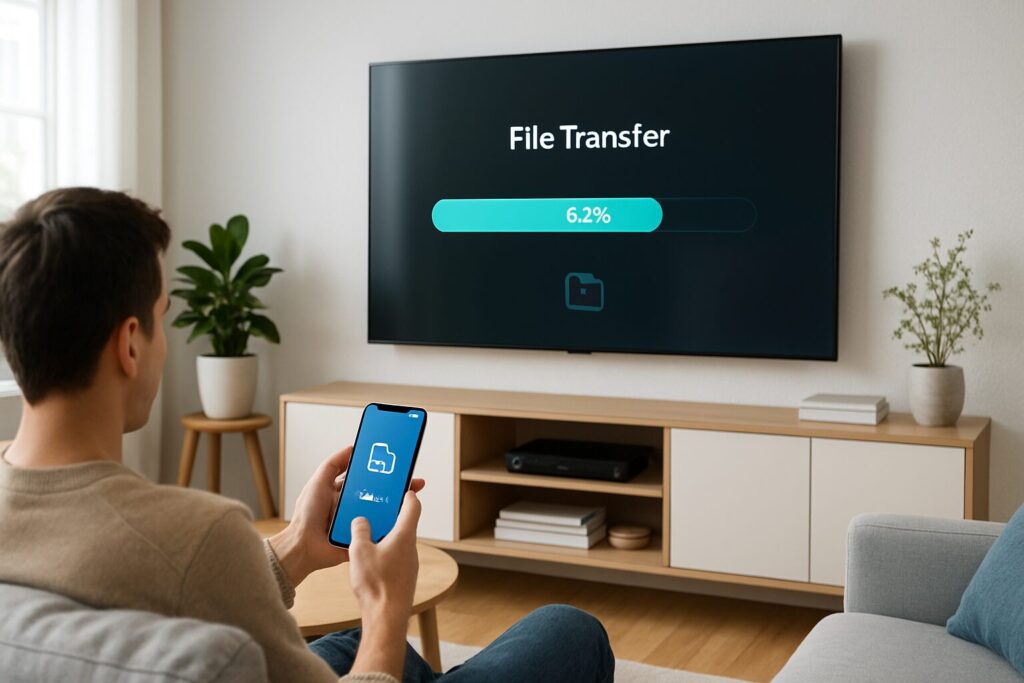
- You’ll see a progress bar on your TV screen. Once it’s complete, the file will be saved to your TV’s internal storage.
By default, received files are saved to the following path on your TV: Internal Storage/Download/SendFilesToTV. You’ll need a file manager app to access them.
Advanced Use Case: Sideloading APKs on Your Android TV or Fire TV
One of SFTTV’s most powerful features is making it dead simple to install apps that aren’t available on the official app store (a process called sideloading). This is how power users get a wider range of applications and tools on their devices.
Enabling the Right Permissions
Before you can do anything, you must allow your TV to install apps from external sources. This is the most critical step and varies slightly depending on your device’s operating system:
- On Fire TV: Go to
Settings > My Fire TV > Developer Optionsand enable “Apps from Unknown Sources”. If you don’t see Developer Options, go to “About” and click repeatedly on your device’s name until a message confirms they’ve been enabled. - On Google TV / Android TV: The process is similar. Go to
Settings > Apps > Security & restrictions > Unknown sources. Here, you’ll need to grant permission specifically to the file explorer app you’ll use to open the APK. For more detailed instructions, check out our guide on how to enable unknown sources on Google TV.
The Transfer and Installation Process
- Use SFTTV to transfer the
.apkfile from your phone or PC to your TV. - On your TV, open a file manager app (like “File Commander,” “FX File Explorer,” or a similar app).
- Navigate to the
Download/SendFilesToTVfolder. - Select the APK file you just sent and click on it.
- Follow the on-screen prompts to complete the installation. That’s it!
Send Files to TV vs. The Alternatives (2026 Comparison)
To put things in perspective, I’ve created a quick comparison chart pitting SFTTV against the most common methods for moving files to a television.
| Method | Speed | Ease of Use | Requirements | Best For… |
|---|---|---|---|---|
| Send Files to TV | Excellent (Local network speed) | Very High | Wi-Fi/LAN, App on both devices | Large files (movies), APKs, quick transfers. |
| USB Drive / Hard Drive | Good (Depends on USB 2.0/3.0) | Medium (Requires physically moving the drive) | TV with a USB port, storage device | Static content, situations with no network. |
| Plex / Jellyfin | Excellent (Local streaming) | Low (Requires server setup) | Always-on PC/NAS as a server, client apps | Organizing and playing entire media libraries. |
| Google Drive / Cloud Storage | Slow (Depends on internet speed) | Medium | Internet connection, cloud account | Small files, documents, accessing from anywhere. |
Common Troubleshooting & FAQ
While the app is incredibly reliable, you might occasionally run into a snag. Here are the fixes for the most common issues.
My TV isn’t showing up in the app.
This is the number one problem users face. Run through this checklist:
- Make sure both the sender (phone/PC) and receiver (TV) are connected to the exact same Wi-Fi network.
- Confirm the SFTTV app is open and in the foreground on the television. It needs to be active to be discovered.
- Restart the app on both devices. A simple refresh often solves it.
- Check your router settings for a feature called “AP Isolation” or “Client Isolation.” This security feature prevents devices on the same network from seeing each other and must be disabled for SFTTV to work.
Why are my transfers so slow?
Transfer speed is entirely dependent on your Wi-Fi network’s health. If you’re experiencing slowdowns, try these tips:
- Move your sending device and TV closer to your Wi-Fi router to improve the signal strength.
- If you have a dual-band router, ensure both devices are connected to the 5 GHz band, which offers significantly faster speeds than the 2.4 GHz band.
- For the ultimate speed and stability, connect your TV directly to your router with an Ethernet cableAffiliate link. A wired connection will always be the fastest option.
Do I need an active internet connection?
Nope! SFTTV only requires a local network to function. Your router can create a Wi-Fi network without being connected to the internet, and the app will work perfectly to transfer files between devices connected to that local network.
Conclusion: The Must-Have Tool for Your Media Ecosystem
Bottom line: Send Files to TV has rightfully earned its stellar reputation. It’s one of those “set it and forget it” tools that just works, every single time. For anyone looking for the most efficient way to send photos to their TV, transfer large video files, or manage APKs on their media devices, SFTTV remains the smartest, fastest, and free-est choice in 2026.
Continue reading

Next related guide · 4 min read
Kodi on Vega OS: Why It Won’t Work and the Best Alternatives
Updated August 18, 2026 You cannot install the Kodi APK on Vega OS. Fire TV Stick 4K Select and the 2026 Fire TV Stick…
Continue with this article