

Last updated on January 25, 2026
Here in 2026, keeping our camera gear on the cutting edge is more critical than ever. Camera bodies are evolving at a breakneck pace, with 100+ megapixel sensors and AI-driven autofocus systems becoming the norm. But what about your lenses? They’re far from being just simple pieces of glass. Modern lenses are complex electronic devices, and their performance is directly tied to their internal software—the firmware. This is where a Sigma lens firmware update comes in. It’s no longer just a simple bug fix; it’s an essential optimization to squeeze every drop of performance out of your investment.
Why a Sigma Lens Firmware Update is Crucial in 2026
Gone are the days when a firmware update was just for fixing a minor focusing issue. Today, the firmware is the brain that manages the complex communication between your lens and your camera. Keeping it updated gives you a real competitive edge:
- Smarter Autofocus (AF): Updates constantly refine AF algorithms, boosting speed, precision, and subject tracking stickiness—especially with the latest eye, animal, and vehicle detection systems in new cameras.
- Future-Proof Compatibility: Every new camera model introduces subtle changes in its communication protocols. New firmware ensures your Sigma lens works flawlessly with the latest bodies right out of the box.
- Enhanced Optical Stabilization (OS): The algorithms controlling the OS get tweaked for better performance, often providing more stops of correction and smoother results for both stills and video.
- Brand New Features: In some cases, Sigma has added entirely new functionality via firmware, like compatibility with linear focus ring control for videographers—something unheard of just a few years ago.
- Bug Fixes: Of course, they still squash any weird bugs or quirky behavior that might pop up with specific camera and lens combinations.
The Sigma Ecosystem: Get to Know Your USB Dock
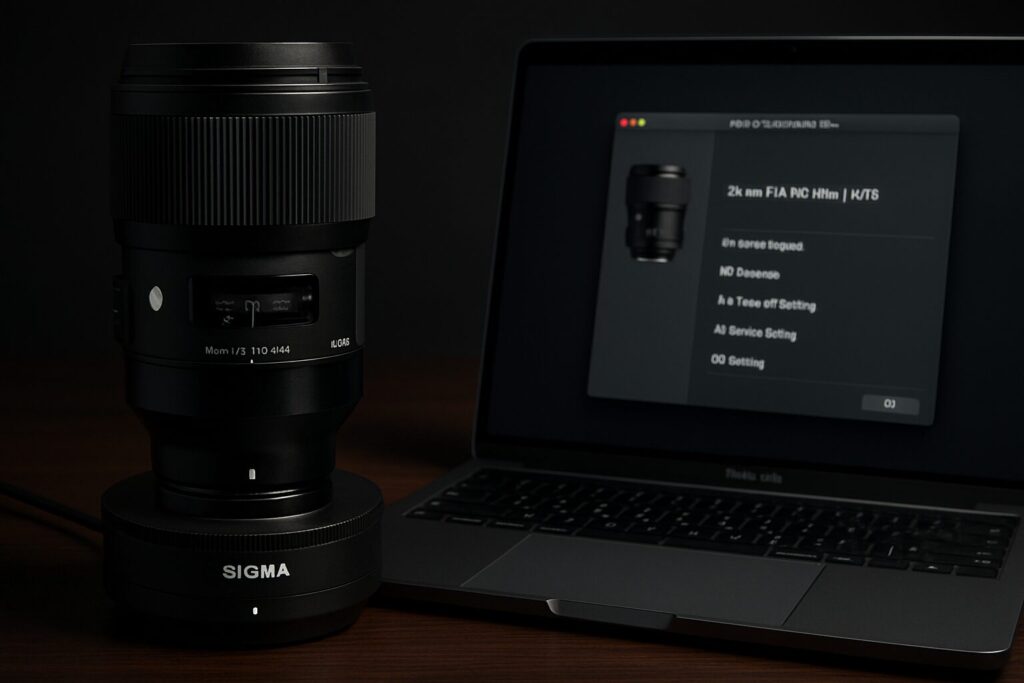
To make all this possible, Sigma developed a groundbreaking tool: the Sigma USB Dock. This little accessory connects your lens directly to your computer, acting as a bridge to its electronic brain. In 2026, it’s essential to know the difference between the two main models:

- USB Dock UD-01: The original workhorse, designed for DSLR lenses from the Art, Contemporary, and Sports lines. It’s compatible with Canon EF, Nikon F, and Sigma SA mounts.
- USB Dock UD-11: The modern version, built specifically for mirrorless (DG DN) lenses. It’s compatible with L-Mount and Sony E-mount. As their catalog has expanded, Sigma has also released versions for Canon RF, Nikon Z, and Fujifilm X mounts.
Heads Up: Each Dock is mount-specific. You can’t use a Canon EF Dock on a Sony E-mount lens. Double-check that you’re buying the correct model for your gear.
Step-by-Step Guide: Update Your Lens with Sigma Optimization Pro
The process is surprisingly straightforward and safe if you follow these steps. In my testing, a full update rarely takes more than 5 minutes.
Step 1: Download and Install the Software
First things first, grab the official tool. Head over to the Sigma download page and get the latest version of Sigma Optimization Pro for your operating system (Windows or macOS). The installation is a standard, no-fuss process.
Step 2: Connect Your Gear
Plug the Sigma USB Dock into a USB port on your computer. Now, launch the Sigma Optimization Pro software. The interface will prompt you to connect a lens.
Step 3: Mount Your Lens
Remove the rear lens cap and the cap from the Dock. Line up the red (or white) dots and mount the lens to the Dock just like you would on a camera, twisting it until it clicks securely into place.
Step 4: Detect and Check for Firmware
Once connected, the software will automatically identify your lens model and its current firmware version. It will then ping Sigma’s servers to see if a newer version is available. If an update is ready, you’ll see a clear button inviting you to proceed.
(A screenshot of Sigma Optimization Pro showing the connected lens and new firmware notification would go here.)
Step 5: The Update Process
Click “Update.” A progress bar will appear. Warning! During this process, it is critical that you DO NOT disconnect the lens, close the program, or shut down your computer. An interruption could potentially corrupt the lens’s firmware.
(A screenshot of the update progress bar would go here.)
Step 6: Finish and Verify
Once the update is complete, the software will display a confirmation message. You can now safely close the program and detach your lens from the Dock. That’s it! Your Sigma lens is now running the latest firmware.
Beyond Firmware: Calibrating Your Lens’s Focus
One of the most powerful features of the Sigma USB Dock is the ability to calibrate your Sigma lens yourself, correcting common Sigma focus problems like front-focus (focusing slightly in front of your subject) or back-focus (focusing slightly behind).
Inside Sigma Optimization Pro, under the “Customization” tab, you can make micro-adjustments at 4 different focus distances for prime lenses, and at 16 different points (4 distances x 4 focal lengths) for zoom lenses. This level of fine-tuning was once reserved exclusively for professional service centers.
Additionally, for Sports line lenses or those with custom function switches (C1/C2), you can configure the focus limiter behavior, AF speed (prioritizing speed vs. accuracy), and the response of the optical stabilizer.
List of Compatible Sigma Lenses (January 2026)
The list of Sigma lenses compatible with the USB Dock is massive. Below is a representative selection of the most popular models as of 2026. Remember, all Global Vision lenses (Art, Sports, Contemporary) released since 2013 are compatible.
Art Line (DG for Full-Frame, DC for APS-C)
- 14mm F1.4 DG DN
- 20mm F1.4 DG DN
- 24mm F1.4 DG DN
- 35mm F1.2 DG DN
- 35mm F1.4 DG DN
- 50mm F1.2 DG DN
- 50mm F1.4 DG DN
- 85mm F1.4 DG DN
- 105mm F1.4 DG HSM
- 135mm F1.8 DG HSM
- 14-24mm F2.8 DG DN
- 16-35mm F2.8 DG DN (New in 2025)
- 24-70mm F2.8 DG DN II
- 18-35mm F1.8 DC HSM
- 50-100mm F1.8 DC HSM
Contemporary Line
- 16mm F1.4 DC DN
- 23mm F1.4 DC DN
- 30mm F1.4 DC DN
- 56mm F1.4 DC DN
- 18-50mm F2.8 DC DN
- 100-400mm F5-6.3 DG DN OS
- 150-600mm F5-6.3 DG DN OS
Sports Line
- 60-600mm F4.5-6.3 DG DN OS
- 70-200mm F2.8 DG DN OS II (New in 2025)
- 150-600mm F5-6.3 DG DN OS
- 500mm F4 DG OS HSM
- 500mm F5.6 DG DN OS (New in 2024)
Common Troubleshooting (FAQ)
- My computer doesn’t recognize the Sigma USB Dock. What do I do?
- Make sure you’ve installed the latest version of Sigma Optimization Pro, as it includes the necessary drivers. Try a different USB port and restart your computer. A faulty USB cable could also be the culprit.
- The software says no updates are available, but I know there’s a new one.
- Check that your computer has an active internet connection; the program needs to reach Sigma’s servers. If the problem persists, the update might be rolling out regionally and may not be available for you just yet.
- The update failed halfway through. Is my lens bricked?
- Highly unlikely. The lens will usually enter a recovery mode. Close the software, disconnect everything, reconnect it, and try the update process again from the start. If it fails repeatedly, contact Sigma’s customer support.
Lens Update Systems Compared (2026)
Sigma was a pioneer, but how does its system stack up against other manufacturers in 2026?
| Brand | Update Method | Pros | Cons |
|---|---|---|---|
| Sigma | Sigma USB Dock (UD-01 / UD-11) | Allows firmware updates and deep, user-controlled focus calibration. | Requires buying a separate accessory (approx. $60-$80). |
| Tamron | TAMRON Lens Utility (via on-lens USB-C) or TAP-in Console | Many new lenses update directly with a standard USB-C cable. Allows customization. | Two coexisting systems can be confusing (older TAP-in vs. newer direct USB-C). |
| Sony | Via camera body connected to a PC/Mac | No extra accessories needed; a free and direct process. | Only updates firmware. No options for user focus micro-adjustment or calibration. |
| Canon / Nikon | Via memory card in the camera (firmware downloaded from website) | Simple, familiar process similar to updating the camera body. No accessories needed. | Zero customization. Focus issues require sending the gear to a service center. |
As you can see, Sigma’s system remains the most comprehensive and powerful option for the enthusiast or pro photographer who wants total control over their gear’s performance. The investment in a Sigma USB Dock pays for itself by ensuring your lenses are always performing at their absolute peak potential.