

Last updated on March 14, 2026
Performing a factory reset on an Amazon Echo or Echo Dot is a critical step in a few key scenarios: if you’ve bought one secondhand, plan on selling or gifting yours, or are simply running into stubborn Echo Dot problems that a simple restart can’t solve. Wiping it clean ensures all your personal information is gone and lets you start fresh with a new setup.
In this definitive 2026 guide, I’ll walk you through every method, broken down by generation, and explain exactly what those blinking lights mean along the way. Once reset, your speaker is the perfect blank canvas to integrate into your smart home, becoming one of the best voice interfaces for controlling your house through Home Assistant.
The Key Difference: Reboot vs. Factory Reset
Before we start pressing buttons, it’s crucial to understand the difference between these two actions, as they’re often confused.
- Reboot (or Restart): This is the tech equivalent of “turn it off and on again.” You just unplug the speaker from the wall, wait 10 seconds, and plug it back in. This doesn’t delete any of your settings, your Amazon account, or your routines. It’s always the first thing I recommend if you’re having connection issues or Alexa isn’t responding.
- Factory Reset: This is the nuclear option, and it’s permanent. It erases all your personal information from the device, unlinks it from your Amazon account, and returns it to the state it was in when you first took it out of the box. This is the process we’re covering in this guide.
How to Factory Reset Your Echo Dot: All Methods
There are two primary ways to factory reset an Echo Dot: using the physical buttons on the device itself or through the Alexa mobile app. The physical method varies slightly depending on which generation of speaker you have.
Method 1: The Hardware Reset (Using Physical Buttons)
This is the most common and reliable method, especially if your device is having trouble connecting to the internet.
Echo Dot (4th & 5th Gen) & Echo (4th Gen) – The Spherical Models
For the newest spherical models, the process is incredibly straightforward:
- Find the Action button (the one with a single dot icon).
- Press and hold this button for about 25 seconds.
- The light ring will turn orange, then blue. Keep holding it.
- The device will restart. When the light ring turns off and then back on in a solid orange color, the process is complete. Alexa will greet you and tell you it’s ready for setup.
Echo Dot (3rd Gen) & Older Models with an Action Button
For the wildly popular 3rd generation Echo Dot (the fabric-covered, puck-shaped model), the process is identical to the newer ones:
- Press and hold the Action button (the one with the dot) for roughly 25 seconds.
- Wait for the light ring to turn orange and then power off.
- When it reboots, the ring will light up again with a spinning orange light on your Echo Dot, indicating it’s now in setup mode.
Echo (1st & 2nd Gen) & Echo Plus (1st Gen) – The Vintage Models
If you have one of the original Echo models, the process is a bit different. Instead of a button, you’ll need a paperclip or a similar pointed tool:
- On the base of the device, look for a tiny reset hole.
- Insert the end of a paperclip and press the button inside.
- Hold it down until the light ring turns orange, then blue, and finally turns off and reboots.
- When the light is orange again, the reset is done.
Method 2: Resetting from the Alexa App
This method is perfect if you don’t have physical access to the speaker, but it’s still connected to your Wi-Fi network. It’s the most convenient way to remotely decommission a device.
- Open the Alexa app on your smartphone or tablet.
- Go to the “Devices” tab in the bottom menu.
- Select “Echo & Alexa” and find the device you want to remove.
- Tap its name, then tap the gear icon (⚙️) in the top-right corner to access its settings.
- Scroll down until you find the “Registered to” section and tap “Deregister.” In some newer versions of the app, this may be labeled “Factory Reset.”
- Confirm your choice. The device will reboot and will no longer be linked to your Amazon account.
So, What Now? The Light Ring After a Reset
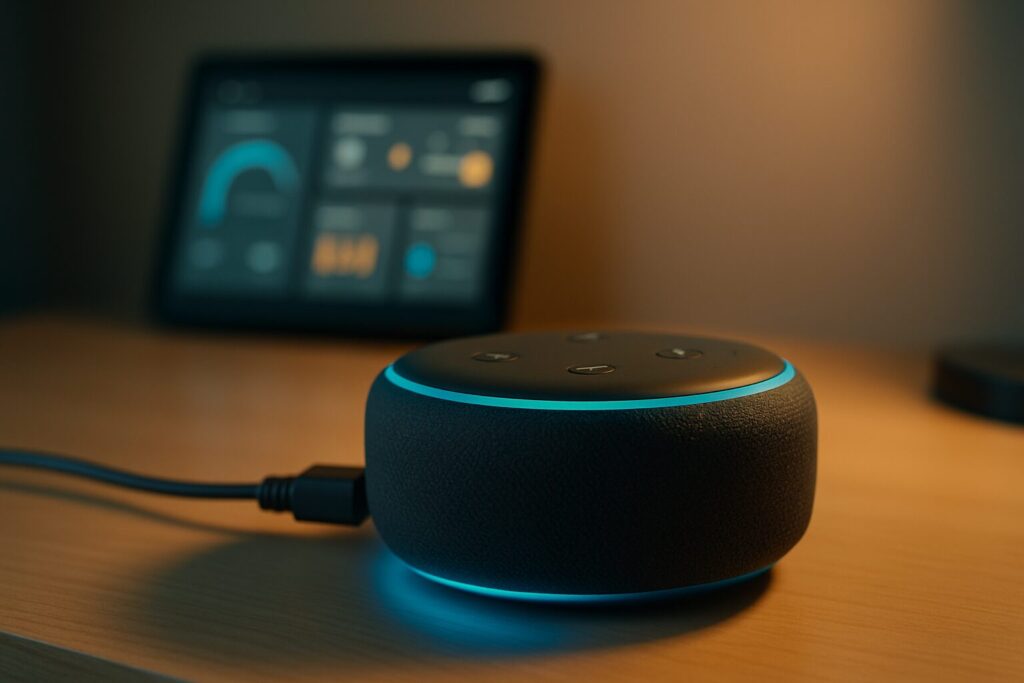
Once the factory reset is complete, your Echo Dot will enter setup mode. You’ll know this because the light ring will turn orange and spin slowly. At this point, Alexa will welcome you and prompt you to complete the setup in the app. You can now set up your Echo Dot as if it were brand new, either for yourself or for the person you’re giving it to.
Troubleshooting & FAQs
Over the years, I’ve seen a few common issues pop up. Here’s a quick-glance table to solve them.
| Problem | Likely Cause | Solution |
|---|---|---|
| The Echo Dot won’t reset when I hold the button. | You haven’t held the button long enough, or you’re pressing the wrong one. | Make sure you’re pressing the “Action” button (with the dot icon) and hold it for at least 25 seconds. Ignore the initial color changes and keep holding until the device fully reboots. |
| The orange light appears or blinks, but I can’t set it up. | Wi-Fi connection issues or interference. | Reboot your router. For the initial setup, try moving the Echo Dot closer to the router. If the problem persists, check our guide on what to do if Alexa won’t connect to Wi-Fi. |
| I can’t find the ‘Deregister’ option in the Alexa app. | The app might be out of date, or the device is showing as “offline.” | First, check your phone’s app store to ensure you have the latest version of the Alexa app. Also, confirm the Echo you want to reset is powered on and connected to the internet. |
| If I reset my Echo, will I lose my routines, Skills, or alarms? | Your Alexa settings are tied to your Amazon account in the cloud, not the physical hardware. | Nope. All your personal configurations, Skills, and routines are saved to your account. The moment you set up any Echo device with that same account, everything will be available again. |
The Next Step: Re-Configuration and Smart Home Integration
With your Amazon Echo now sparkling clean, it’s the perfect time to set it up correctly. During the process in the Alexa app, you’ll be able to connect it to your Wi-Fi network, give it a name, and link your favorite music services.
But its true potential is unlocked when you use it as a powerful voice front-end for your smart home. Personally, I consider it an indispensable companion for local control systems like Home Assistant. Through the Amazon cloud, you can control devices that aren’t even natively compatible with Alexa, including your entire Zigbee ecosystem managed by coordinators like an Ethernet-based Zigbee Coordinator and centralized with tools like Zigbee2MQTT. This is achieved through community integrations, opening up a world of possibilities for your automations.