
This article may contain affiliate links. If you buy through these links, the price is the same for you and the store pays me a small commission that helps keep Tecnoyfoto running.

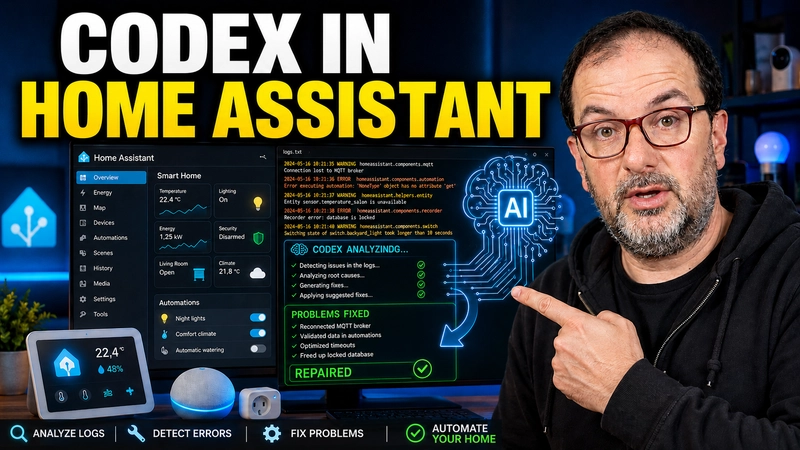
Maintaining a snappy, reliable smart home requires keeping a close eye on system registries. In this guide, I will show you how to clean Home Assistant log files automatically using Visual Studio Code and the power of OpenAI Codex. Stop wasting hours decoding endless lines of broken code and optimize your local server performance in minutes.
Why You Need to Clean Home Assistant Log Files Regularly
System logs easily get cluttered with dropped integrations, YAML syntax mistakes, and constant network retries. Leaving these files to grow unchecked drains your server’s storage and significantly slows down automation response times. Addressing this issue manually takes hours of tedious work, but modern developer tools reduce it to a brief, automated task.
Using Visual Studio Code combined with artificial intelligence provides a major advantage because the model understands the context of your configuration. Instead of just clearing the history blindly, the AI detects the root causes within your custom components. It then applies precise fixes directly to your local configuration files.
Step-by-Step: How to Clean Home Assistant Log Errors
There are two practical methods to process your system registry, depending on the network access level you grant to your development environment.
Method 1: Direct AI Commands
- System Prompt: Ask the integrated AI assistant to access the platform’s core registry directly.
- File Location: The tool will automatically locate the root
home-assistant.logfile without manual file path navigation. - Conflict Resolution: The AI processes the active warnings and writes live patches straight into your configuration files.
Method 2: Manual Log File Upload
If network restrictions block your development environment from reading the file directly, you can easily force the process manually:
- Navigate to Settings > System > Logs inside your Home Assistant dashboard.
- Click the button to download the full log file directly to your computer.
- Drag and drop the downloaded file straight into your Visual Studio Code workspace.
- Command Codex to analyze the text and automatically repair any structured code errors it finds.
Expert Tip: Giving the AI full access allows it to rewrite code autonomously. If you prefer absolute control, limit its workspace permissions so the system asks for validation before saving changes.
What to Do After Debugging Your System
Deep log analysis typically takes about 5 to 10 minutes, depending on how cluttered your local server is. Once finished, the artificial intelligence delivers a detailed modification report highlighting every successful code correction.
Keep in mind that errors tied to third-party cloud APIs or external integrations will remain untouched. After the AI finishes its job, the essential next step is to restart Home Assistant. This generates a fresh, clean log from scratch, allowing you to see which local network issues genuinely need your attention.
Continue reading

Next related guide · 13 min read
How to Protect Home Assistant Passwords with secrets.yaml and Codex
Protecting Home Assistant passwords with secrets.yaml is one of the most important improvements you can make as your installation grows. Automations, scripts, sensors, databases,…
Continue with this article