
This article may contain affiliate links. If you buy through these links, the price is the same for you and the store pays me a small commission that helps keep Tecnoyfoto running.

If you use home automation and want more comfort managing your server, integrating Home Assistant Visual Studio Code is an essential leap in quality. Editing configuration files directly from the web interface can be slow and limiting for real, useful smart homes.
To do this right, you need access to your system folders from your computer. In this article, we will see how to connect your environment using the Samba (SMB) protocol.
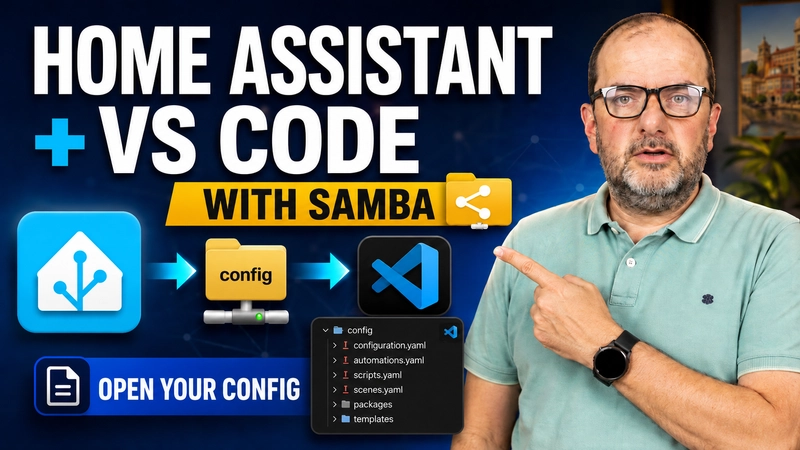
This technique allows you to open the config folder in Windows as if it were a network drive. This way, you can edit automations, scripts, and YAML files in a much faster and structured manner.
Why Use Visual Studio Code with Home Assistant
The native interface allows you to do many things, but when moving towards custom and complex configurations, the experience changes. Having direct access to files from an advanced editor is fundamental.
With this environment, you can work comfortably, search text across multiple directories simultaneously, and compare changes. Furthermore, it greatly makes it easier to review errors and visualize the structure of your installation.
It is also the ideal foundation if you plan to implement artificial intelligence. Tools like Codex will help you analyze logs or understand errors directly if your files are already in the editor.
Ways to Work with Home Assistant Visual Studio Code
There are different ways to approach this workflow, and you should understand them before starting to choose the most appropriate one:
- Studio Code Server: An internal add-on that opens the editor within the browser itself. It consumes server resources and can be uncomfortable on small screens.
- Desktop Editor + Samba: The option we will use today. You share folders on your local network and open them comfortably from the Windows file explorer.
- SSH or Advanced Remote Access: Very powerful for Linux or Docker installations, but requires greater technical administration knowledge.
For the vast majority of home users running the native OS, Samba is the most practical, honest, and easy-to-maintain option.
Home Assistant OS vs. Home Assistant in Docker
This detail is vital, as the method varies drastically depending on your installation type. If you use the OS system, you have the integrated Supervisor to add utilities easily.
In this mature environment, you simply install the add-on from the interface and share your folder over the network. It is a direct and guided process.
If you use a Docker container, the situation changes. Without the add-on store, the host system must handle sharing the path over the network using its own tools.
In this tutorial, we will focus exclusively on the OS version, as it is the most stable and common standard in homes.
Requirements Before You Start
Before modifying any network parameter on your smart home server, strictly ensure you meet these points:
- Have the system running stably on your local network.
- Know the static local IP assigned to your server.
- Have the editor installed and updated on your main computer.
- Perform a full backup before touching any configurations.
Working from the desktop is very comfortable, but it also increases the risk of altering critical files. A recent backup always guarantees your peace of mind against unforeseen events.
How to Install Samba in Home Assistant OS
Access your main dashboard and head over to the Settings section. From there, enter the Add-ons section.
Look for the official “Samba share” application. Install it on your system, but do not start the service yet; first, we must adjust its security parameters.
- Username and password: Define strong credentials. Windows will mandatorily request them when trying to access via the network.
- Workgroup: In Windows, this is usually
WORKGROUPby default. Check it in your PC properties and type it exactly the same in the add-on.
Save the changes carefully. If you forget these credentials, access from the file explorer will be denied.
Restarting Home Assistant After Configuring Samba
After applying the parameters, it is essential to restart the system completely. This is a critical step that many users skip, leading to frustrating connection errors.
If you try to log in from Windows immediately and the connection fails, it is almost always due to this. Restart the server calmly and wait for all services to be operational again.
How to Access Home Assistant from Windows
Once the restart is complete, open the File Explorer on your computer. In the top address bar, type the following:
\\192.168.1.50 (Replace this example with your real IP)
You must type only the two backslashes and the IP, without specifying ports, HTTP, or any other web prefix.
Upon pressing Enter, the system will ask for the username and password configured in the previous step. If the validation is correct, you will see your directories exposed on the network.
Among them, the most important folder that centralizes your smart home is config.
How to Open the config Folder in Visual Studio Code
With the network connection established, open your programming environment. Go to the top main menu and select the File > Open Folder option.
Navigate through the Windows network section until you locate your server’s IP and directly select the config folder.
Immediately, the editor will load the entire file tree in its side panel. From there, you can open, search, and modify any document with professional fluency.
- Pro Tip: Right-click on the network folder and pin it to Windows “Quick Access” to enter instantly next time.
Recommended Hardware and Pricing
Maintaining this advanced workflow is unbeatable on a budget: Home Assistant, the Samba protocol, and Visual Studio Code are 100% free tools.
However, to apply your new configurations, you will need stable physical relays and sensors. To scale your smart home reliably and affordably, Sonoff devices are an excellent choice.
Remember that you have a 10% discount coupon by applying the code TECNOYFOTO on the purchase of all your Sonoff hardware.
Tips to Avoid Breaking Home Assistant
Having so much power over the core files requires technical prudence. A simple spacing error in a YAML file can stop all your rules. Follow these best practices:
- Modify only one thing at a time. If you edit three different files and the reboot fails, isolating the problem will be a complete waste of time.
- Verify the configuration from the “Developer Tools” always before applying a general restart.
- Periodically check the system logs if you notice unusual behavior in your integrations.
Using Codex to Review Home Assistant Logs
With the environment unified, you can rely on artificial intelligence tools to speed up repairs. If you detect cryptic bugs, open the home-assistant.log file from the editor itself.
You can ask Codex to analyze those warning lines, explain their technical origin, and propose a structured solution.
This should never replace your judgment as an administrator, but it is exceptional support for interpreting complex errors quickly.
Related Videos
To master this workflow 100%, I advise you to watch the following complementary material:
- How to connect Codex to VS Code: https://youtu.be/srmoDlv_aj0
- How to clean the Home Assistant log with Codex: https://youtu.be/G84lh8C0ZoY
Both resources fit perfectly with this tutorial and will elevate your control over server maintenance.
Conclusion
Enabling this network protocol is one of those practical and mature decisions that completely transforms how you manage home automation.
It allows you to access the root of the server from your usual desktop environment, speeding up code writing and system monitoring without consuming extra resources on the server.
Always do it methodically: configure secure credentials, adjust the Workgroup, always work with backups, and check syntax after each change. It is the right path to efficient smart home control.
Continue reading
Next related guide · 14 min read
How to Audit Home Assistant with AI Using Codex: Full Prompt Included
In this article, we are going to see how to audit Home Assistant using Codex and VS Code, without allowing AI to modify anything…
Continue with this article