

This article may contain affiliate links. If you buy through these links, the price is the same for you and the store pays me a small commission that helps keep Tecnoyfoto running.

Protecting Home Assistant passwords with secrets.yaml is one of the most important improvements you can make as your installation grows. Automations, scripts, sensors, databases, ESPHome devices, and add-ons such as Zigbee2MQTT can end up storing passwords, tokens, or credentials directly in different configuration files.
That is exactly what I discovered during an audit of my installation with Codex. Sensitive information was scattered across several files, and in the case of ESPHome, there were still 21 passwords written directly in plain text.
In this article, I explain the method I used to locate those credentials, move them to dedicated files, review every modification, and verify that Home Assistant continued working after each change.
Important:
secrets.yamlseparates private information from the rest of your configuration, but it does not encrypt its contents. Anyone with access to the file can read its values. You must also protect access to the system, your backups, and the repository where you store your configuration.
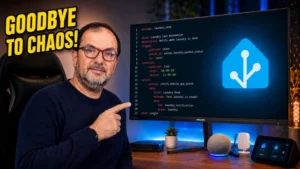
Full video of the repair
In the video, you can watch the complete real-world process: the initial analysis, credential migration, Home Assistant validation, ESPHome review, Zigbee2MQTT configuration, and the quarantine of old files.
Article contents
- What secrets.yaml is in Home Assistant
- Why you should protect your passwords and tokens
- How I audited Home Assistant with Codex
- How to move credentials to secrets.yaml
- How to protect the Recorder database password
- Passwords and secrets in ESPHome
- Zigbee2MQTT credentials
- Historical files and old copies
- How to validate your changes
- Mistakes you should avoid
- Frequently asked questions
What is secrets.yaml in Home Assistant?
secrets.yaml is a file that lets you centralize sensitive information used by your Home Assistant YAML configuration. Instead of entering a password, token, or key directly in each file, you can store the private value in one place and use a !secret reference.
This system can be used to separate data such as:
- Passwords for services and integrations.
- Access tokens.
- API keys.
- Usernames and credentials.
- Private server addresses.
- Database connection strings.
- Keys used by devices or add-ons.
For example, a password written directly in a file might look like this:
rest:
  - authentication: basic
    username: user
    password: "MY_REAL_PASSWORD"
After moving the private value to secrets.yaml, the main configuration would look like this:
rest:
  - authentication: basic
    username: user
    password: !secret rest_password
The real value would then be stored only in secrets.yaml:
rest_password: "MY_REAL_PASSWORD"This lets you share the first snippet when asking for help or documenting your installation without directly revealing the password.
Why protect Home Assistant passwords with secrets.yaml?
Centralizing credentials does not automatically make your installation invulnerable, but it reduces several common risks and makes maintenance much easier.
It reduces accidental exposure
It is very common to copy an automation, share a YAML file on a forum, or publish a screenshot when asking for help. If the password is written directly in the file, it could be exposed without you realizing it.
When you use !secret, the shared snippet contains only the reference name, not the private value.
It makes audits easier
When sensitive data is scattered across dozens of files, it becomes difficult to know how many credentials exist, where they are used, and which ones are no longer needed.
An organized structure makes it easier to review:
- Which passwords are still active.
- Which services use each credential.
- Which tokens should be renewed.
- Which keys belong to old integrations.
- Which references are no longer in use.
It simplifies changes
If the same credential appears in several files, changing it manually in every location increases the chance of making a mistake. A centralized reference lets you change the value from a single location, as long as the configuration is properly organized.
It improves installation organization
An installation that has been maintained for years can accumulate test files, old copies, unused configurations, and forgotten credentials. Periodically reviewing these items helps distinguish the active configuration from historical content.
How I audited Home Assistant with Codex
Codex can analyze a file structure, identify patterns, and suggest changes. However, you should not give it permission to modify your entire installation without supervision.
Artificial intelligence should be used as an assistant. The Home Assistant administrator remains responsible for reviewing changes, protecting data, and validating that everything works correctly.
1. Create a complete backup
Before modifying any file, create a complete Home Assistant backup. It is also a good idea to save a copy outside the primary device.
- Confirm that the backup was created successfully.
- Download it or save it in another secure location.
- Keep the key required to restore it.
- Write down the changes you plan to make.
- Do not delete previous backups until you have confirmed that everything works.
A backup that has never been tested should not be considered an absolute guarantee. The goal is to have a clear recovery procedure before changing the configuration.
2. Request an analysis without modifying files
The first task I gave Codex was to review the installation without writing any changes. The goal was to obtain an inventory of potentially sensitive data before deciding what needed to be modified.
An initial prompt could follow this structure:
Analyze the Home Assistant configuration and identify possible passwords,
tokens, API keys, usernames, connection strings, and other sensitive data.

Do not modify any files.

Report:
- the file and approximate line;
- the type of data detected;
- whether it already uses !secret;
- the risk level;
- the proposed migration.

Do not display the full value of any credential.
This phase lets you review the plan before granting write permissions.
3. Classify the results
Not every match found will necessarily be a real password. An automated analysis may also flag:
- Comments inside files.
- Configuration examples.
- Variable names.
- References that already use
!secret. - Test files or old copies.
- Automatically generated values.
- Data belonging to add-ons that use a different configuration method.
Each match should be reviewed in context before it is moved or deleted.
4. Work in small batches
Instead of migrating every secret at once, I divided the process into separate batches:
- Main Home Assistant configuration.
- Automations and scripts.
- Recorder and database credentials.
- ESPHome devices.
- Zigbee2MQTT configuration.
- Historical files and old copies.
After each batch, I reviewed the differences, validated the configuration, and checked the affected components. This approach makes it much easier to identify which change caused a potential problem.
How to move credentials to secrets.yaml
To protect Home Assistant passwords with secrets.yaml, first assign a descriptive name to each sensitive value.
For example:
mqtt_username: "PRIVATE_USERNAME"
mqtt_password: "PRIVATE_PASSWORD"
database_url: "PRIVATE_CONNECTION_STRING"
camera_api_token: "PRIVATE_TOKEN"
Then replace the original values with their references:
username: !secret mqtt_username
password: !secret mqtt_password
token: !secret camera_api_token
Use clear names related to the service. References such as password1, key2, or new_token will make maintenance more difficult as the installation continues to grow.
How to protect the Recorder and database password
Database connection strings often include several pieces of sensitive information on a single line: username, password, server, port, and database name.
A direct configuration might have this structure:
recorder:
  db_url: mysql://username:password@server/database_name
To prevent that string from being exposed inside configuration.yaml, you can move it to secrets.yaml:
recorder:
  db_url: !secret recorder_database_url
Then save the full value in the secrets file:
recorder_database_url: "mysql://username:password@server/database_name"After making this change, confirm that Recorder starts correctly, that no connection errors appear, and that entity history continues to be recorded.
Passwords and secrets in ESPHome
ESPHome also uses YAML files and lets you separate sensitive information through secret references. This is especially useful for Wi-Fi passwords, API keys, OTA passwords, and other credentials used by your devices.
A device file can use references like these:
wifi:
  ssid: !secret wifi_ssid
  password: !secret wifi_password

api:
  encryption:
    key: !secret esphome_api_key

ota:
  password: !secret esphome_ota_password
The corresponding secrets file would contain the real values:
wifi_ssid: "NETWORK_NAME"
wifi_password: "WI-FI_PASSWORD"
esphome_api_key: "PRIVATE_KEY"
esphome_ota_password: "OTA_PASSWORD"
During my audit, Codex identified 32 password-related references inside ESPHome. Eleven were already using !secret correctly, but 21 passwords were still written directly in the device files.
The migration was carried out in groups, and the affected configurations were validated individually. This meant that if an error appeared, it was possible to quickly identify which device or reference had caused it.
Do not add the ESPHome secrets file to a public repository. You should also review copies, exports, and old files that may contain the same credentials.
How to protect Zigbee2MQTT credentials
Zigbee2MQTT maintains its own configuration and does not always manage secrets in exactly the same way as Home Assistant or ESPHome. The available method may depend on how it is installed, the add-on being used, and the configuration version.
During the audit, I paid particular attention to:
- The MQTT server address.
- The MQTT username.
- The MQTT password.
- The Zigbee network key.
- Frontend tokens or credentials.
- Private paths and parameters.
Before copying a !secret reference into your Zigbee2MQTT configuration, confirm that the method is compatible with your installation. In some environments, you may need to use environment variables, add-on options, or another specific system.
After applying the changes, restart Zigbee2MQTT and review the logs. Confirm that:
- The MQTT connection is established correctly.
- The Zigbee coordinator starts successfully.
- The devices appear again.
- The related automations continue working.
- No authentication errors have been generated.
Review historical files and old copies
One of the easiest things to overlook is files that are no longer part of the active configuration. Even if Home Assistant does not load them, they may still contain valid passwords or tokens.
Some common examples include:
configuration_old.yaml
automations_backup.yaml
scripts_copy.yaml
test_config.yaml
old_esphome_device.yaml
Instead of deleting them immediately, you can move them to a quarantine folder outside the active configuration. After confirming that the installation works correctly, decide whether they should be deleted or stored securely.
You should also review:
- Private or public Git repositories.
- Copies stored on your computer.
- Old compressed files.
- Screenshots.
- Messages posted in forums or groups.
- Backups stored on external services.
If a credential has been published or shared, moving it to secrets.yaml does not undo the previous exposure. In that situation, you should revoke or replace it.
How to validate changes without breaking Home Assistant
Moving a password to secrets.yaml does not guarantee that the reference was written correctly. A mistake in the name, path, indentation, or format can prevent an integration from loading.
After each batch of modifications, follow this process:
- Review exactly which lines were added, removed, or modified.
- Confirm that no private value appears in Codex’s response.
- Check that every reference exists in the correct secrets file.
- Validate the Home Assistant configuration.
- Restart only when necessary.
- Review the logs after restarting.
- Test the affected automations, devices, and integrations.
- Continue to the next batch only when the previous one is stable.
You can also ask Codex to review the differences without displaying private values:
Review only the changes made in this batch.

Check for:
- missing !secret references;
- indentation errors;
- duplicate names;
- values that remain written directly in the files;
- files modified outside the authorized scope.

Do not display the contents of any password, token, or key.
Mistakes you should avoid during the migration
Allowing Codex to modify the entire installation
An audit should begin with read-only access. Authorize modifications only for specific tasks, known files, and small batches.
Migrating every secret at once
If you modify dozens of files and an error appears, finding the source will be much more difficult. Work in groups and validate each one before continuing.
Failing to review the differences
Before accepting any automated modification, review the changed lines. AI may misinterpret a variable, modify the wrong file, or create an incompatible reference.
Confusing separation with encryption
secrets.yaml is still a readable text file. It protects against accidental exposure, but not against someone who already has access to the file system.
Uploading secrets.yaml to Git
Confirm that secrets files are excluded from version control. You should also review the repository history: deleting the current file does not guarantee that the credentials have disappeared from previous commits.
Failing to review the logs
The fact that Home Assistant starts does not mean that every integration is working. Check the logs, history, ESPHome, MQTT, Zigbee2MQTT, and the related automations.
Audit results
After completing the process:
- The credentials were better centralized.
- The 21 plain-text ESPHome passwords were replaced with references.
- The database connection was reviewed and migrated.
- Zigbee2MQTT was tested after its configuration was modified.
- Historical files were separated from the active configuration.
- Each batch was validated before moving on to the next one.
The most important improvement was not simply using artificial intelligence. What really mattered was establishing a safe working method:
Analyze, review, modify in batches, validate, and document.
Related videos
How to install and integrate Codex into Visual Studio Code
Complete Home Assistant audit using Codex
Home Assistant and VS Code: the missing step to edit everything
Frequently asked questions about secrets.yaml
Does secrets.yaml encrypt passwords?
No. The file separates private values from the rest of the configuration, but it still stores them as readable text. You must protect access to the system, your backups, and any computer you use to edit the files.
Can I use !secret in automations.yaml?
It can be used in YAML configurations that support this tag. After replacing a value, always validate the configuration and test the affected automation.
Does ESPHome use the same secrets.yaml file as Home Assistant?
ESPHome can use its own secrets file. Before sharing values between different environments, review which credentials each one actually needs and avoid granting unnecessary access to every secret in the installation.
Can Codex perform the entire migration automatically?
It can identify patterns and propose modifications, but you should not apply large-scale changes without supervision. Review every difference, work in batches, and validate after each group of changes.
Should I change the passwords I find?
If a credential has appeared in a repository, screenshot, forum, shared copy, or any uncontrolled location, the safest approach is to revoke it and create a new one. Moving it to secrets.yaml does not undo previous exposure.
What happens if Home Assistant does not start after the change?
Review the reference name, indentation, file location, and logs. If you cannot quickly identify the problem, revert the most recently modified batch or use the backup you created before starting.
Conclusion
Protecting Home Assistant passwords with secrets.yaml helps keep your configuration more organized and reduces the risk of accidentally publishing passwords, tokens, or private keys.
Codex can speed up the search for sensitive data and help prepare modifications, but it does not replace a security strategy. The process should be reversible, supervised, and divided into small stages.
Before changing anything, create a backup. Then analyze without modifying files, review every result, migrate only the necessary values, and validate every affected service. The installation is not fully repaired until Home Assistant, ESPHome, the database, MQTT, and Zigbee2MQTT continue working correctly.
If you would like me to continue documenting the improvements found during this audit, let me know in the video comments and subscribe to Tecnoyfoto for more practical content about Home Assistant, automation, and artificial intelligence.
Continue reading
Next related guide · 3 min read
How to Organize Home Assistant with Packages
If you have been in the home automation world for a while, you know that keeping your code clean is not easy. As your…
Continue with this article